
Basic File I/O in Python
A Python program that never touches a file forgets everything the moment it exits. File I/O is how your code keeps data after the run ends—saving notes,…

Key topics
A Python program that never touches a file forgets everything the moment it exits. File I/O is how your code keeps data after the run ends—saving notes, loading a list of names, or writing a log. In this tutorial, you'll learn how to open, read, and write files in Python, step by step.
What Is File I/O?
File I/O stands for "File Input/Output." It means reading from or writing to files stored on your computer.
Why does this matter? Most useful programs need data that lives outside the code itself. For example:
- Saving your game progress
- Loading a list of names from a text file
- Writing a log of your program's activity
These are all file operations. Once you understand Python file I/O, you can build programs that remember things, process real-world data, and hand data to other tools.
Your First File Operation
Let's start with a complete, runnable example. We'll write a small known string to a file, then read it back and print it.
Create a file called practice.py with this code:
with open("practice.txt", "w") as file:
    file.write("Hello, file!\n")
    file.write("This is my first file.\n")

with open("practice.txt", "r") as file:
    content = file.read()

print(content)
Run it from the same folder:
python practice.py
Expected output:
Hello, file!
This is my first file.
Notice what just happened. The first with block opened practice.txt in write mode, created the file if it didn't exist, wrote two lines, and closed it automatically. The second block reopened the file in read mode, read everything back, and printed it.
This is the whole lifecycle of file I/O: open, act, close. And the with statement handles the closing for you.
Opening Files with with
To work with a file, you first open it. Python provides a built-in function called open() for this.
The recommended way to open a file is with the with statement:
with open("example.txt", "r") as file:
    content = file.read()
Here's what each part means:
"example.txt"is the name of the file you want to open."r"tells Python you want to read the file.as filegives you a file object you can use to read or write data.- The
withblock automatically closes the file when the block ends, even if an error happens.
Tip: Use
with open(...)as your default. It closes the file for you, so you can't forget to close it and leak resources.
Why Not Just file.close()?
Older code opens a file and closes it manually:
file = open("example.txt", "r")
content = file.read()
file.close()
This works, but it's easy to get wrong. If an error happens between open() and close(), the file never gets closed. The with statement avoids that problem entirely. That's why it's the recommended pattern for most file operations in Python.
Knowledge check
Check your understanding
Answer this question before you continue.
Choosing a File Mode
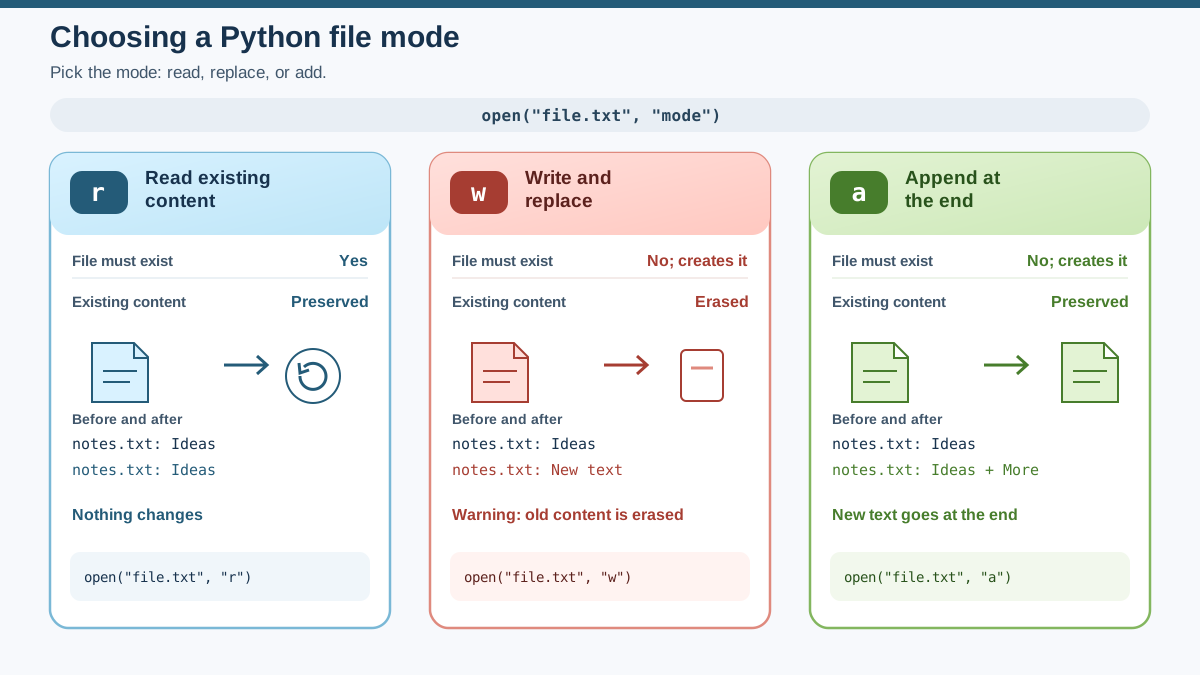
The mode you pass to open() decides what happens to existing content. This is the single most important decision in file I/O.
| Mode | What it does | What happens to existing content |
|---|---|---|
"r" | Read | File must exist; content is unchanged |
"w" | Write | Creates the file or erases existing content |
"a" | Append | Creates the file or keeps existing content and adds to the end |
Warning:
"w"mode erases any existing content in the file before writing. If you open a file with"w"and write to it, whatever was there before is gone.
Here's the decision rule I use: ask what should happen to the existing content. If you want to read it, use "r". If you want to replace it, use "w". If you want to add to it without losing what's there, use "a".
Knowledge check
Check your understanding
Answer this question before you continue.
Reading from a File
Let's look at the different ways to read data from a file. Suppose you have a file called notes.txt with some text inside.
Reading the Entire File
You can read the whole file at once using the .read() method:
with open("notes.txt", "r") as file:
    content = file.read()
    print(content)
This prints everything in notes.txt to the screen.
Reading Line by Line
Often, you'll want to process a file one line at a time. You can do this with a loop:
with open("notes.txt", "r") as file:
    for line in file:
        print(line.strip())
Why the Blank Lines?
If you run that loop without .strip(), you'll see a blank line after every real line:
with open("notes.txt", "r") as file:
    for line in file:
        print(line)
Expected output (if notes.txt holds apple, banana, cherry, one per line):
apple

banana

cherry
Here's the mechanism behind that doubled output. Each line in the file already ends with a newline character, \n. When you read a line, that \n is still attached to the string. Then print() adds its own newline on top, so you get two line breaks for every line you read.
That's exactly what .strip() is for: it removes the trailing \n (and any surrounding whitespace) so print() produces a single clean line. It is not a general "clean up my text" tool—it exists to handle the newline that reading leaves behind.
Note: Reading also moves a hidden file position forward. After
.read()or a loop finishes, the position sits at the end of the file. If you call.read()again on the same open file, you get an empty string. To read from the start again, close the file and reopen it, as the examples above do.
Reading All Lines into a List
If you want to read all lines at once and store them in a list, use .readlines():
with open("notes.txt", "r") as file:
    lines = file.readlines()
    for line in lines:
        print(line.strip())
Note:
.read()returns the whole file as one string, while.readlines()returns a list of line strings. Pick the one that matches how you want to work with the data.
Knowledge check
Check your understanding
Answer this question before you continue.
Writing to a File
Now let's write data to a file. This is how you save information for later use.
Writing (Overwriting) a File
To write to a file, open it in "w" mode:
with open("output.txt", "w") as file:
    file.write("Hello, world!\n")
    file.write("This is my first file.\n")
After running this, output.txt will contain:
Hello, world!
This is my first file.
Notice the \n at the end of each string. Unlike print(), file.write() does not add a newline for you. If you leave the \n out, the next write lands on the same line. That's why every write in these examples ends with \n.
Appending to a File
If you want to add new content without erasing what's already there, use "a" mode:
with open("output.txt", "a") as file:
    file.write("Adding another line.\n")
Now output.txt keeps the old content and adds your new line at the end:
Hello, world!
This is my first file.
Adding another line.
Run the append block a second time and the file grows again. That is the difference between "w" and "a" in one observable test: "w" starts from empty, "a" starts from the end of what is already there.
Knowledge check
Check your understanding
Answer this question before you continue.
File Paths: Absolute vs. Relative
When opening files, you can use either a relative path (like "notes.txt") or an absolute path (like "C:/Users/you/Documents/notes.txt").
- Relative path: Looks for the file in the folder from which your program runs.
- Absolute path: Specifies exactly where the file is on your computer.
In our first example, practice.txt was created in the same folder where you ran python practice.py. That's a relative path. If you run the script from a different folder, Python looks for the file there instead.
On Windows, remember to use double backslashes (\\) or raw strings (prefix with r) in file paths:
with open(r"C:\Users\you\Documents\notes.txt", "r") as file:
    content = file.read()
Common File I/O Errors and How to Avoid Them
Working with files isn't always smooth sailing. Here are some common issues beginners face—and how to handle them.
File Not Found
If you try to open a file that doesn't exist in read mode, Python raises a FileNotFoundError:
with open("missing.txt", "r") as file:
    content = file.read()
How to avoid: Make sure the file exists in the folder from which your program runs, or provide the correct path. Remember that write mode ("w") and append mode ("a") can create a file, but read mode ("r") requires it to already exist.
Permission Errors
Sometimes, you might not have permission to read or write a file, especially on shared or protected computers.
How to avoid: Make sure you have the right permissions, and try running your script in a folder where you have access.
Practice: Build a Names File
The best way to learn is by doing. Let's build one small, useful artifact: a names file you can add to and read back. Each step has a clear checkpoint so you can see exactly what your code did.
Step 1 — Create the file. Write a script that opens names.txt in "w" mode and writes one name:
with open("names.txt", "w") as file:
    file.write("Ada\n")
Run it once. Checkpoint: open names.txt and confirm it holds exactly one line, Ada.
Step 2 — Append a name. Change the mode to "a" and add a second name:
with open("names.txt", "a") as file:
    file.write("Grace\n")
Run it. Checkpoint: names.txt now holds two lines, Ada and Grace. Run it again and you'll see Grace repeated—proof that append adds to the end instead of erasing.
Step 3 — Read it back. Write a script that opens names.txt in "r" mode and prints every name, one per line:
with open("names.txt", "r") as file:
    for line in file:
        print(line.strip())
Checkpoint: the output shows each name on its own line, with no blank lines between them.
If you're worried about overwriting important files, practice with new files or use files with "test" in the name.
Wrapping Up
You've just learned the basics of Python file I/O: how to open, read, and write files. The core rule to remember is simple: choose what should happen to existing content (r to read, w to replace, a to add), open with with, then inspect the result.
Before you move on, run one more experiment with the names file. Append a third name, then read the file back and confirm all three appear. Then try opening it with "w" and writing a single name—watch what happens to the other two. That one test will make the w-erases-everything rule stick better than any explanation.
The more you experiment, the more confident you'll become. Soon, reading and writing files in Python will feel like second nature.
Knowledge check
Final check
Finish the article by checking the ideas you just learned.
References
Want a more structured Python path?
Use the Python Starter Pack to turn scattered tutorials into a focused practice path.
Python Starter Pack
A compact LearnPyFast PDF pack covering what Python is, installation, your first program, running Python code, and Python versions.
- 5 curated chapters
- Enhanced PDF edition with bundle-only learning guidance
- Offline-friendly format for focused review
- Source article links for future online updates
Coming soon


