Your First Python Program
Your first program is not really about the words "Hello, World!" It is about proving the whole loop works: you write code, the computer runs it, and you…

Key topics
Your first program is not really about the words "Hello, World!" It is about proving the whole loop works: you write code, the computer runs it, and you see the result. Get that loop running once, and every Python skill you learn afterward plugs into it.
What You'll Do
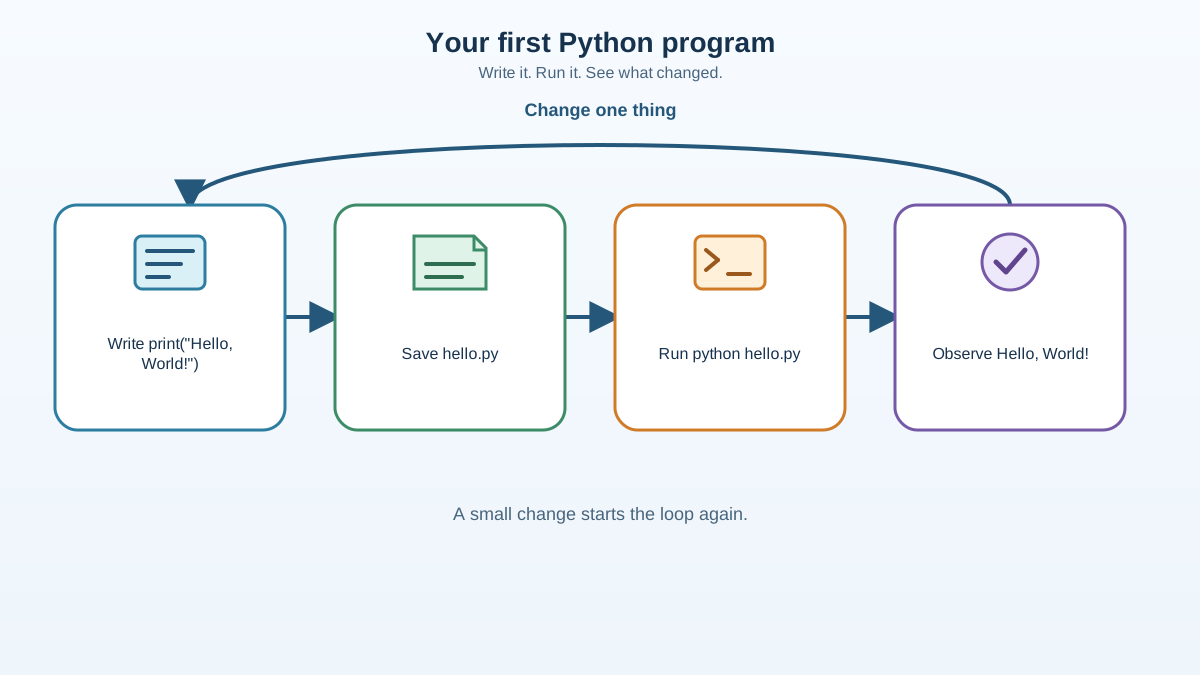
You'll write a tiny Python script, save it as a file, run it from your terminal, and watch it print a message. That's the entire goal—no theory required, and no setup beyond a working Python install.
If you haven't installed Python yet, follow the installation guide first. This tutorial assumes Python is already on your machine.
Knowledge check
Check your understanding
Answer this question before you continue.
Write the Program
Open any text editor—Notepad on Windows, TextEdit on Mac, or a code editor like VS Code. Type this single line:
print("Hello, World!")
That's the whole program. Read it like a sentence:
printis a command that tells Python to show something on the screen.- The parentheses
()hold what you want to display. - The text inside quotes
"Hello, World!"is the message itself.
The quotes matter. They tell Python "this is text, not code." If you leave them off, Python tries to read Hello as a command and fails.
Note: Use straight quotes (
"), not curly ones. Word processors often auto-convert straight quotes into curly ones, and Python will reject them.
Knowledge check
Check your understanding
Answer this question before you continue.
Save the File
Now save your work:
- Click Save As in your editor.
- Name the file
hello.py. - Save it somewhere easy to find, like your Desktop.
The .py extension is how your computer knows this is a Python script. Without it, the terminal won't know what to do with the file.
Check the full filename before you move on. Some editors hide file extensions, so what looks like hello.py can actually be saved as hello.py.txt. If that happens, the terminal will look for a file named hello.py and won't find it. If you're not sure, look at the file in your file browser and confirm the full name is exactly hello.py—not hello.py.txt. If it has the extra .txt, rename it to hello.py.
Knowledge check
Check your understanding
Answer this question before you continue.
Run the Program
The cleanest way to run your first Python program is to open a terminal in the folder that actually contains hello.py. Many editors have a Terminal or Open in Terminal option that drops you exactly where the file lives. If yours does, use it and skip the folder commands below.
If you're opening a terminal yourself, you first need to move to the folder where you saved the file. The Desktop commands below are examples—use the folder that really holds hello.py:
- Windows:
cd Desktop - Mac/Linux:
cd ~/Desktop
Then run the script:
python hello.py
Press Enter. You should see:
Hello, World!
That's it. You wrote code, saved it, ran it, and got output. That loop—write, run, observe—is the engine behind everything you'll build in Python.
Tip: If
pythonisn't recognized, trypython3 hello.pyinstead. Some systems keep both commands, and only one is wired up. Pick whichever works and stick with it.
Knowledge check
Check your understanding
Answer this question before you continue.
Common Mistakes and How to Fix Them
Every beginner hits these. Here's what they look like and how to recover fast.
Typos and wrong quotes. If you see a SyntaxError, check that print is spelled correctly and the quotes are straight. A missing closing parenthesis is the most common culprit.
Indentation errors. Your print line should start at the very beginning of the line, with no spaces in front. Python uses indentation to group code, and stray spaces at the start of a line confuse it.
File not found. If the terminal says No such file or directory, you're in the wrong folder, or the file name doesn't match. The terminal only looks for files in the folder you're currently in, so you need to move to the folder where you saved hello.py.
Don't guess the path. Open your file browser, find hello.py, and copy the name of the folder that contains it. Then use that exact folder name in your cd command. The cd command means "change directory," and it's how you tell the terminal which folder to work in. If the file is actually named hello.py.txt, rename it to hello.py first.
The python command isn't recognized. This usually means Python isn't on your system's PATH. On Windows, that often happens when the "Add Python to PATH" box wasn't checked during installation. Reinstalling with that box checked fixes it. Until then, try python3 hello.py as a fallback.
Common mistake: Don't skip reading the error message. Python errors are unusually honest—they tell you the file, the line number, and often the exact problem. Read the last line first, then work backward.
Make It Yours
Change the message and run it again:
print("Your name here")
Save, run python hello.py, and watch the new text appear. This is the fastest way to confirm you understand the loop: change one thing, run it, observe the difference.
Try a few variations:
print("Hello, World!")
print("Hello, World!")
print("Hello, World!")
Run that and notice each print puts its message on its own line. That's a small observation, but it's the kind of experiment that builds real intuition faster than reading about it.
What's Next
You've proven the core loop works. Now build on it.
- Practice storing values and working with text.
- Explore other ways to run Python, including interactive mode, IDLE, and notebooks.
Practice task: Write a program that prints three lines: your name, your favorite food, and your favorite hobby. Save it as about_me.py, run it, and confirm all three lines appear. Then change one line and run it again to see the update.
That's the whole method, and it's yours now: write a line, run it, read the output, change one thing, run it again. Every time the output matches what you expected, you've confirmed your mental model. Every time it doesn't, the output is telling you exactly what to fix. Keep running that loop, and the loop keeps teaching you.
Knowledge check
Final check
Finish the article by checking the ideas you just learned.
References
Want a more structured Python path?
Use the Python Starter Pack to turn scattered tutorials into a focused practice path.
Python Starter Pack
A compact LearnPyFast PDF pack covering what Python is, installation, your first program, running Python code, and Python versions.
- 5 curated chapters
- Enhanced PDF edition with bundle-only learning guidance
- Offline-friendly format for focused review
- Source article links for future online updates
Coming soon


