How to Install Python
Python is installed when your computer can do two things: find the python command, and run a tiny program with it. This guide walks you through that on…

Key topics
Python is installed when your computer can do two things: find the python command, and run a tiny program with it. This guide walks you through that on Windows, Mac, or Linux, so you move from downloading a file to proving your setup actually works.
What Success Looks Like
A working Python setup has one finish line: you open a terminal, start the interpreter, and run a small program that prints output. You'll see the exact commands and expected output in the verification step below. For now, just know the target—by the end of this guide, you'll be able to do all three.
The Three-Part Model: Interpreter, Terminal, and PATH
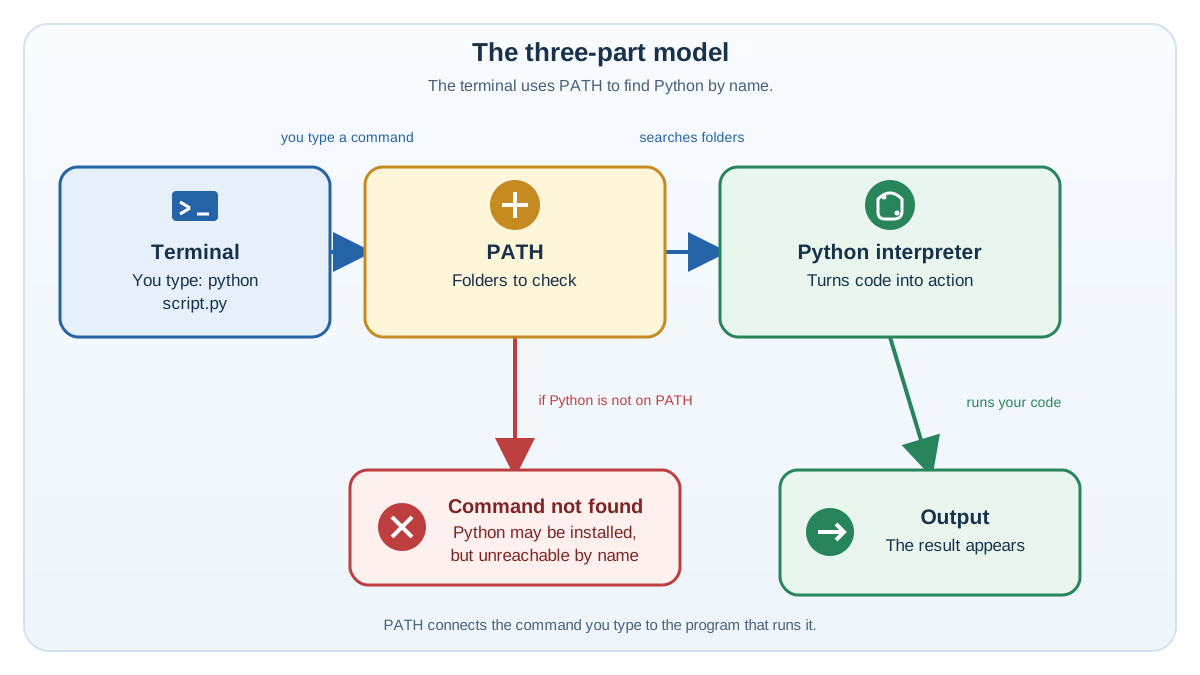
Installing Python is not just downloading a file. Three moving parts have to connect before anything runs:
- The Python interpreter is the program that reads and runs your code.
- The terminal or command prompt is where you tell your computer to run Python. On Windows it's Command Prompt; on Mac or Linux it's Terminal.
- PATH is the system's list of folders it searches when you type a command. If the Python folder isn't on PATH, your computer can't find
pythoneven though Python is installed.
Keep this model in mind. It explains the most confusing beginner failure: Python is on your disk, but the terminal still says it can't find the command. That's a PATH problem, not a broken install.
Knowledge check
Check your understanding
Answer this question before you continue.
Step 1: Check If Python Is Already Installed
Don't install Python twice. First, see whether it's already there.
On Windows:
-
Open the Start menu, type
cmd, and press Enter to launch Command Prompt. -
Type:
py --version -
Press Enter. If you see a version number like
Python 3.12.4, Python is installed.
On Mac or Linux:
-
Open Terminal.
-
Type:
python3 --version -
Press Enter. If you see a version number, Python 3 is installed.
Tip: If you get an error or no version appears, you need to install Python. If
pydoesn't work on Windows, trypython --versionas a fallback.
Knowledge check
Check your understanding
Answer this question before you continue.
Step 2: Pick Your Platform
The install steps below are grouped by operating system. Before you start, know which one you're using:
- Windows uses the installer from python.org and the Command Prompt.
- Mac uses the installer from python.org and the Terminal app.
- Linux uses your distribution's package manager and the Terminal.
Use only the section that matches your system. Don't mix commands across platforms—a Windows command won't run in a Linux terminal, and vice versa.
Step 3: Download Python Safely
Always download Python from the official source. That avoids malware and gets you the latest stable release.
- Go to python.org/downloads.
- The site detects your operating system and suggests the right installer.
- Download the latest Python 3.x version for your platform.
Warning: Never download Python from random websites or file-sharing services. The official site is the only safe source.
Knowledge check
Check your understanding
Answer this question before you continue.
Step 4: Install Python on Your System
Windows Installation
- Double-click the downloaded installer (for example,
python-3.12.4-amd64.exe). - Recommended: Check the box labeled Add Python to PATH before clicking Install Now. This is the convenient choice if you want to type
pythondirectly in a terminal. It is not the definition of a successful install—Python can still work through thepylauncher even if you skip it. - Click Install Now and wait for the installer to finish.
- Click Close when done.
Common mistake: Forgetting to check "Add Python to PATH" means the plain
pythoncommand may not work from the terminal, even though Python is installed. If that happens, rerun the installer, choose Modify, and add Python to PATH. But first trypy --version—if the launcher works, your interpreter is fine and only the command path needs adjusting.
Knowledge check
Check your understanding
Answer this question before you continue.
Mac Installation
- Open the downloaded
.pkgfile (for example,python-3.12.4-macos11.pkg). - Follow the installer prompts until it reports that the installation succeeded. If the installer shows an error or never finishes, stop here and rerun it rather than moving on.
- When it finishes cleanly, close the installer.
Note: On Mac and Linux, use
python3instead ofpython. This avoids confusion with older Python 2 versions that may still be present.
Now open a fresh Terminal window and run:
python3 --version
If you see a version number, the interpreter is ready. If Terminal says the command isn't found, close and reopen Terminal first—the shell profile may need a new window to pick up the install. If it still can't find python3, rerun the installer and confirm it completed without an error. The version number, not the act of reopening the window, is your real checkpoint.
Linux Installation
Most Linux distributions already include Python. To check:
python3 --version
If you see a version number, skip installation and go straight to the verification step. An older-but-working Python 3 is fine for getting started; you don't need to upgrade to follow this guide.
Only install when the command is missing. Use the command that matches your distribution. If you don't know which distribution you're running, check your system settings or your distribution's official documentation first—do not pick a command by guessing. The three examples below cover the most common families, not every Linux system:
-
Ubuntu/Debian:
sudo apt update sudo apt install python3 -
Fedora:
sudo dnf install python3 -
Arch Linux:
sudo pacman -S python
Note:
sudoasks for your computer password. That's normal—it's how Linux grants permission to install software. If your distribution isn't listed above, check its official software or package instructions before running a command.
Step 5: Verify Your Python Setup
Now prove your install works. This is the single gate that matters: the terminal finds the interpreter, and the interpreter runs a small program.
1. Open a fresh terminal or command prompt. If you just installed Python, close the old window and open a new one. This matters because PATH changes only apply to new windows.
2. Check the version.
-
On Windows:
py --version -
On Mac or Linux:
python3 --version
You should see a version number like Python 3.12.4.
3. Start the interpreter.
-
On Windows:
py -
On Mac or Linux:
python3
You should see something like:
Python 3.12.4 (main, ...)
>>>
The >>> prompt means you're inside the Python REPL (Read-Eval-Print Loop)—an interactive place to run Python code.
4. Type Python code at the >>> prompt:
print("Hello, Python!")
Expected output:
Hello, Python!
Note: Only type the
print(...)line after you see the>>>prompt. That's how you know you're inside Python, not the system shell. Don't type the prompt symbols themselves—>>>,$,%, andC:\>are just signals showing where you are.
To exit Python, type exit() and press Enter, or close the window.
What If Something Goes Wrong?
Work through these in order before you consider reinstalling.
- Close and reopen your terminal. PATH changes don't apply to windows that were already open.
- Retry the primary command. On Windows, try
py --version. If that fails, trypython --version. On Mac or Linux, usepython3 --version. - Read the error. If you see "command not found" or "'py' is not recognized," the terminal can't find the interpreter—that's a PATH problem. On Windows, if
pyworks butpythondoesn't, your interpreter is fine; rerun the installer and add Python to PATH only if you want the plainpythoncommand. On Mac or Linux, check that you usedpython3, notpython. - Check where you're typing. If you see a prompt like
$,%, orC:\>, you're in the system shell—run commands likepy --versionthere. If you see>>>, you're inside Python—run code likeprint("Hello, Python!")there. Mixing them up is a common beginner mistake. - Only reinstall if the installer clearly failed. If the installer reported an error or the install never finished, uninstall and reinstall from the official site. A PATH or command problem almost never needs a reinstall.
What's Next? Run a Saved Script
You've proven the interpreter runs code interactively. Now confirm it can run a saved file—the format you'll use for real programs.
Open a text editor, save a file called hello.py with this line:
print("Hello, Python!")
Then run it from your terminal using the same command convention you verified above: py hello.py on Windows, or python3 hello.py on Mac or Linux.
py hello.py
Expected output:
Hello, Python!
That printed line is the same proof as before, but now it lives in a file you can reuse.
The Builder's Checklist
Here's the whole install in one decision rule. A version number proves Python is reachable from your terminal. A printed line proves your computer can actually run it. Get both, and you're ready to build.
- Check if Python is already installed.
- Download Python from python.org.
- Install and add to PATH on Windows; use your package manager on Linux.
- Open a fresh terminal and verify with
py --versionorpython3 --version. - Start the interpreter, run
print("Hello, Python!"), and see the output.
Then run your saved hello.py file the same way. Writing and running saved scripts is where the real learning begins—that's the next step in your Python journey.
Knowledge check
Final check
Finish the article by checking the ideas you just learned.
References
Want a more structured Python path?
Use the Python Starter Pack to turn scattered tutorials into a focused practice path.
Python Starter Pack
A compact LearnPyFast PDF pack covering what Python is, installation, your first program, running Python code, and Python versions.
- 5 curated chapters
- Enhanced PDF edition with bundle-only learning guidance
- Offline-friendly format for focused review
- Source article links for future online updates
Coming soon


