Troubleshooting Python Installation Problems
You downloaded Python, ran the installer, and the terminal still says 'python' is not recognized. Or Windows keeps nudging you toward the Microsoft Store.…

You downloaded Python, ran the installer, and the terminal still says 'python' is not recognized. Or Windows keeps nudging you toward the Microsoft Store. Or pip installs packages that your scripts can't find. None of this means you broke your computer. It means your system is running some Python—just not the one you think.
That is the whole game: find what actually runs, fix what should run, then prove pip follows it. This guide walks you through that loop for the most common Python installation problems, especially the ones caused by the PATH variable, multiple Python versions, and confusing installer choices.
Step 1: Pick Your Platform, Then Find What Runs
Before changing anything, run one command and read its result. The command differs by platform, but the question is the same: which interpreter does your terminal resolve?
Choose the block for your operating system and run every command in it. Do not mix commands across platforms.
Windows
where python
py -0
macOS
which python3
python3 --version
Linux
which python3
python3 --version
What the output tells you:
- A version number or a real path means an interpreter exists. The problem is likely command lookup or interpreter selection, not a missing install.
'python' is not recognizedorcommand not foundmeans nothing named that command is on your PATH. Either Python isn't installed, or its folder isn't discoverable.- A Microsoft Store prompt means Windows is resolving
pythonto its own wrapper, not to a real interpreter.
Tip: If Windows opens the Microsoft Store when you type
python, don't install from there yet. That wrapper is often the source of the confusion. Trypy -0first—the Python launcher that ships with the official installer often works even whenpythondoesn't.
Knowledge check
Check your understanding
Answer this question before you continue.
Step 2: Lock In One Working Interpreter Command
Now confirm the interpreter you found actually runs and note its version. The key move here is to pick one command that works and reuse it for the rest of the guide.
Windows: if py -0 listed an installed version, use py from here on.
py --version
macOS / Linux: use python3.
python3 --version
Expected output:
Python 3.11.6
If you see a version number, Python is installed and working. If you get an error, you now have a clear fork:
- No version at all → Python likely isn't installed. Follow the install guide for your platform and come back.
- A version, but the wrong one runs → you have multiple installs, and the wrong one is winning. That's a PATH or alias problem, covered next.
- A version, but
pipcan't find packages → the interpreter and pip are out of sync, covered in Step 4.
Common mistake: Reinstalling Python when the real problem is that the wrong interpreter is first on the PATH. Reinstalling doesn't change which one wins. Fix the lookup order instead.
Note: From this point on, keep using the command that succeeded in your version check. If
python3worked, runpython3 -m pip, not barepip. That one habit prevents most interpreter mismatches before they start.
Knowledge check
Check your understanding
Answer this question before you continue.
Step 3: Fix Which Python Wins
What PATH Actually Does
PATH is an ordered list of folders. When you type a command, your terminal checks that list top to bottom and runs the first match it finds. That's why two Pythons can coexist yet only one ever runs: the first one on the list wins every time.
So the goal is never to delete every unfamiliar entry. It's to make the intended interpreter resolve first.
Knowledge check
Check your understanding
Answer this question before you continue.
Windows: Know the Difference Between py and python
On Windows, py and python answer different questions, and confusing them is a common source of installation problems:
pyis the Python launcher. It looks at your installed interpreters directly and runs the one you choose. It does not depend on PATH.pythonis a PATH-resolved command. It runs whatever executable the PATH list finds first—which may be a real install, an old install, or Microsoft's Store wrapper.where pythonshows you which executablepythonactually resolves to.
So if py -0 lists an interpreter but bare python fails or opens the Store, Python is installed and working—the lookup is just pointed at the wrong target. You do not need to reinstall.
- If
py -0lists an installed interpreter, keep usingpyfor the rest of this guide. It is your confirmed working command. - If
where pythonshows a path likeC:\Users\YourName\AppData\Local\Microsoft\WindowsApps\python.exe, that's the Microsoft Store alias winning. Disable it:
- Go to Settings > Apps > App Execution Aliases and turn off the switches for
python.exeandpython3.exe. - Add your real Python folder to PATH. Open the Start menu, search for "Environment Variables", and choose "Edit the system environment variables". Click Environment Variables, find Path under User variables, click Edit, then New, and paste the folder that contains your
python.exe(usuallyC:\Users\YourName\AppData\Local\Programs\Python\Python311).
- Only if neither
pynor a realpythonruns should you consider reinstalling from python.org.
Backup tip: Before editing PATH, copy the current list of entries into a text file. If something goes wrong, you can restore it.
Warning: Only remove PATH entries you're certain are Python-related. Deleting unrelated entries can break other programs.
macOS
Most Macs ship with a system Python 3, but it may not be the one you installed. First, decide whether you even need to touch PATH. If python3 --version already returned the version you installed, stop here—your interpreter resolves correctly and you can move to Step 4.
Only edit PATH when the wrong version runs or nothing resolves. Find the actual folder first:
which python3
That prints the full path to the executable, such as /opt/homebrew/bin/python3. The folder you add to PATH is that path minus the python3 filename—so /opt/homebrew/bin. That folder is an example from your own output, not a value to copy blindly.
Open your shell startup file and add that folder. On modern macOS this is ~/.zshrc:
export PATH="/opt/homebrew/bin:$PATH"
Then reload the file so your current terminal picks it up:
source ~/.zshrc
Restarting your terminal also works. Open a new terminal window and verify:
python3 --version
Note: Replace
/opt/homebrew/binwith the folder from your ownwhich python3output. If you installed with the official python.org installer, the folder is usually/Library/Frameworks/Python.framework/Versions/3.x/bin.
Linux
On most Linux distributions, Python 3 is already installed. If python3 --version already returns the version you expect, you don't need to change anything—skip to Step 4.
Only edit PATH when the wrong version runs or nothing resolves. Find the folder the same way:
which python3
Then add that folder (minus the python3 filename) to ~/.bashrc or ~/.zshrc, before the system Python folder:
export PATH="/path/to/python/bin:$PATH"
Reload the file or open a new terminal, then verify:
python3 --version
Step 4: Align pip With Your Python
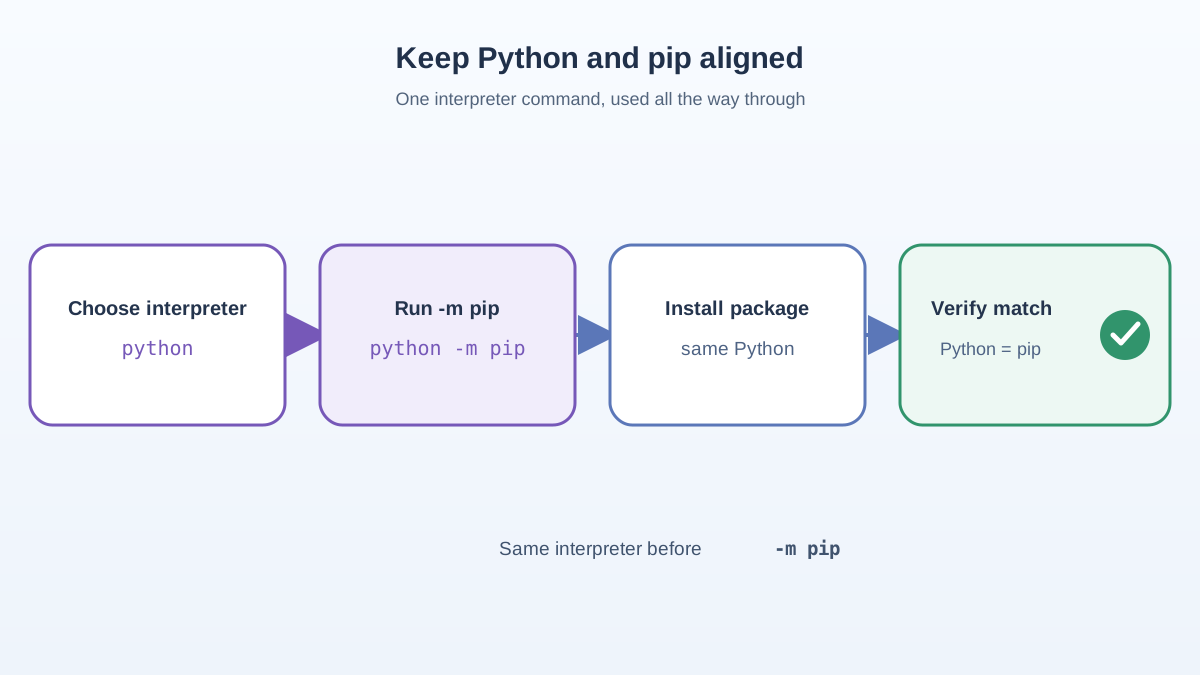
The most durable habit in this whole article: run pip through the interpreter you intend to use. If you have multiple Pythons, a bare pip command can install packages for one version while your scripts run with another.
Use the same interpreter command you locked in during Step 2. On macOS and Linux that is python3; on Windows it is py.
python3 -m pip install package_name
On Windows, run the same command through the launcher:
py -m pip install package_name
This guarantees pip belongs to the same interpreter you're running. Check that they're aligned:
python3 -m pip --version
On Windows:
py -m pip --version
Expected output:
pip 23.2.1 from ... (python 3.11)
The version in parentheses should match the version you saw in Step 2. If it doesn't, you're mixing interpreters.
Common mistake: Running
pipdirectly instead ofpython3 -m pip(orpy -m pipon Windows). With multiple installs, the bare command can silently target the wrong Python. Pairing pip with the interpreter removes the guesswork.
Knowledge check
Check your understanding
Answer this question before you continue.
Step 5: When to Reset (and When Not To)
Most problems are solved by Steps 1–4. Full removal is a last resort, not a first instinct. Only consider it when:
- PATH fixes and alias changes didn't help.
pythonandpippoint to different installs and you can't untangle them.- You've confirmed a corrupted or broken installation.
| Situation | Try This First | If That Fails... |
|---|---|---|
| Python not found in terminal | Verify install, fix PATH | Reinstall from python.org |
| Wrong Python version runs | Fix PATH order, disable aliases | Remove the extra installs |
| pip installs but scripts can't find packages | Use python3 -m pip (or py -m pip) | Reinstall, recheck PATH |
Microsoft Store prompt or WindowsApps in path | Disable app execution aliases | Uninstall the Store version |
| Still broken after all of the above | Uninstall all Python entries | Clean install from python.org |
Warning: Before uninstalling, double-check folder names and locations. Only remove entries you're sure are Python-related, and back up important files first. Don't manually delete system-managed files like
WindowsApps—disable the aliases instead.
For a clean install, download from python.org (not the Microsoft Store) and check "Add Python to PATH" during setup. Then verify with the command you chose in Step 2: python3 --version on macOS/Linux, or py --version on Windows.
Step 6: Prove It Works
A working install isn't a belief—it's an observable result. Run three checks that together prove the whole loop: the right interpreter resolves, pip belongs to it, and a saved script runs. Use your chosen command from Step 2 throughout.
Check 1 — the interpreter resolves. Run the command you locked in during Step 2:
python3 --version
On Windows:
py --version
Check 2 — pip belongs to that interpreter. Run pip through the same command:
python3 -m pip --version
On Windows:
py -m pip --version
The version in parentheses should match Check 1. That is the pip-alignment proof.
Check 3 — a saved script runs. Open a text editor and save this as hello.py:
print("Hello, Python!")
Open your terminal, navigate to the folder where you saved it, and run it with your chosen command:
python3 hello.py
On Windows:
py hello.py
Expected output:
Hello, Python!
If you see 'No such file or directory', double-check you're in the correct folder. If you see 'Permission denied', check file permissions—you shouldn't need administrator or sudo for a simple script.
Next Steps
You just debugged your first real programming problem: you found which interpreter your system runs, fixed what should run, and proved pip follows it. That evidence loop—inspect, repair, verify—is the same skill you'll use on every future error. Now that Python runs, write and run a tiny program of your own. And when you hit your next error, remember: it's not a wall, it's a clue about what the system is actually doing.
Knowledge check
Final check
Finish the article by checking the ideas you just learned.
References
Want a more structured Python path?
Use the Python Starter Pack to turn scattered tutorials into a focused practice path.
Python for Artificial Intelligence Starter Pack
Build a Python foundation you can actually use. The Python for AI Starter Pack brings together a guided path through setup, core programming concepts, data structures, files, JSON, APIs, debugging, and practical projects—so you can move quickly from running your first program to understanding and building useful software.
- 264-page illustrated PDF
- 12 guided Python chapters
- Visual concept diagrams
- Self-assessment quizzes
- Bonus deep-dive sections
- Files, JSON, APIs, debugging & projects
- Foundation for data, automation & AI
Coming soon


