
How to Run Python Code: Scripts, Interactive Mode, and More
Writing Python and running Python are two different jobs, and most beginners trip on the gap between them. An editor is where you type code. The Python…

Key topics
Writing Python and running Python are two different jobs, and most beginners trip on the gap between them. An editor is where you type code. The Python interpreter is the program that executes it. Every terminal command, IDE button, and notebook cell is just a different way to hand your code to that one interpreter. Learn that handoff once, and every environment stops being a confusing menu.
The One Idea Behind Every Way to Run Python
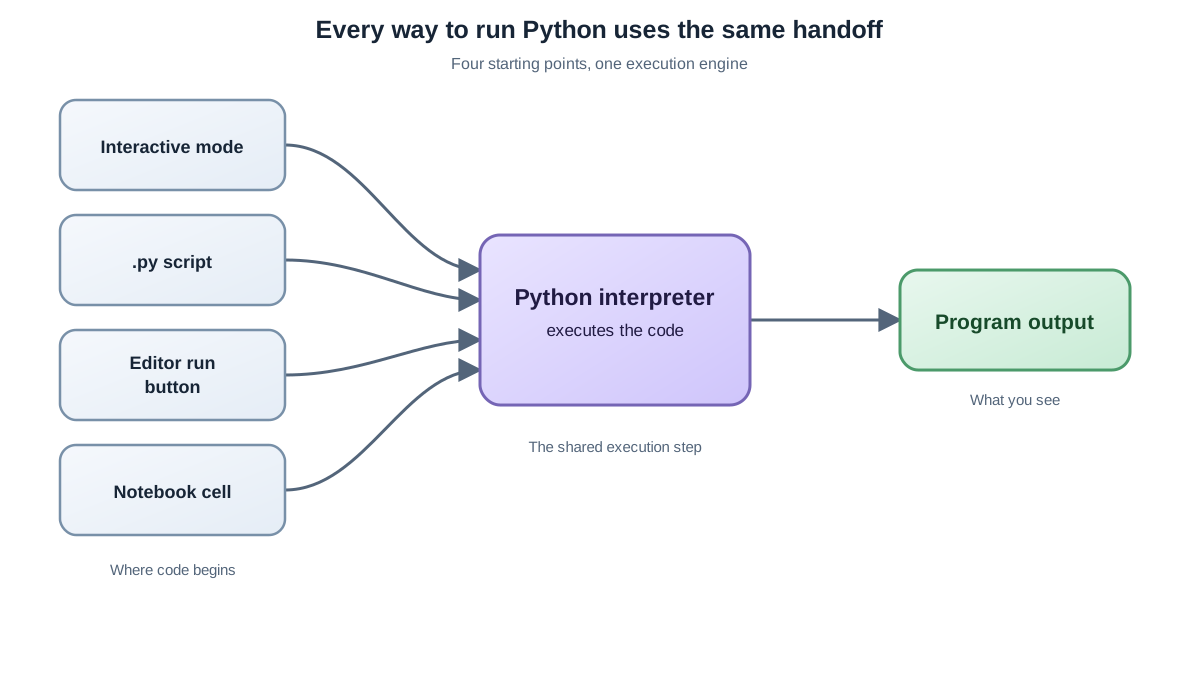
Get this straight before touching a command: nothing runs until your code reaches the interpreter.
A .py file is just text until the interpreter reads it. A notebook cell is just text until you tell it to run. The interpreter is the engine; everything else is the steering wheel. A terminal, a run button, or a notebook cell only decides how the code gets handed over.
That is the whole mental model. Everything in this guide is a variation on that single handoff.
Knowledge check
Check your understanding
Answer this question before you continue.
What You Need Before You Start
The interpreter must be installed before anything can run. Check for it first.
-
Open a terminal or command prompt:
- Windows: Press
Win + R, typecmd, and press Enter. - macOS: Open Spotlight (
Cmd + Space), typeTerminal, and press Enter. - Linux: Open your terminal application.
- Windows: Press
-
Type one of these and press Enter:
python --versionor
python3 --version
If you see a version number like Python 3.11.0, you are ready. If not, install Python for your operating system before continuing. Python 3 is the right choice for all new work.
Note: On many systems, especially macOS and Linux, the command is
python3instead ofpython. If one does not work, try the other.
Your First Run: Interactive Mode
Start in interactive mode. It is the fastest way to run Python code because it gives you instant feedback with zero setup.
Interactive mode is also called the REPL, short for Read-Eval-Print Loop. That name is the mechanism: the interpreter reads your line, evaluates it, prints the result, and waits for the next one.
How to start it:
- Open your terminal or command prompt.
- Type
python(orpython3) and press Enter.
You will see a prompt that looks like this:
>>>
That >>> is the signal that you are now inside Python. Type a command and press Enter:
>>> print("Hello, Python!")
Hello, Python!
Try some math:
>>> 2 + 3
5
To exit: type exit() and press Enter, or press Ctrl + Z then Enter on Windows, or Ctrl + D on macOS and Linux.
Interactive mode is where you test a small idea, do a quick calculation, or check how a function behaves before committing it to a file. When you are unsure how something works, test it here first instead of guessing inside a bigger program.
The Next Step: Save a Script and Run It
Interactive mode answers a question. A script is what you keep. The moment code is worth running again, save it as a .py file and run it from the terminal. That move from experiment to repeatable file is the real progression.
Here is the handoff in action. The editor creates the file. The terminal starts Python and passes the file to it. The interpreter reads the file and runs it line by line.
Save this as hello.py:
print("Hello from a script!")
Now run it. The terminal only finds the file if it is in the folder you are currently in, so navigate there first. On Windows:
cd Desktop
python hello.py
On macOS or Linux:
cd ~/Desktop
python3 hello.py
If your file is saved somewhere else, point the command at the full path instead:
python /full/path/to/hello.py
You should see:
Hello from a script!
Common mistake: Typing
python hello.pywhile your terminal is in a different folder. The interpreter looks for the file in the folder you are currently in. If you get a "No such file or directory" error, usecdto reach the right folder first, or pass the full file path.
Common mistake: Typing a shell command inside the Python interpreter. When you see the
>>>prompt, you are inside Python, and it only understands Python syntax. Commands likepython hello.pybelong in the terminal itself, not at the>>>prompt. If you find yourself there, exit withexit()first, then run the command.
If you get an error saying 'python' is not recognized, try python3 instead, or confirm Python is installed correctly.
Knowledge check
Check your understanding
Answer this question before you continue.
IDLE: Editor and Interpreter in One Window
IDLE is the editor that ships with Python. Its real value for a beginner is that it combines both modes in one window: an interactive shell with the >>> prompt, plus an editor for saved scripts.
How to open IDLE:
- Windows: Search for "IDLE" in the Start menu.
- macOS: Open Launchpad and search for "IDLE."
- Linux: Type
idleoridle3in the terminal.
What you can do in IDLE:
- Interactive mode: When IDLE opens, you see the
>>>prompt. Type commands and see results instantly. - Script mode: Click
File > New File, write your code, save it with a.pyextension, then pressF5or selectRun > Run Module.
The F5 shortcut is the whole point: it hands your saved file to the interpreter for you. You experiment in the shell, then move a working idea into a saved script without switching tools.
Knowledge check
Check your understanding
Answer this question before you continue.
Visual Studio Code: Automating the Same Handoff
Visual Studio Code (VS Code) is a free code editor many developers use for Python. It is more powerful than IDLE, and it becomes more useful as your projects grow.
The key insight is that VS Code does not change how Python runs. It automates the handoff. When you click the run button, VS Code opens a terminal and runs the same python script.py command you would type yourself. The interpreter model has not changed.
Ways to run Python code in VS Code:
- Run the whole script: Open your
.pyfile and click the "Run Python File in Terminal" button (a small play icon at the top right). - Run selected lines: Highlight code, right-click, and choose "Run Selection/Line in Python Terminal."
- Use the built-in terminal: Open the terminal (
View > Terminal) and typepython script.py.
VS Code adds useful features like code completion and debugging, but those are conveniences layered on top of the same execution. If you already understand the terminal command, the button is just a faster way to type it.
Online Notebooks: Cells That Remember
You do not have to install anything to run Python. Online notebooks let you write and run code in your browser, in small editable blocks called cells.
If you want a no-install option, Google Colab is a good single starting point: open the site, start a new notebook, and you get a ready-to-run cell. Type code in a cell and click the run button; the output appears right below.
Here is the part that surprises most beginners: notebook cells do not run like a script. A script always runs from the top, line by line. A notebook runs only the cell you click, and it remembers the results of cells you ran earlier. That persistence is powerful, but it has a cost.
Try this. In one cell, type:
total = 5
Run it. In the next cell, type:
print(total + 3)
Run that cell and you get 8. Now go back and run the second cell again without running the first. You still get 8, because the notebook remembers that total was set earlier. That is handy for exploration, but it also means the order you run cells becomes part of your result. Run cells out of order and you can get output that does not match the code you see on screen.
When an online notebook earns its place:
- You are on a computer where you cannot install software
- You want to experiment without setting up a local environment
- You want to share a runnable example with someone else
For a normal program you will run repeatedly, a saved script is usually the better tool, because a script always runs top to bottom with no hidden state.
Knowledge check
Check your understanding
Answer this question before you continue.
Which Method Should You Use?
Here is the decision rule I use when teaching beginners. Ask the same three questions for every environment: where do you type the code, what executes it, and can you save or share the result?
The path is not a menu of equally good tools. It is a progression:
- Start in interactive mode to get instant feedback while you learn what Python does.
- Save a script the moment you write something you want to keep and run again.
- Reach for an editor or notebook when you need extra help or a different way to package that same handoff.
| Method | Best for | Avoid when |
|---|---|---|
| Interactive mode | Testing one idea, quick math, exploring syntax | You need to save or rerun the code |
| Script file | A program you will run again | You only need a one-line check |
| IDLE | Beginner-friendly editor with both modes | You want advanced debugging tools |
| VS Code | Growing projects with completion and debugging | You want zero setup |
| Online notebook | No-install experimentation and sharing | You need a normal runnable program |
Your Next Step
Pick one small program and run it through the whole loop. Start with a calculation in interactive mode, confirm the output, then save the same code as a script and run it from the terminal.
Try this: write a script that prints your name and a calculation, run it, then change one number and run it again. Watch the output change. That single observation — same code, new value, new result — is the execution model made visible.
The rule to carry forward: reach for interactive mode when you want an answer, save a script the moment the code is worth repeating, and switch to a notebook when cells and sharing are the point. Once that loop feels natural, you can stop thinking about how to run Python code and start thinking about what to build with it.
Knowledge check
Final check
Finish the article by checking the ideas you just learned.
References
Want a more structured Python path?
Use the Python Starter Pack to turn scattered tutorials into a focused practice path.
Python Starter Pack
A compact LearnPyFast PDF pack covering what Python is, installation, your first program, running Python code, and Python versions.
- 5 curated chapters
- Enhanced PDF edition with bundle-only learning guidance
- Offline-friendly format for focused review
- Source article links for future online updates
Coming soon


