
How to Clean CSV Data with Python
Every spreadsheet person knows the feeling. You export a CSV file, open it, and find blank rows scattered through the data. Names written three different…

Every spreadsheet person knows the feeling. You export a CSV file, open it, and find blank rows scattered through the data. Names written three different ways. Stray spaces hiding inside cells. A few rows where the one field you absolutely need is just... gone.
You could fix it by hand. For a small file, that takes ten minutes of clicking. But next week, you will get another export. And another. Manual cleaning does not scale—it just repeats.
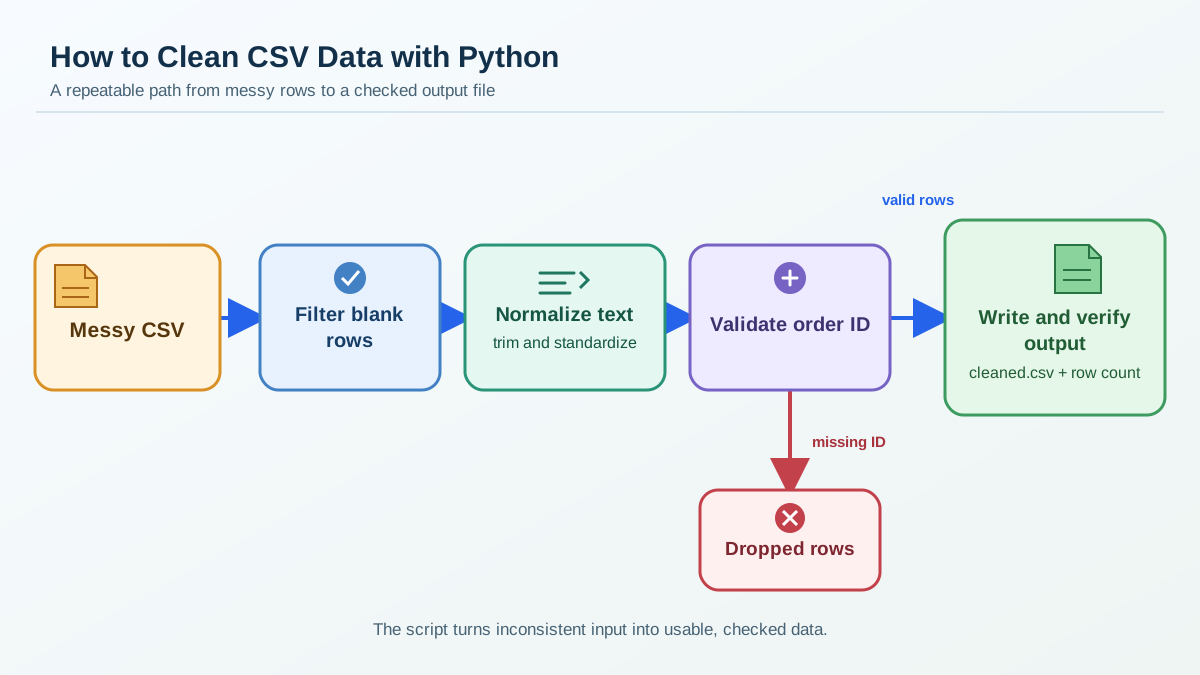
Here is the better path: write a small Python script that does the cleaning for you. Once it works, you can run it on any messy CSV that has the same columns and get a clean file back. This article walks you through exactly that.
What We're Building and Why It Matters
Let's look at a realistic mess. Here is a small CSV file with customer orders. It has four common problems you will see in real spreadsheet exports:
- Blank rows scattered through the file.
- Inconsistent capitalization in the customer names.
- Stray whitespace around values, like
" Alice "instead of"Alice". - Missing required fields—rows where the order ID is empty.
order_id,customer_name,product,category
1001,  alice  ,Laptop,Electronics
1002,Bob,Keyboard,electronics

1003,Carol,Mouse,Electronics
1004,  dave  ,Monitor,electronics
,Erin,Headset,Electronics
1005,Frank,Desk, Furniture
Look closely at what is wrong here:
- Row 3 is completely empty.
aliceanddavehave lowercase names with extra spaces.Erinhas no order ID at all.- The category column mixes
Electronicsandelectronics. Frank's category has a stray space:" Furniture".
None of these problems are dramatic on their own. But together, they make the data unreliable. If you try to count orders by category, Electronics and electronics will count as two different groups. If you try to match customer names, " alice " will not match "Alice". If you try to join this file with another dataset on order ID, Erin's row will quietly disappear from your results.
That is what dirty data does. It does not crash loudly. It just lies to you in ways that are hard to notice.
Our cleaning script will do four jobs:
- Normalize text—strip whitespace and fix capitalization.
- Validate required fields—check that each row has the values it needs.
- Drop unusable rows—remove blank rows and rows missing a required field.
- Write a clean output file—plus a short report of what changed.
This assumes you already know how to read and write CSV files with Python's csv module, and how to use if statements and for loops. If those feel shaky, review them first—the rest of this article builds directly on those skills.
The Quick Working Solution
Here is the complete script. Save it as clean_orders.py, put it in the same folder as your messy CSV, and run it.
import csv

input_file = "orders.csv"
output_file = "cleaned_orders.csv"

cleaned_rows = []
total_rows = 0

with open(input_file, newline="") as f:
    reader = csv.DictReader(f)
    fieldnames = reader.fieldnames

    for row in reader:
        total_rows += 1

        # Skip completely blank rows
        if not any(row.values()):
            continue

        # Normalize text fields
        row["customer_name"] = row["customer_name"].strip().title()
        row["category"] = row["category"].strip().capitalize()

        # Validate required fields
        if not row["order_id"].strip():
            continue

        cleaned_rows.append(row)

if not cleaned_rows:
    print("No valid rows found. Check your cleaning rules.")
else:
    with open(output_file, "w", newline="") as f:
        writer = csv.DictWriter(f, fieldnames=fieldnames)
        writer.writeheader()
        writer.writerows(cleaned_rows)

    # Verify the written file
    with open(output_file, newline="") as f:
        reader = csv.DictReader(f)
        written_rows = list(reader)

    print(f"Total rows read: {total_rows}")
    print(f"Rows kept: {len(cleaned_rows)}")
    print(f"Rows dropped: {total_rows - len(cleaned_rows)}")
    print(f"Rows verified in {output_file}: {len(written_rows)}")
Run it from the terminal:
python clean_orders.py
You should see:
Total rows read: 7
Rows kept: 5
Rows dropped: 2
Rows verified in cleaned_orders.csv: 5
Two rows were dropped: the blank row and Erin's row with the missing order ID. The other five rows were cleaned and written to a new file. The final line confirms the file on disk actually contains what we expect.
Here is what the cleaned file looks like:
order_id,customer_name,product,category
1001,Alice,Laptop,Electronics
1002,Bob,Keyboard,Electronics
1003,Carol,Mouse,Electronics
1004,Dave,Monitor,Electronics
1005,Frank,Desk,Furniture
Notice the differences. Names are capitalized with no stray spaces. Categories are consistent. The blank row is gone. Erin's row is gone because it had no order ID.
The rest of this article walks through each piece of the script so you understand what it does and why.
Normalizing Text Fields
The first cleaning job is making text consistent. Two values that mean the same thing should look the same.
Three string methods handle most of what beginners need:
.strip()removes whitespace from both ends of a string..title()capitalizes the first letter of each word..capitalize()capitalizes only the first letter of the string.
Here is the normalization code from our script:
row["customer_name"] = row["customer_name"].strip().title()
row["category"] = row["category"].strip().capitalize()
For " alice ", .strip() gives "alice", then .title() gives "Alice".
For "electronics", .capitalize() gives "Electronics".
For " Furniture", .strip() removes the leading space, then .capitalize() gives "Furniture".
Why does this matter? Because later, when you group orders by category or search for a customer by name, inconsistent text will break your results. "Electronics" and "electronics" look like two different categories to Python. Normalization makes the data speak one consistent language.
A good beginner instinct: normalize text at the moment you read the data, not later when you are trying to analyze it. Cleaning at the source is cheaper than fixing problems downstream.
Note:
.title()works well for simple names like"alice", but it will also capitalize letters after punctuation. For real-world name data with unusual formatting, you may need a more careful rule. For this script, the simple version is fine.
Knowledge check
Check your understanding
Answer this question before you continue.
Validating Required Fields
Normalization makes good values consistent. Validation decides which rows are worth keeping at all.
A row is usable only if it has the values your analysis needs. In our example, the order ID is the required field. Without it, the row cannot be matched to anything else.
The check is simple:
if not row["order_id"].strip():
    continue
This says: if the order ID is empty after stripping whitespace, skip this row.
Why .strip() here? Because a cell containing " "—just a space—looks empty to a human but is not "" to Python. If you checked if row["order_id"] == "", a cell with a single space would pass the check. Stripping first catches those sneaky near-empty values.
There is an important difference between a blank cell and a wrong value. A blank order ID means the row is unusable. An order ID like "10O5" where O should be 0 is wrong, but detecting that requires more advanced validation. For now, we are checking presence, not correctness. That is the right scope for a first cleaning script.
Knowledge check
Check your understanding
Answer this question before you continue.
Dropping Unusable Rows
The script collects only the rows that pass validation into a new list:
cleaned_rows = []

# ... inside the reading loop ...

cleaned_rows.append(row)
Rows that fail a check hit continue, which skips the append and moves to the next row. Rows that pass all checks get added to cleaned_rows.
The decision rule is deliberately conservative: drop a row only when a required field is missing or the row is entirely blank. Do not drop rows just because an optional field is empty. If a customer has no phone number but has a valid order ID, that row is still useful.
The kept-versus-dropped count at the end is your proof that the filter worked:
print(f"Total rows read: {total_rows}")
print(f"Rows kept: {len(cleaned_rows)}")
print(f"Rows dropped: {total_rows - len(cleaned_rows)}")
This report is not just for show. When you run this script on a real file, the counts tell you whether your assumptions about the data were correct. If you expected 5 dropped rows and got 50, something about the data is different from what you assumed. Investigate before trusting the output.
Knowledge check
Check your understanding
Answer this question before you continue.
Writing the Cleaned CSV Report
Writing to a new file is the safe habit. Never overwrite your original messy file with the cleaned version.
Why? Because cleaning rules are not always right the first time. If your script drops rows it should have kept, the original file is your recovery point. Keep it.
The writing half of the script uses csv.DictWriter:
with open(output_file, "w", newline="") as f:
    writer = csv.DictWriter(f, fieldnames=fieldnames)
    writer.writeheader()
    writer.writerows(cleaned_rows)
Notice that fieldnames comes from the original file's header, captured before the loop started:
reader = csv.DictReader(f)
fieldnames = reader.fieldnames
This is important. If you take field names from the first cleaned row instead, your script will crash when every row gets dropped. The header is the contract between the CSV and your code. Keep it separate from the data.
Verifying the Output File
Writing the file is only half the job. The script also reopens the file it just wrote and counts the rows inside it:
with open(output_file, newline="") as f:
    reader = csv.DictReader(f)
    written_rows = list(reader)
Then it prints that count:
Rows verified in cleaned_orders.csv: 5
Why bother reopening a file you just wrote? Because this check catches a whole class of silent failures. Maybe the file path was wrong and you wrote somewhere unexpected. Maybe the header got mangled. Maybe the write was interrupted. Reopening the file and counting rows confirms the artifact on disk matches what you intended to create.
This is the builder's habit: do not trust that your code worked because it ran without errors. Inspect the actual output.
Common mistake: Beginners often skip this verification step because the script "looks right." Then they open the CSV in a spreadsheet later and find it empty or truncated. The extra five lines of code turn a guess into a checked fact.
Knowledge check
Check your understanding
Answer this question before you continue.
Common Beginner Mistakes
Three mistakes trip up beginners more than anything else when cleaning CSV data.
Mistake 1: Modifying the original file.
If you open the messy file for writing and clean it in place, you lose your original data. If the cleaning logic has a bug, you cannot recover.
The fix: always write to a new file with a clear name like cleaned_orders.csv. Keep the original untouched.
Mistake 2: Checking for blank values with == "".
A cell containing a single space passes that check. The value is not truly empty, but it is also not useful.
The fix: strip first, then check. if not row["order_id"].strip(): catches both truly empty cells and cells full of whitespace.
Mistake 3: Dropping rows too aggressively.
If a row has an empty optional field—say, a missing phone number—that is not a reason to delete the whole row. Only drop rows when a required field is missing or the row is entirely blank.
The fix: decide which fields are required before you write the cleaning script. Then drop only rows that fail those specific checks.
When to Use This Simple Version vs. a Library
The plain-Python approach in this article is genuinely useful. For small files and simple cleaning rules, it is fast, readable, and has zero dependencies. You do not need to install anything beyond Python itself.
But there is a boundary. When your files get large, when cleaning rules get complex, or when you need many operations at once, a library like pandas becomes worth learning. Pandas offers built-in methods for common cleaning tasks like removing duplicates and filling missing values.
Here is a practical way to decide:
| Situation | What to use |
|---|---|
| Small file, a few simple cleaning rules | Plain Python with the csv module |
| Large file, complex rules, many operations | A library like pandas |
| One-time cleanup of an exported spreadsheet | Plain Python is usually enough |
| Repeated cleaning as part of a data pipeline | Consider pandas once the rules grow |
The simple version is not a toy. It is a real skill that solves real problems. Many cleaning jobs are exactly this size, and plain Python handles them well.
Your Next Step
Take a real messy CSV file—even one you export from a spreadsheet—and run this cleaning script on it. Start with the four rules from this article: normalize text, validate required fields, drop unusable rows, and write a clean output. Then check the kept-versus-dropped count and the verified row count to confirm the file on disk matches your expectation.
One important note: this script expects the same column names as our example. If your file has different headers, update the field names in the normalization and validation lines. The pattern transfers; the exact column names do not.
Once you have a working cleaning script, you have a reusable tool. That is the pattern worth internalizing: small scripts that do one practical job well, saved and reused instead of recreated each time. The same instinct that builds a cleaning script also builds file renamers, report generators, and small automations. Each one is a tool you keep.
Knowledge check
Final check
Finish the article by checking the ideas you just learned.
References
Want a more structured Python path?
Use the Python Starter Pack to turn scattered tutorials into a focused practice path.
Python for Artificial Intelligence Starter Pack
Build a Python foundation you can actually use. The Python for AI Starter Pack brings together a guided path through setup, core programming concepts, data structures, files, JSON, APIs, debugging, and practical projects—so you can move quickly from running your first program to understanding and building useful software.
- 264-page illustrated PDF
- 12 guided Python chapters
- Visual concept diagrams
- Self-assessment quizzes
- Bonus deep-dive sections
- Files, JSON, APIs, debugging & projects
- Foundation for data, automation & AI
Coming soon


