
How to Rename Multiple Files with Python
You have a folder full of files with names like photo_2021_01.jpg, IMG_0042.jpg, and final_FINAL_v3.txt. You need them cleaned up, numbered, or renamed to…

You have a folder full of files with names like photo_2021_01.jpg, IMG_0042.jpg, and final_FINAL_v3.txt. You need them cleaned up, numbered, or renamed to something sensible. So you start right-clicking and typing, one slow file at a time.
That works—until you hit file number forty and realize your hand is doing the same boring job over and over. Worse, one typo hides in a name you already moved on from.
Renaming files with Python turns that repetitive chore into a script you can run, check, and reuse. But here's the part most tutorials skip: renaming is destructive. It changes your filesystem, and it's hard to undo. So the real skill isn't just writing a loop—it's previewing your changes before you commit to them.
Let's build that skill with a practical batch rename script.
Why Renaming Files by Hand Is the Wrong Job for You
Think about where messy filenames actually come from. Downloads with names like report (3).pdf. Camera photos exported as DSC_0021.JPG. Project exports with version names that stopped making sense three edits ago. These folders collect over time, and at some point you sit down to fix them.
Doing that by hand costs you twice. First, there's the time: every file is the same click-click-type dance. Second, there's the typo risk: when you rename forty files manually, one wrong keystroke blends into the noise. You won't notice until you need that file and can't find it.
Python fixes both problems. A script renames every file the same way, every time. No fatigue, no drift, no typos from repetition.
But that power cuts both ways. A script will also apply a mistake to every file with the same enthusiasm. That's why the rule for this whole article is simple: preview first, commit second. You print the planned changes, read them like a proofreader, and only then let Python touch your files.
We'll use pathlib for this job. If you've worked with Path objects before, you already have the foundation. If it feels fuzzy, don't worry—the examples below show everything you need.
What You Need Before You Start
You'll need three pieces from your Python toolkit:
- A
Pathobject pointing at your folder - A
forloop to walk through the files - An f-string to build the new names
Here's the mental model that makes renaming click: a rename is just moving from an old path to a new path inside the same folder. Python isn't doing anything magical. It's saying, "this file used to be called X, now it's called Y."
We'll use Path.rename() rather than the older os.rename() approach. Why? Because pathlib gives you objects that carry their folder information with them. You don't have to juggle separate path strings and hope you joined them correctly. For beginners, that's a big win.
To follow along, create a folder called reports and drop a few files in it with names like these:
notes_draft.txt
notes_final.txt
summary_old.txt
summary_new.txt
Any files work, honestly. The point is to have a small, safe playground before you point a script at real data.
Your First Working Script: Preview the Rename Plan
Let's start with the classic task: turning a folder of randomly named files into clean, numbered names like report_01.txt, report_02.txt, and so on.
Create a file called rename_files.py with this code:
from pathlib import Path

folder = Path("reports")

for index, file in enumerate(folder.iterdir(), start=1):
    new_name = f"report_{index:02d}{file.suffix}"
    new_path = folder / new_name
    print(f"{file.name} -> {new_name}")
Run it from the same directory that contains your reports folder:
python rename_files.py
You'll see output like this:
notes_draft.txt -> report_01.txt
notes_final.txt -> report_02.txt
summary_old.txt -> report_03.txt
summary_new.txt -> report_04.txt
Wait—nothing actually changed. That's the point. This is a dry run: a script that shows you the plan without touching a single file.
Let's unpack what each piece does:
folder.iterdir()lists everything inside the folder. Each item is a fullPathobject, not just a name string.enumerate(..., start=1)gives you a counter that starts at 1 instead of 0.- The f-string
f"report_{index:02d}{file.suffix}"builds the new name. The:02dpart pads the number with a leading zero, so you get01,02, up to99. Thefile.suffixgrabs the original extension like.txtor.jpg, so you don't lose it. folder / new_namejoins the folder path and the new filename into one complete path.
Notice that file already knows its own folder. That's the pathlib advantage I mentioned—you never have to manually glue folder paths and filenames together.
Read every line of that output. Does each new name look right? Are there any duplicates? Does the extension survive on every file?
If the plan looks good, you're ready for the commit step.
Knowledge check
Check your understanding
Answer this question before you continue.
Commit: Apply the Rename
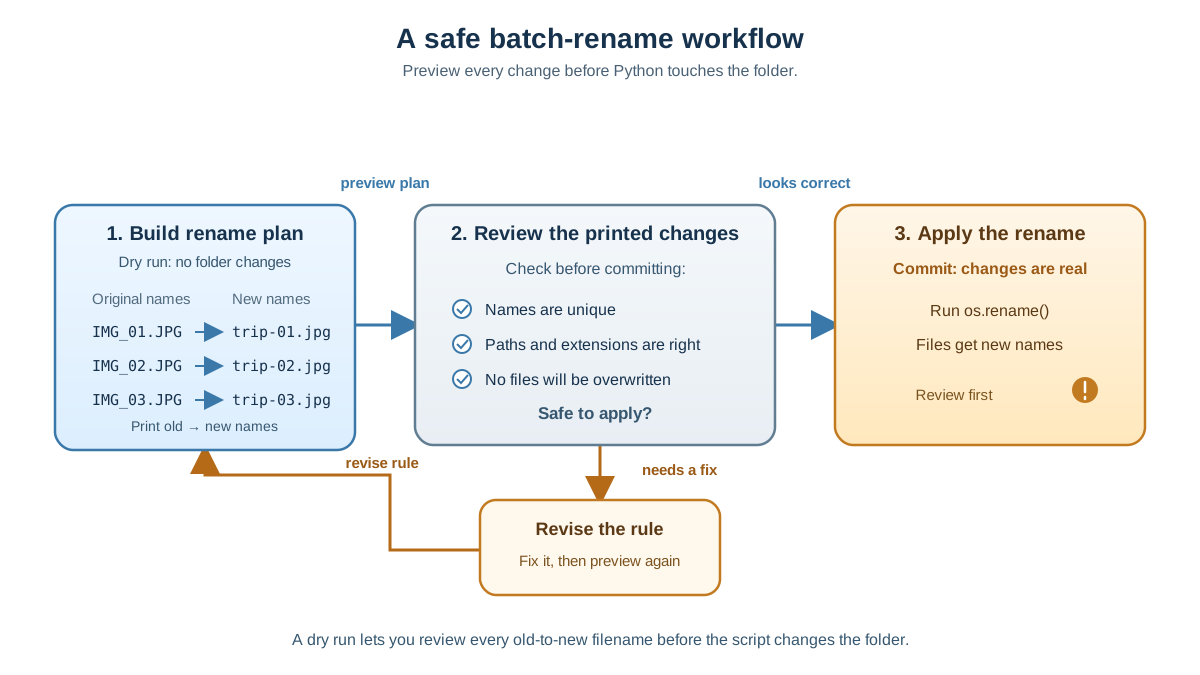
Now that you've inspected the plan, it's time to actually rename the files. The commit version looks almost identical—the only difference is one line:
from pathlib import Path

folder = Path("reports")

for index, file in enumerate(folder.iterdir(), start=1):
    new_name = f"report_{index:02d}{file.suffix}"
    new_path = folder / new_name
    file.rename(new_path)
    print(f"{file.name} -> {new_name}")
Run it:
python rename_files.py
notes_draft.txt -> report_01.txt
notes_final.txt -> report_02.txt
summary_old.txt -> report_03.txt
summary_new.txt -> report_04.txt
The file.rename(new_path) line does the actual work. Everything else—building the new name, joining the path—is the same planning logic you already tested.
That two-step rhythm—preview, then commit—is the engineering habit that separates safe scripts from scary ones. Keep it for every destructive script you write, whether you're renaming files, moving folders, or cleaning up old data. It takes five extra seconds and saves you from disasters that take hours.
Tip: When you're testing a rename script, copy a few sample files into a scratch folder first. Practice on the copy. Check the results. Then point the script at your real files.
Knowledge check
Check your understanding
Answer this question before you continue.
Common Mistakes That Break Batch Renames
Even with a preview step, beginners hit the same traps over and over. Here are the four that cause the most damage, with the symptom and fix for each.
The collision trap
Symptom: A file disappears, or Python raises an error about a file already existing.
Cause: You're renaming file_1.txt to file_2.txt, but file_2.txt is already there. Depending on your platform, the original file gets overwritten or the operation fails.
Fix: Check whether the destination exists before renaming, or choose a naming scheme that can't collide. The simple numbered script above is safe when the target names don't already exist in the folder. If you're renaming files that already have names like report_01.txt, pick a different prefix or use a temporary two-step rename. Swapping two filenames without a temporary name is never safe.
The path trap
Symptom: FileNotFoundError even though you can see the file right there.
Cause: You passed a bare filename like "notes.txt" to .rename() instead of the full path. Python looks in the current working directory, not in your target folder.
Fix: Always build the full path. With pathlib, that means using folder / new_name instead of just new_name. If you're iterating with folder.iterdir(), the file object already contains its full path—use it.
Knowledge check
Check your understanding
Answer this question before you continue.
The extension trap
Symptom: Files end up named report_01.txt.txt or report_01 with no extension.
Cause: You either kept the old extension when building the new name, or you accidentally dropped it.
Fix: Build new names from the file's stem (the name without extension) and add the suffix back explicitly. In our script, file.suffix preserves the extension, and the f-string places it at the end. If you're replacing an extension entirely, use file.with_suffix(".pdf") to swap it cleanly.
The ordering trap
Symptom: Some files rename correctly, then the script fails partway through.
Cause: Your rename sequence collides with itself. For example, renaming a.txt to b.txt when b.txt still needs to become c.txt. The second rename finds b.txt already taken.
Fix: Rename in an order that avoids collisions, or use a two-step approach: first rename everything to temporary names, then rename to the final names. For simple numbering tasks, the straightforward loop works because each destination name is unique.
Renaming Only the Files You Want
Numbering every file in a folder is satisfying, but real life is usually more selective. You need to rename only the .jpg files, or only the files from a certain year, while leaving everything else alone.
The fix is a simple filter. Here's a version that renames only .txt files:
from pathlib import Path

folder = Path("reports")

for index, file in enumerate(folder.glob("*.txt"), start=1):
    new_name = f"notes_{index:02d}{file.suffix}"
    new_path = folder / new_name
    print(f"{file.name} -> {new_name}")
The change is folder.glob("*.txt") instead of folder.iterdir(). The glob() method returns only files matching the pattern, so your loop never sees the other files.
Run the dry-run version first:
python rename_files.py
notes_draft.txt -> notes_01.txt
notes_final.txt -> notes_02.txt
Only the .txt files appear. The .jpg files and everything else stay untouched.
You can filter on more than extensions. Want only files with 2024 in the name? Add a condition inside the loop:
for file in folder.iterdir():
    if "2024" not in file.name:
        continue
    # build the new name and rename
This pattern—iterate, filter, build a new name, preview, commit—covers most batch renaming needs you'll hit as a beginner.
Knowledge check
Check your understanding
Answer this question before you continue.
When the Simple Version Is Enough (and When It Is Not)
By now you have a working script that renames files safely. You might wonder whether you need something fancier—a GUI tool, a library that watches folders automatically, or a script that handles thousands of files with progress bars.
Here's my judgment: for a controlled folder you can see, the simple pathlib loop is enough. It's readable, it's safe with the preview step, and it handles the folders you actually deal with—your downloads, your exports, your project files.
Fancier tools exist for real reasons. GUI applications help if you rename files constantly and want buttons instead of code. Watchdog-based automation can rename files the moment they appear in a folder. But those are solutions to problems you don't have yet. When you need them, you'll know—because you'll hit a folder that the simple loop can't handle.
Mastering the simple, safe version is the right investment now. It teaches you the mechanism: iterate, filter, build a name, preview, commit. That pattern transfers to moving files, organizing folders, and cleaning up data. The tool changes; the habit doesn't.
Your Next Step: Clean Up a Real Folder
You now have everything you need to rename files with Python safely. The last step is turning this lesson into a habit.
Pick a folder on your computer that actually needs cleaning up. Copy a handful of files into a scratch folder first—never practice on your only copy. Write a script that renames them the way you want. Run the dry-run version and read every line of the plan. Check for collisions, missing extensions, and wrong paths. Then, and only then, swap the print for the real rename and run it.
That rhythm—preview, review, commit—is the skill that makes automation trustworthy. It's the same rhythm you'll use when you move beyond renaming into broader file and folder automation: organizing downloads by type, sorting exports by date, or cleaning up project directories.
Start with one messy folder. Rename it with Python. And give your hand a break from the right-click menu.
Knowledge check
Final check
Finish the article by checking the ideas you just learned.
References
Want a more structured Python path?
Use the Python Starter Pack to turn scattered tutorials into a focused practice path.
Python for Artificial Intelligence Starter Pack
Build a Python foundation you can actually use. The Python for AI Starter Pack brings together a guided path through setup, core programming concepts, data structures, files, JSON, APIs, debugging, and practical projects—so you can move quickly from running your first program to understanding and building useful software.
- 264-page illustrated PDF
- 12 guided Python chapters
- Visual concept diagrams
- Self-assessment quizzes
- Bonus deep-dive sections
- Files, JSON, APIs, debugging & projects
- Foundation for data, automation & AI
Coming soon


