
Build a Command-Line Expense Tracker with Python
You've learned Python's building blocks—input(), functions, dictionaries, files, loops, conditionals—but you haven't yet seen how they lock together into…

You've learned Python's building blocks—input(), functions, dictionaries, files, loops, conditionals—but you haven't yet seen how they lock together into one working program. This project closes that gap. By the end, you'll have built a command-line expense tracker that accepts entries, calculates totals, and remembers your data after the program closes.
What You'll Build and Why It Matters
Here's the wall most beginners hit: you can write a for loop. You can define a function. You can open a file. But when someone says "build me a tool," the pieces don't automatically assemble themselves.
This project is where that changes.
You're going to build a small but complete program that runs in your terminal. When you start it, you'll see a menu:
Expense Tracker
1. Add an expense
2. Show total
3. Quit
You'll type 1, enter an amount like 24.50 and a category like groceries, and the program stores it. Type 2 and you'll see your running total. Type 3 and the program exits—but here's the important part: next time you run it, your expenses are still there.
That last feature is what turns a toy script into a real tool. A program that forgets everything when it closes is only useful for the few seconds it runs. A program that saves its data can actually help you track spending over days or weeks.
To build this, you'll combine skills you already have:
input()to get choices and data from the user- Functions to keep the logic organized
- Dictionaries to store each expense
- A list to hold all expenses
- A
whileloop to keep the menu alive if/elifstatements to route user choices- File I/O to save and load your data
No GUI, no database, no web interface. Just core Python and a terminal window. That's intentional: every concept here is something you've already met in isolation. The real lesson is how they fit together.
Plan the Program Before You Code
Before writing a single line, let's think about what this program must do every time it runs.
Three jobs:
- Show a menu so the user knows their options.
- Handle the user's choice—add an expense, show the total, or quit.
- Keep expenses in memory and on disk so data survives a restart.
The first two jobs are straightforward. The third is where most of the design thinking happens.
The main loop
A command-line program like this doesn't run once and stop. It needs to keep asking the user what they want to do until the user says "quit." That's what a while loop is for.
The shape looks like this:
while True:
    # show the menu
    # get the user's choice
    # if choice is "quit": break
    # otherwise: do the chosen action
The while True keeps the program alive. The break statement is the exit door—the only way out.
The data shape
Every expense needs two pieces of information: an amount and a category. A dictionary is the natural fit:
{"amount": 24.50, "category": "groceries"}
And since you'll have many expenses, you store them in a list:
expenses = [
    {"amount": 24.50, "category": "groceries"},
    {"amount": 12.00, "category": "transport"},
]
Deciding this before you code prevents most of the confusion that follows. When you know exactly what one expense looks like, every function you write has a clear job: create one, store one, or add up all of them.
Knowledge check
Check your understanding
Answer this question before you continue.
The storage format
Your expenses need to survive a restart. That means writing them to a file. The simplest readable format is JSON—JavaScript Object Notation—which Python handles with a built-in module called json.
Why JSON? Because it stores data in a text format that looks almost identical to Python dictionaries and lists. You can open the file and read it yourself. You can also see exactly what your program saved, which makes debugging far easier.
[{"amount": 24.5, "category": "groceries"}]
That's the whole plan. A list of dictionaries, saved as JSON, loaded when the program starts.
Set Up Your Project File
Let's get your environment ready. You'll need a folder for this project and a file called expense_tracker.py.
Open your terminal, create a folder, and move into it:
mkdir expense-tracker
cd expense-tracker
Now create the Python file. You can use any editor you like—VS Code, PyCharm, or even a plain text editor. The file name matters less than the .py extension.
Before we build anything real, let's confirm your setup works. Put this single line in expense_tracker.py:
print("Expense tracker starting...")
Now run it from your terminal:
python expense_tracker.py
You should see:
Expense tracker starting...
If you see that output, your setup is solid. If you get an error like python: command not found, you may need to use python3 instead:
python3 expense_tracker.py
This tiny check matters more than it looks. You're verifying that Python can find and run a saved script file—not just execute lines in the interactive shell. From here on, every change you make will be to this file, and you'll run it the same way each time.
Build the Menu Loop
Now let's replace that print statement with the program's skeleton: the menu loop.
while True:
    print("\nExpense Tracker")
    print("1. Add an expense")
    print("2. Show total")
    print("3. Quit")

    choice = input("Choose an option: ")

    if choice == "1":
        print("Add expense coming soon...")
    elif choice == "2":
        print("Show total coming soon...")
    elif choice == "3":
        print("Goodbye!")
        break
    else:
        print("Invalid choice. Try again.")
Run it:
python expense_tracker.py
Try each option. Type 3 to quit. Type 9 to see what happens with an invalid choice.
Expense Tracker
1. Add an expense
2. Show total
3. Quit
Choose an option: 1
Add expense coming soon...

Expense Tracker
1. Add an expense
2. Show total
3. Quit
Choose an option: 3
Goodbye!
Notice what's happening here. The while True loop keeps the program running after each action. The if/elif chain routes each choice to its action. The break statement is the only way out—and it only triggers when the user picks option 3.
The \n at the start of the first print adds a blank line before the menu, which keeps the output from feeling cramped after previous actions.
Common mistake: the infinite loop
If you forget the break statement, or put it in the wrong place, the program will never exit. You'll be stuck in the menu forever, even after choosing "Quit."
If that happens, press Ctrl+C in your terminal to force the program to stop. Then check that your break is inside the elif choice == "3" block, not somewhere else.
Knowledge check
Check your understanding
Answer this question before you continue.
Add an Expense with a Function
The menu works, but it doesn't do anything useful yet. Time to make option 1 actually add an expense.
We'll write a function that asks the user for an amount and a category, builds a dictionary, and appends it to the expenses list.
First, add an empty list near the top of your file, before the while loop:
expenses = []
Now define the function. In Python, function definitions must come before the code that calls them, so place this above the while loop too:
def add_expense(expenses):
    amount = float(input("Amount: "))
    category = input("Category: ")
    expenses.append({"amount": amount, "category": category})
    print("Expense added.")
Then update the menu loop to call it:
while True:
    print("\nExpense Tracker")
    print("1. Add an expense")
    print("2. Show total")
    print("3. Quit")

    choice = input("Choose an option: ")

    if choice == "1":
        add_expense(expenses)
    elif choice == "2":
        print("Show total coming soon...")
    elif choice == "3":
        print("Goodbye!")
        break
    else:
        print("Invalid choice. Try again.")
Run it and add an expense:
python expense_tracker.py
Expense Tracker
1. Add an expense
2. Show total
3. Quit
Choose an option: 1
Amount: 24.50
Category: groceries
Expense added.
Here's what just happened, step by step:
input("Amount: ")returned the string"24.50".float()converted that string to the number24.5.- The dictionary
{"amount": 24.5, "category": "groceries"}was created. .append()added it to theexpenseslist.
Common mistake: forgetting to convert the string
This is the most common beginner error in this project. input() always returns a string. If you skip the float() conversion, your amount stays text:
amount = input("Amount: ") # amount is "24.50", not 24.5
Later, when you try to add amounts together, Python will either concatenate strings or throw an error. The float() conversion is what turns user text into a number you can do math with.
Why float and not int? Because expenses have cents. int only handles whole numbers. float handles decimals.
Knowledge check
Check your understanding
Answer this question before you continue.
Calculate and Show the Total
Now let's make option 2 show something useful. We'll write a function that loops through all stored expenses and adds up the amounts.
def show_total(expenses):
    total = 0
    for expense in expenses:
        total += expense["amount"]
    print(f"Total: ${total:.2f}")
Update the menu to call it:
    if choice == "1":
        add_expense(expenses)
    elif choice == "2":
        show_total(expenses)
Run the program, add two expenses, then check the total:
Expense Tracker
1. Add an expense
2. Show total
3. Quit
Choose an option: 1
Amount: 24.50
Category: groceries
Expense added.

Expense Tracker
1. Add an expense
2. Show total
3. Quit
Choose an option: 1
Amount: 12.00
Category: transport
Expense added.

Expense Tracker
1. Add an expense
2. Show total
3. Quit
Choose an option: 2
Total: $36.50
The for loop visits each dictionary in the list. Each iteration pulls out the value stored under the "amount" key and adds it to total.
The :.2f inside the f-string formats the number with exactly two decimal places. Without it, you'd see $36.5 instead of $36.50. With it, the output reads like money.
Why compute the total from stored data?
You might wonder: why not just keep a running total variable and update it every time an expense is added?
Because that approach breaks the moment you load data from a file. If you have 50 saved expenses and you add one more, a running total would only know about the new one. Computing the total from the list every time guarantees it's always correct, no matter how the list was built.
This is a recurring idea in programming: store the source data, and derive the answers you need from it. Derived values can go stale. Source data stays reliable.
Save Expenses So They Survive a Restart
Right now, your tracker has a serious flaw: quit the program and every expense vanishes. The list lives only in memory, and memory is wiped clean when the process ends.
To fix this, we need two things: save the list to a file, and load it back when the program starts.
Saving
Python's json module converts lists and dictionaries into a text format you can write to a file. Add this function:
import json

def save_expenses(expenses):
    with open("expenses.json", "w") as file:
        json.dump(expenses, file)
The import json line goes at the very top of your file.
Then call save_expenses(expenses) right after an expense is added. This way, each successful entry is written to disk immediately. If the program crashes or you close the terminal window, you lose at most the entry you were typing—not everything since the last clean quit.
Update the add_expense function to save after appending:
def add_expense(expenses):
    amount = float(input("Amount: "))
    category = input("Category: ")
    expenses.append({"amount": amount, "category": category})
    save_expenses(expenses)
    print("Expense added.")
Note: Saving after every addition is a deliberate reliability choice. An alternative is saving only when the user chooses "Quit." That version is simpler to reason about, but it means a crash or a closed terminal loses every expense from that session. For a tool whose whole point is remembering your data, saving immediately is worth the extra line.
Loading
When the program starts, it should check whether a saved file exists and load it. Add this function:
def load_expenses():
    try:
        with open("expenses.json", "r") as file:
            return json.load(file)
    except FileNotFoundError:
        return []
Then replace your empty list at the top of the file:
expenses = load_expenses()
Why the try/except?
On the very first run, expenses.json doesn't exist yet. If you try to open a file that isn't there, Python raises a FileNotFoundError. The try/except catches that error and returns an empty list instead of crashing.
This is a normal pattern in file handling: attempt the operation, and handle the case where the file is missing.
Knowledge check
Check your understanding
Answer this question before you continue.
The full picture
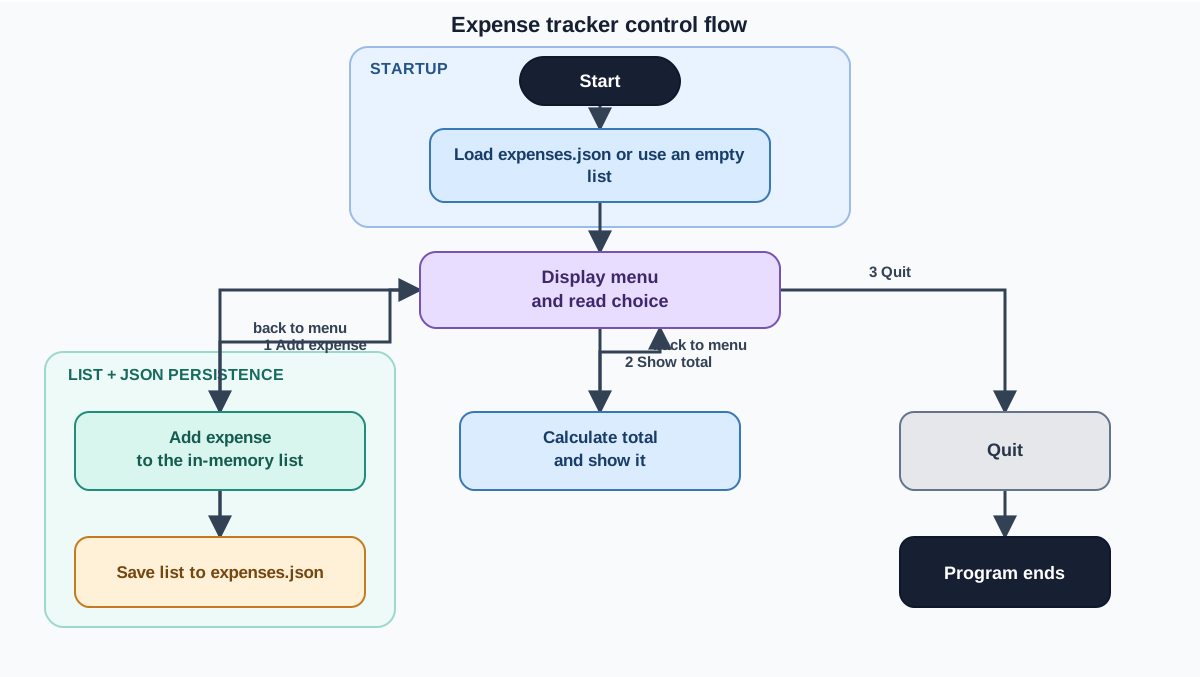
Here's your complete program. This is the authoritative version—if you've been editing piece by piece, replace your whole file with this:
import json

def load_expenses():
    try:
        with open("expenses.json", "r") as file:
            return json.load(file)
    except FileNotFoundError:
        return []

def save_expenses(expenses):
    with open("expenses.json", "w") as file:
        json.dump(expenses, file)

def add_expense(expenses):
    amount = float(input("Amount: "))
    category = input("Category: ")
    expenses.append({"amount": amount, "category": category})
    save_expenses(expenses)
    print("Expense added.")

def show_total(expenses):
    total = 0
    for expense in expenses:
        total += expense["amount"]
    print(f"Total: ${total:.2f}")

expenses = load_expenses()

while True:
    print("\nExpense Tracker")
    print("1. Add an expense")
    print("2. Show total")
    print("3. Quit")

    choice = input("Choose an option: ")

    if choice == "1":
        add_expense(expenses)
    elif choice == "2":
        show_total(expenses)
    elif choice == "3":
        print("Goodbye!")
        break
    else:
        print("Invalid choice. Try again.")
Now run the program twice. First run: add an expense and quit.
Expense Tracker
1. Add an expense
2. Show total
3. Quit
Choose an option: 1
Amount: 24.50
Category: groceries
Expense added.

Expense Tracker
1. Add an expense
2. Show total
3. Quit
Choose an option: 3
Goodbye!
Second run: check the total without adding anything.
Expense Tracker
1. Add an expense
2. Show total
3. Quit
Choose an option: 2
Total: $24.50
Your expense survived the restart. That's persistence—the feature that turns a demo into a tool.
You can also open expenses.json in your editor and see exactly what was saved:
[{"amount": 24.5, "category": "groceries"}]
Common mistake: overwriting instead of appending
When you open a file in "w" mode, Python wipes the file and writes fresh content. That's correct here because you're writing the entire list every time.
The mistake beginners make is trying to append one expense to the file instead of rewriting the whole list. That approach leads to corrupted JSON and confusing errors. The cleaner mental model: your list is the source of truth, and the file is just a snapshot of that list. Save the whole snapshot each time.
Common Beginner Mistakes and How to Fix Them
Let's walk through the errors most likely to trip you up while building this project.
String-to-number conversion error
Symptom: You enter an amount and the program crashes with ValueError: could not convert string to float.
What's happening: You typed something that can't become a number, like abc or $24.50. The $ sign breaks the conversion.
The fix: Make sure you enter plain numbers like 24.50. If you want the program to handle bad input gracefully, you'd need a loop that keeps asking until the user enters a valid number—a good next upgrade once the basic version works.
File-not-found error on first run
Symptom: The program crashes with FileNotFoundError before you even see the menu.
What's happening: Your load_expenses() function is missing the try/except, or you're trying to open the file before it exists.
The fix: Use the try/except FileNotFoundError pattern shown above. The first run has no file, and that's expected, not an error.
The overwrite trap
Symptom: You add expenses, quit, restart, and only the last session's expenses are there. Earlier ones vanished.
What's happening: You're saving only new expenses instead of the full list, or you're opening the file in append mode and creating invalid JSON.
The fix: Always save the entire expenses list with json.dump(expenses, file). The list holds everything from both the current session and the loaded file.
The infinite loop
Symptom: Choosing "Quit" doesn't quit. The menu just reappears.
What's happening: The break statement isn't being reached. Maybe it's outside the while loop, or the condition checking the choice is wrong.
The fix: Press Ctrl+C to escape, then check that break is inside the elif choice == "3" block. Also verify you're comparing choice to the string "3", not the number 3.
Test Your Tracker Like a Builder
You've built the program. Now verify it actually works—not by hoping, but by running a deliberate test sequence.
First, make sure you're starting from a clean state. If you've been following along, expenses.json may already contain test data. Delete it (or use a fresh project folder) so your expected totals aren't thrown off by old entries:
rm expenses.json
Now run the test sequence:
- Run the program.
- Add an expense with amount
10.00and categorytest. - Add another with amount
5.50and categorytest2. - Show the total. It should read
$15.50. - Quit.
- Run the program again.
- Show the total immediately. It should still read
$15.50.
If step 7 shows $15.50, every feature is working: input, storage, calculation, saving, and loading.
If something fails, don't panic. Read the error message. It tells you exactly which line broke and what Python expected. Fix that one thing and run again.
Testing your own program is not an optional extra. It's the habit that separates people who write code from people who ship working tools. Every time you run the program and check the output, you're learning something about how your code actually behaves—not how you imagine it behaves.
Once the test passes, make one small change and observe the consequence. Change the menu text. Add a blank line somewhere. Break something on purpose and see what error you get. This play-and-observe loop is how you build an instinct for what your code is doing.
Next Steps to Make It Yours
Your tracker works. Now make it yours.
Here are three beginner-safe extensions, in rough order of difficulty:
Handle bad input gracefully. Right now, typing abc as an amount crashes the program. Add a loop that keeps asking until the user enters a valid number. This practices while loops and try/except together.
Delete an expense. Add a menu option that shows all expenses with numbers, asks which one to remove, and deletes it from the list. This exercises list indexing and the del statement.
Filter by category. Add an option that asks for a category and shows only expenses in that category, plus their subtotal. This practices if statements inside a for loop.
Any of these will push your understanding further than reading another tutorial will. Pick one and build it.
What you've just done matters more than the specific program. You took separate skills—input, functions, dictionaries, loops, conditionals, file I/O—and combined them into one system that solves a real problem. That's the core of programming: not memorizing syntax, but assembling tools into something useful.
Your tracker is proof you can do it. The next project will be easier.
Knowledge check
Final check
Finish the article by checking the ideas you just learned.
Want a more structured Python path?
Use the Python Starter Pack to turn scattered tutorials into a focused practice path.
Python for Artificial Intelligence Starter Pack
Build a Python foundation you can actually use. The Python for AI Starter Pack brings together a guided path through setup, core programming concepts, data structures, files, JSON, APIs, debugging, and practical projects—so you can move quickly from running your first program to understanding and building useful software.
- 264-page illustrated PDF
- 12 guided Python chapters
- Visual concept diagrams
- Self-assessment quizzes
- Bonus deep-dive sections
- Files, JSON, APIs, debugging & projects
- Foundation for data, automation & AI
Coming soon


