
How to Accept Command-Line Arguments in Python
A script that only works when you edit the code every time is not yet a tool. It is a note to yourself. Command-line arguments turn that note into…

A script that only works when you edit the code every time is not yet a tool. It is a note to yourself. Command-line arguments turn that note into something you can run again and again with different inputs—no editing required.
Here is the beginner habit I see constantly: you write a script, hardcode a value inside it, run it, get the result, and then edit the file when you need a different result. That works for about ten minutes. Then you want to greet five different names, process three different files, or run the same calculation with new numbers, and suddenly you are the human input system for your own program.
Command-line arguments fix that. They are the values you type after the script name when you run it from the terminal. Instead of editing code, you type:
python greet.py Ada
and the script uses Ada without you touching the source file.
This tutorial assumes you already know how to run a Python file and how to import modules. If those feel shaky, go back and practice them first—they take five minutes, and everything here builds on them.
Why Your Script Should Accept Input at the Terminal
Let me show you the problem before the solution.
Imagine you wrote a small script that greets a user:
name = "Ada"
print(f"Hello, {name}!")
Run it, and you get:
Hello, Ada!
Now you want to greet Grace. What do you do? You open the file, change "Ada" to "Grace", save, and run again. That is the hardcoding habit. It works, but it does not scale. Every new input costs you an edit, and every edit is a chance to break something that was already working.
Command-line arguments change the relationship between you and your script. The script stops being a fixed recipe and becomes a machine with an input slot. You feed it different values at the terminal, and it produces different output without a single line of code changing.
That is how real command-line tools behave. When you run a program that processes a file, you do not edit the program to point at each new file. You pass the filename as an argument. This is the first step toward scripts that process files, clean data, or generate reports without code edits—the kind of practical automation that makes Python worth learning.
A Quick Look at the Raw Inputs: sys.argv
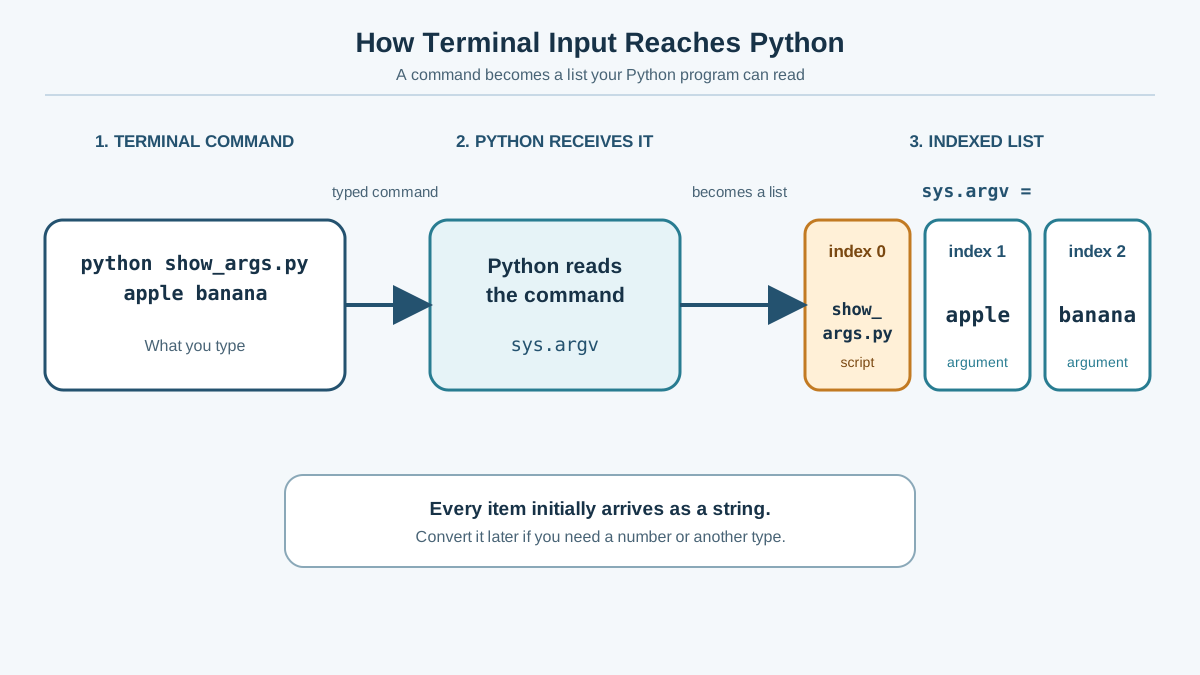
Before we build the proper tool, let me show you what Python does with the text you type after python. It collects everything into a list called sys.argv.
The name looks strange, but the mechanism is simple. When you run a Python script, the interpreter gathers everything you typed on the command line and stores it in a list. The first item, at index 0, is always the script name itself. The real arguments start at index 1.
Create a file called show_args.py with this content:
import sys

print(sys.argv)
Now run it with a few arguments:
python show_args.py apple banana cherry
You will see:
['show_args.py', 'apple', 'banana', 'cherry']
Python took everything after python, split it into separate strings, and handed you the whole list. The script name is at position 0. The arguments you actually care about are sys.argv[1:]—everything from index 1 onward.
One detail matters immediately: every argument arrives as a string, even if it looks like a number. If you run python add.py 10 20, Python does not hand you the integers 10 and 20. It hands you the strings "10" and "20". You have to convert them yourself if you want to do math.
sys.argv is a useful mental model. It shows you exactly what the terminal passes to your script. But for real scripts, you will usually want something with more structure.
Knowledge check
Check your understanding
Answer this question before you continue.
Why argparse Beats Raw sys.argv for Real Scripts
Here is where sys.argv starts to hurt.
Suppose you build a script that takes a name and a number of repetitions. With sys.argv, you have to remember the order: name first, number second. Run it wrong, and the script either crashes or silently does the wrong thing. There is no help text. There is no validation. If the user forgets an argument, your script has to check len(sys.argv) and print its own error message.
That is a lot of manual work for a beginner, and it is exactly the kind of work that invites bugs.
The Python standard library includes a better tool: argparse. It is built in, so you do not need to install anything. It handles the parts of command-line parsing that you should not have to write yourself:
- Named arguments, so users do not have to memorize positions
- Automatic help text when someone runs your script with
-hor--help - Built-in error messages when required values are missing
- Type conversion, so a numeric argument can arrive as a number instead of a string
Here is a quick comparison to keep the two tools straight:
sys.argv | argparse | |
|---|---|---|
| What you get | A raw list of strings | Parsed values with names |
| Argument order | Position matters | Named, so order is flexible |
| Help text | You write it yourself | Automatic with -h |
| Missing values | You check and handle | Built-in error message |
| Type conversion | You convert manually | Declare the type once |
| Best for | Tiny scripts, quick experiments | Real tools you will reuse |
My rule is simple: if the script is a quick experiment I will run once, sys.argv is fine. If the script is something I will run again next week, or hand to someone else, I use argparse. The setup cost is small, and the payoff starts the first time you forget what arguments your own script expects.
Knowledge check
Check your understanding
Answer this question before you continue.
Build Your First argparse Script
Let us build the greeting script properly. Create a file called greet.py:
import argparse

parser = argparse.ArgumentParser(description="Greet a user by name.")
parser.add_argument("name", help="The name to greet")
args = parser.parse_args()

print(f"Hello, {args.name}!")
Run it with a name:
python greet.py Ada
You will see:
Hello, Ada!
Now run it with a different name:
python greet.py Grace
Hello, Grace!
Same script. Same code. Different output, because the input comes from the terminal instead of the source file.
Here is what each line does:
parser = argparse.ArgumentParser(...)creates the parser object. Thedescriptionis a short sentence about what your script does.parser.add_argument("name", ...)declares that the script expects one argument calledname. Because the argument name has no dashes in front of it, it is a positional argument—the user must type it in that position.args = parser.parse_args()reads the command line, checks it against the rules you declared, and stores the results.args.nameis how you read the value.argparseturns the argument name into an attribute you can access with dot notation.
That last point is the real payoff. You declare an argument called name, and suddenly args.name holds whatever the user typed. No manual list indexing. No remembering that the name is at index 1.
Knowledge check
Check your understanding
Answer this question before you continue.
Require a Value and Show Help
The greeting script works, but it has a problem. What happens if someone runs it without a name?
python greet.py
Try it. You will see an error like this:
usage: greet.py [-h] name
greet.py: error: the following arguments are required: name
That error message came from argparse, not from code you wrote. The script refused to run because a required value was missing, and it told the user exactly what to fix. You did not write a single line of validation logic.
Now run the script with the help flag:
python greet.py -h
You will see:
usage: greet.py [-h] name

Greet a user by name.

positional arguments:
  name        The name to greet

options:
  -h, --help  show this help message and exit
That entire help screen is automatic. argparse generated it from the description you wrote and the help= text you attached to each argument. Anyone who runs your script with -h gets a clean summary of what the script does and what it expects.
This is the moment a script starts feeling like a real tool. It tells you what it needs, refuses to run with missing inputs, and explains itself on request. That is not extra ceremony. That is the difference between a script only you can run and a tool anyone can use.
Tip: Write the
help=text for a future user who has never seen your code. That future user is often you, three weeks from now, with no memory of what the script expects.
Knowledge check
Check your understanding
Answer this question before you continue.
Common Beginner Mistakes and How to Fix Them
These three mistakes show up constantly. They are normal. Each one teaches you something about how the mechanism works.
Mistake 1: Not reading the error message
When you run a script without a required argument, argparse prints a clear error. Beginners sometimes see the red text and assume the script is broken.
It is not broken. It is protecting you. The error message tells you exactly which argument is missing. Read it, add the argument, and run again. The error is the script doing its job.
Mistake 2: Assuming numbers arrive as numbers
Every command-line argument starts as a string. If your script needs a number, you have to tell argparse to convert it:
import argparse

parser = argparse.ArgumentParser(description="Double a number.")
parser.add_argument("number", type=int, help="The number to double")
args = parser.parse_args()

print(args.number * 2)
The type=int part tells argparse to convert the incoming string to an integer. Without it, args.number would be a string, and multiplying a string by 2 would give you "55" instead of 10 when you pass 5.
Mistake 3: Confusing the script name with the first real argument
With sys.argv, the script name lives at index 0. The first real argument is at index 1. Beginners frequently grab sys.argv[0] expecting their first input and get the filename instead.
The fix is the slice: sys.argv[1:] gives you everything after the script name. Or skip the problem entirely and use argparse, which handles that indexing detail for you.
Practice: Turn a Fixed Script into a Reusable One
Here is your task. Take this script with a hardcoded value and turn it into a script that accepts input from the command line:
city = "Paris"
print(f"Selected city: {city}")
Your goal: make it so you can run:
python select_city.py London
and get:
Selected city: London
The changes you need are small. Import argparse. Create a parser. Add an argument called city. Parse the arguments. Then use args.city instead of the hardcoded string.
When you are done, test these three things:
- Run it with a city name and confirm the output changes.
- Run it with a different city name and confirm the output changes again.
- Run it with
-hand confirm you see a help screen describing the script.
If all three work, you have built your first reusable command-line tool. The code no longer cares which city you ask about. You decide at the terminal, every time, without editing a single line.
The next step is natural: use command-line arguments to feed your script a filename or data source. That is how you build scripts that process files, clean up data, or generate reports—the practical projects where Python really earns its keep. Start with this practice task, and you will be ready for them.
Knowledge check
Final check
Finish the article by checking the ideas you just learned.
References
Want a more structured Python path?
Use the Python Starter Pack to turn scattered tutorials into a focused practice path.
Python for Artificial Intelligence Starter Pack
Build a Python foundation you can actually use. The Python for AI Starter Pack brings together a guided path through setup, core programming concepts, data structures, files, JSON, APIs, debugging, and practical projects—so you can move quickly from running your first program to understanding and building useful software.
- 264-page illustrated PDF
- 12 guided Python chapters
- Visual concept diagrams
- Self-assessment quizzes
- Bonus deep-dive sections
- Files, JSON, APIs, debugging & projects
- Foundation for data, automation & AI
Coming soon


