
Python pathlib: Work with File Paths Safely
You write a file path as a string. Your script works perfectly on your machine. Then you share it with a friend on Windows—or move it to a server running…

You write a file path as a string. Your script works perfectly on your machine. Then you share it with a friend on Windows—or move it to a server running Linux—and suddenly it crashes. The file was right there. What happened?
The problem wasn't your file. It was how you wrote the path.
Python's pathlib module fixes this by treating paths as objects instead of fragile strings. It's built into Python, handles path separators correctly on every operating system, and makes your file-handling code cleaner. Let me show you how it works.
Why String Paths Break
Here's the core issue: different operating systems use different separators in file paths.
- Windows uses backslashes:
reports\2026\sales.csv - macOS and Linux use forward slashes:
reports/2026/sales.csv
If you hardcode a path with backslashes and run it on Linux, Python looks for a file with a backslash in its name—which doesn't exist. If you hardcode forward slashes and run on Windows, it usually works, but only because Python quietly translates them. That hidden translation is exactly the kind of thing that breaks later.
String concatenation makes it worse:
folder = "reports"
filename = "sales.csv"
path = folder + "/" + filename  # Works until you forget a slash
One missing slash, one wrong separator, one folder that moved—and your script dies with a FileNotFoundError.
pathlib solves this by giving you a Path object that knows how to handle paths correctly on whatever system it's running on. No more guessing. No more manual slash management.
Your First Path Object
The first step is importing Path and creating one:
from pathlib import Path

folder = Path("reports")
print(folder)
reports
That looks like a plain string, but it's not. A Path object knows it represents a path. It has methods and attributes that let you inspect it, combine it with other paths, and check what exists on disk.
Think of it this way: a string is just characters. A Path is a string with a purpose—and a toolkit.
What Is a Relative Path Relative To?
Before we go further, you need to know one thing that trips up almost every beginner: a path like Path("reports") is relative. That means Python measures it from the current working directory—the folder where you launched the script, not necessarily where the script file lives.
You can see that folder at any time:
from pathlib import Path

print(Path.cwd())
/home/you/projects/sales_automation
The output will be different on your machine. That's the point: Path.cwd() shows you the anchor point for every relative path you create.
So when you write Path("reports") / "2026" / "sales.csv", Python is really looking for:
/home/you/projects/sales_automation/reports/2026/sales.csv
This matters because running the same script from a different folder changes what the relative path points to. If you launch read_report.py from your home directory instead of the project folder, Python will look for reports inside your home directory—and probably fail.
The fix is simple: know where you're running the script from, or use Path.cwd() to check when something doesn't work.
Knowledge check
Check your understanding
Answer this question before you continue.
Joining Paths with the / Operator
Here's where pathlib gets genuinely fun. To join path parts, you use the / operator:
from pathlib import Path

folder = Path("reports")
path = folder / "2026" / "sales.csv"
print(path)
reports/2026/sales.csv
On Windows, that same code produces reports\2026\sales.csv. You write the code once, and pathlib picks the correct separator for the operating system running the script.
Only the first part needs to be a Path. The rest can be plain strings:
from pathlib import Path

path = Path("reports") / "2026" / "sales.csv"
Compare that to the old way:
import os

path = os.path.join("reports", "2026", "sales.csv")
Both work, but the / version reads more naturally. You can see the path structure at a glance.
Common mistake: Forgetting which part needs to be a
Path. The rule is simple: the first part must be aPathobject; everything after it can be strings.
Knowledge check
Check your understanding
Answer this question before you continue.
Inspecting a Path: Name, Stem, and Parent
Once you have a Path, you can pull useful pieces out of it without slicing strings manually:
from pathlib import Path

path = Path("reports/2026/sales.csv")

print("Full path:", path)
print("File name:", path.name)
print("Stem:", path.stem)
print("Suffix:", path.suffix)
print("Parent:", path.parent)
Full path: reports/2026/sales.csv
File name: sales.csv
Stem: sales
Suffix: .csv
Parent: reports/2026
Here's what each attribute gives you:
| Attribute | What it returns | Example |
|---|---|---|
.name | The filename at the end of the path | sales.csv |
.stem | The filename without its extension | sales |
.suffix | The extension, including the dot | .csv |
.parent | The folder the file lives in | reports/2026 |
These attributes work the same on every operating system. You never have to worry about whether the separator is a slash or a backslash—pathlib handles that for you.
This becomes genuinely useful when you're automating tasks like renaming files or sorting them by extension. Instead of writing string-slicing logic that breaks on edge cases, you ask the Path directly.
Knowledge check
Check your understanding
Answer this question before you continue.
Checking What Exists on Disk
Before you open a file or write to a folder, you should verify it exists. pathlib gives you three methods for this:
from pathlib import Path

path = Path("reports/2026/sales.csv")

print("Exists:", path.exists())
print("Is a file:", path.is_file())
print("Is a directory:", path.is_dir())
The output depends on what's actually on your machine. If reports/2026/sales.csv exists as a file, you'll see:
Exists: True
Is a file: True
Is a directory: False
If the file doesn't exist, every line will be False. That's not a bug—it's the method telling you the truth about your filesystem.
.exists()returnsTrueif the path points to anything real—file or folder..is_file()returnsTrueonly if it's a file..is_dir()returnsTrueonly if it's a folder.
This is your preflight check before acting. If you've already learned basic file I/O, you know that calling open() on a missing file raises a FileNotFoundError and crashes your script. Checking first prevents that:
from pathlib import Path

path = Path("reports/2026/sales.csv")

if path.exists():
    print(f"Found {path.name}, ready to read.")
else:
    print(f"Missing: {path}")
If the file exists, you'll see:
Found sales.csv, ready to read.
In practice, you'll use this pattern constantly in automation scripts. Check first, then act.
Knowledge check
Check your understanding
Answer this question before you continue.
Common Beginner Mistake: Mixing Slash Styles
When you first switch from string paths to pathlib, you'll probably make this mistake at least once.
You write a path with backslashes inside a normal string:
path = Path("reports\2026\sales.csv")
Python sees \2 and \s as escape sequences, not as path separators. The result is a path that doesn't point where you think it does.
The fix is simple: stop typing separators entirely. Let pathlib build the path:
path = Path("reports") / "2026" / "sales.csv"
If a path doesn't resolve the way you expect, print the Path object to see what Python actually built:
print(path)
Then check whether the folder exists:
print(path.parent.exists())
Read the error. Print the path. Check the folder. That debugging sequence will solve most path problems you hit.
Putting It Together: A Small Automation Script
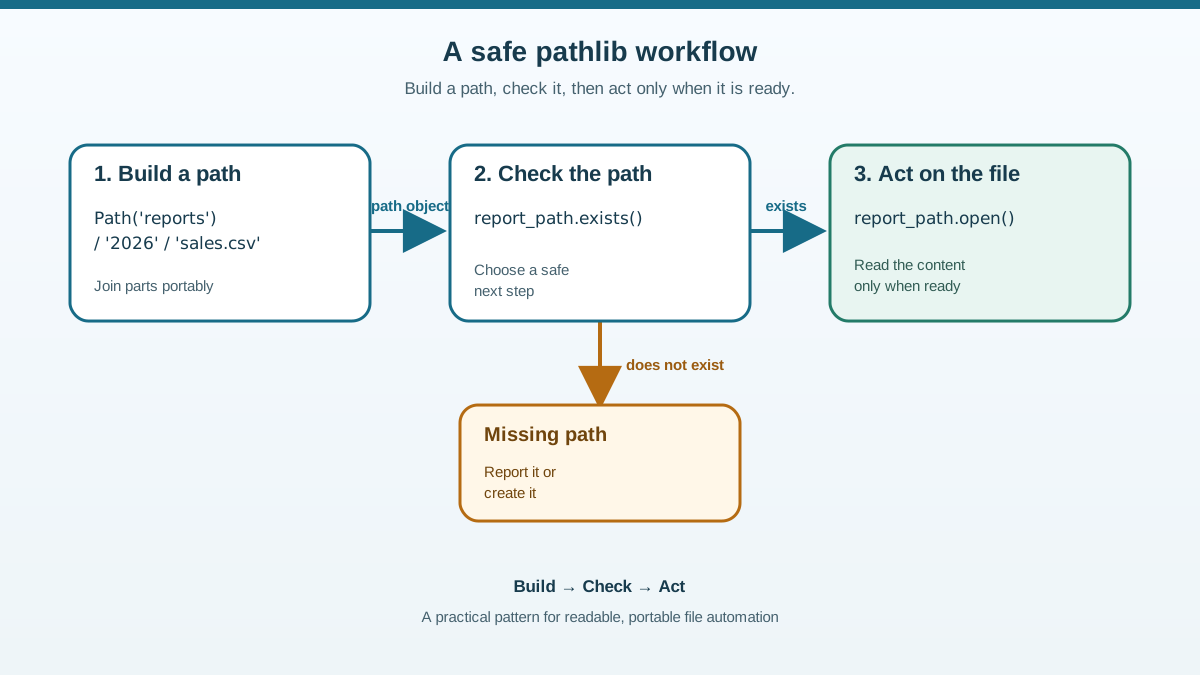
Let's connect everything with a realistic task: reading a data file from a reports folder.
Save this as read_report.py:
from pathlib import Path

# Build the path to the report file
report_path = Path("reports") / "2026" / "sales.csv"

# Check it exists before trying to open it
if not report_path.exists():
    print(f"Report not found: {report_path}")
else:
    with report_path.open("r") as file:
        content = file.read()
    print(f"Read {len(content)} characters from {report_path.name}")
Run it from the same folder where the reports folder lives:
python read_report.py
If reports/2026/sales.csv exists, you'll see something like:
Read 1240 characters from sales.csv
The character count depends on your file's actual content.
Notice what happened here. You built the path with Path and /, checked it with .exists(), then opened it with .open(). The Path object works directly with Python's file operations—no conversion back to a string needed.
If you haven't learned file I/O yet, don't worry about the with block's details. The important new part is the Path object: it builds the path, verifies it, and hands it to Python's file tools. That's the foundation.
This pattern—build the path, verify it, then act—is the foundation for every file automation script you'll write next.
Practice: Build and Inspect Your Own Paths
Here's a small challenge to lock in what you've learned.
Create a folder called data in your working directory, and put a file inside it called notes.txt with any content.
Then write a script that:
- Creates a
Pathfor thedatafolder. - Joins the filename
notes.txtto it. - Prints the file's name, stem, and suffix.
- Checks whether the file exists and prints a friendly message either way.
Here's a starting point:
from pathlib import Path

data_folder = Path("data")
file_path = data_folder / "notes.txt"

print("Name:", file_path.name)
print("Stem:", file_path.stem)
print("Suffix:", file_path.suffix)

if file_path.exists():
    print(f"{file_path.name} is ready to read.")
else:
    print(f"{file_path.name} was not found.")
Run it from the folder that contains data. Observe the output. Then change the filename to something that doesn't exist and run it again. Watch how the message changes.
That's the whole loop: build, inspect, check, act.
Where to Go Next
You now have a solid foundation for every file automation script you'll write. The decision rule is simple: build paths with Path and /, check existence before acting, and let pathlib handle the operating system differences.
The natural next step is putting real data in those files. When you're ready, learn how to read and write CSV files or work with JSON data—both build directly on the path skills you just practiced.
Knowledge check
Final check
Finish the article by checking the ideas you just learned.
References
Want a more structured Python path?
Use the Python Starter Pack to turn scattered tutorials into a focused practice path.
Python for Artificial Intelligence Starter Pack
Build a Python foundation you can actually use. The Python for AI Starter Pack brings together a guided path through setup, core programming concepts, data structures, files, JSON, APIs, debugging, and practical projects—so you can move quickly from running your first program to understanding and building useful software.
- 264-page illustrated PDF
- 12 guided Python chapters
- Visual concept diagrams
- Self-assessment quizzes
- Bonus deep-dive sections
- Files, JSON, APIs, debugging & projects
- Foundation for data, automation & AI
Coming soon


