
Handling CSV Files in Python: Reading and Writing
CSV files are how the working world hands data to Python. If you've ever exported a spreadsheet, downloaded a report from a website, or pulled data from a…

CSV files are how the working world hands data to Python. If you've ever exported a spreadsheet, downloaded a report from a website, or pulled data from a database, you've probably ended up with a .csv file. Learning to read and write these files with Python's built-in csv module means you can stop copying data by hand and start processing it with code.
What a CSV file actually is
CSV stands for comma-separated values. It's a plain-text format for storing tabular data—think of it as a spreadsheet stripped down to its bare bones. Each line is a row, and commas separate the columns.
Here's what a small CSV file named employees.csv might look like:
Name,Department,Salary
Alice,Engineering,85000
Bob,Marketing,62000
Carol,Sales,74000
The first row is the header row, which names each column. The rows below hold the actual data.
You could try to read this file by hand with something like line.split(","), and for this simple example, it would work. But CSV has a few sneaky edge cases. What if a value contains a comma, like "Doe, John"? What if a field is wrapped in quotes? What if a value contains a newline?
That's why Python ships with a dedicated csv module. It handles all those edge cases so you don't have to reinvent a parser that the Python core team has already debugged for you.
Setting up your first CSV example
Before you run any code, make sure your files are in the right place. Python looks for files in the same folder as your script by default.
Create a folder for this tutorial and save two files in it:
employees.csvwith the content shown aboveread_employees.pywith the code below
If you run your script and Python raises FileNotFoundError, the most likely cause is that employees.csv isn't in the same folder as your script. Check the folder, confirm the filename is spelled exactly the same way, and try again.
Reading a CSV file with csv.reader
Let's start with the simplest way to read a CSV file. The csv.reader function turns each row into a list of strings.
Create a file called read_employees.py with this code:
import csv

with open("employees.csv", newline="", encoding="utf-8") as file:
    reader = csv.reader(file)
    for row in reader:
        print(row)
Then run it:
python read_employees.py
Expected output:
['Name', 'Department', 'Salary']
['Alice', 'Engineering', '85000']
['Bob', 'Marketing', '62000']
['Carol', 'Sales', '74000']
Notice two things right away.
First, the newline="" argument in open(). This is a Python quirk: the csv module handles line endings itself, and if you don't pass newline="", you can end up with blank lines between rows when writing files. Get in the habit of always including it when working with CSV files.
Second, every value comes back as a string. 85000 looks like a number, but Python sees the text "85000". If you want to do math with it, you'll need to convert it with int() or float().
The encoding="utf-8" argument tells Python how to decode the text in the file. UTF-8 is the standard encoding for most modern files, so including it gives you a consistent template that handles names, symbols, and other characters correctly.
Knowledge check
Check your understanding
Answer this question before you continue.
Reading with column names using csv.DictReader
The csv.reader approach works, but it has a readability problem. When you get a row back as a list, you have to remember that row[1] is the department and row[2] is the salary. That gets old fast.
The csv.DictReader class solves this by using the header row as dictionary keys. Each row becomes a dictionary where you access values by column name.
import csv

with open("employees.csv", newline="", encoding="utf-8") as file:
    reader = csv.DictReader(file)
    for row in reader:
        print(row)
Expected output:
{'Name': 'Alice', 'Department': 'Engineering', 'Salary': '85000'}
{'Name': 'Bob', 'Department': 'Marketing', 'Salary': '62000'}
{'Name': 'Carol', 'Department': 'Sales', 'Salary': '74000'}
Now you can access a single field by name:
import csv

with open("employees.csv", newline="", encoding="utf-8") as file:
    reader = csv.DictReader(file)
    for row in reader:
        print(f"{row['Name']} works in {row['Department']}")
Expected output:
Alice works in Engineering
Bob works in Marketing
Carol works in Sales
So which should you use? My rule is simple: use csv.reader when you just need to process rows quickly and don't care about column names. Use csv.DictReader when your file has a header row and you want to refer to columns by name—which is most of the time, honestly. Named access is easier to read, easier to debug, and less likely to break if someone reorders the columns in the source file.
Here's a concrete example of why that matters. Imagine someone swaps the columns in employees.csv so Department comes first:
Department,Name,Salary
Engineering,Alice,85000
With csv.reader, your code that expected row[0] to be the name now silently prints the department instead. With csv.DictReader, row['Name'] still finds the right value no matter where the column sits. That resilience is worth the extra keystrokes.
Knowledge check
Check your understanding
Answer this question before you continue.
Writing a CSV file with csv.writer
Reading is only half the story. Sooner or later, you'll want to save data from your Python program so someone else can open it in a spreadsheet.
The csv.writer function writes rows from lists. Here's how to create a new CSV file:
import csv

with open("new_employees.csv", "w", newline="", encoding="utf-8") as file:
    writer = csv.writer(file)
    writer.writerow(["Name", "Department", "Salary"])
    writer.writerow(["David", "Engineering", 91000])
    writer.writerow(["Eve", "Design", 68000])
Run this script, then open new_employees.csv in any text editor or spreadsheet program. You'll see:
Name,Department,Salary
David,Engineering,91000
Eve,Design,68000
A few things to notice:
writerow()writes a single row. Pass it a list, and each element becomes one field.writerows()(with ans) writes multiple rows at once. Pass it a list of lists.- Numbers are converted to strings automatically. You don't need to call
str()yourself.
Writing with column names using csv.DictWriter
Just as DictReader pairs naturally with reading, csv.DictWriter pairs with writing when your data lives in dictionaries.
DictWriter needs one extra piece of information: fieldnames. This is an ordered list that tells Python which dictionary keys map to which columns, and in what order.
import csv

with open("filtered_employees.csv", "w", newline="", encoding="utf-8") as file:
    fieldnames = ["Name", "Department", "Salary"]
    writer = csv.DictWriter(file, fieldnames=fieldnames)

    writer.writeheader()

    writer.writerow({"Name": "Alice", "Department": "Engineering", "Salary": 85000})
    writer.writerow({"Name": "Carol", "Department": "Sales", "Salary": 74000})
Expected file contents:
Name,Department,Salary
Alice,Engineering,85000
Carol,Sales,74000
The writeheader() method writes the fieldnames as the header row. Then each writerow() call takes a dictionary and writes the values in the order specified by fieldnames.
This pattern is how you save filtered or cleaned data back to a file. Read data in with DictReader, process it, then write it out with DictWriter—the column names stay intact the whole way through.
Knowledge check
Check your understanding
Answer this question before you continue.
Common beginner mistakes
Every Python developer hits these when they start working with CSV files. Here's what to watch for.
Forgetting newline=""
Symptom: Your output file has blank lines between every row.
Fix: Always open CSV files with newline="":
with open("output.csv", "w", newline="") as file:
Assuming csv.reader returns numbers
Symptom: You try to compare a salary field with if row[2] > 70000 and get a TypeError, or your comparisons behave strangely because you're comparing strings, not numbers.
Fix: Remember that every value from csv.reader and DictReader is a string. Convert explicitly when you need numbers:
salary = int(row["Salary"])
Splitting lines manually
Symptom: Your data gets corrupted when a field contains a comma, like "Doe, John".
Fix: Don't use line.split(","). That's exactly the problem the csv module was built to solve. Use csv.reader and let Python handle the quoting rules.
Knowledge check
Check your understanding
Answer this question before you continue.
Forgetting to import csv
Symptom: NameError: name 'csv' is not defined.
Fix: Add import csv at the top of your script. It's a built-in module, so no installation needed—just the import.
Practice: read, filter, and write
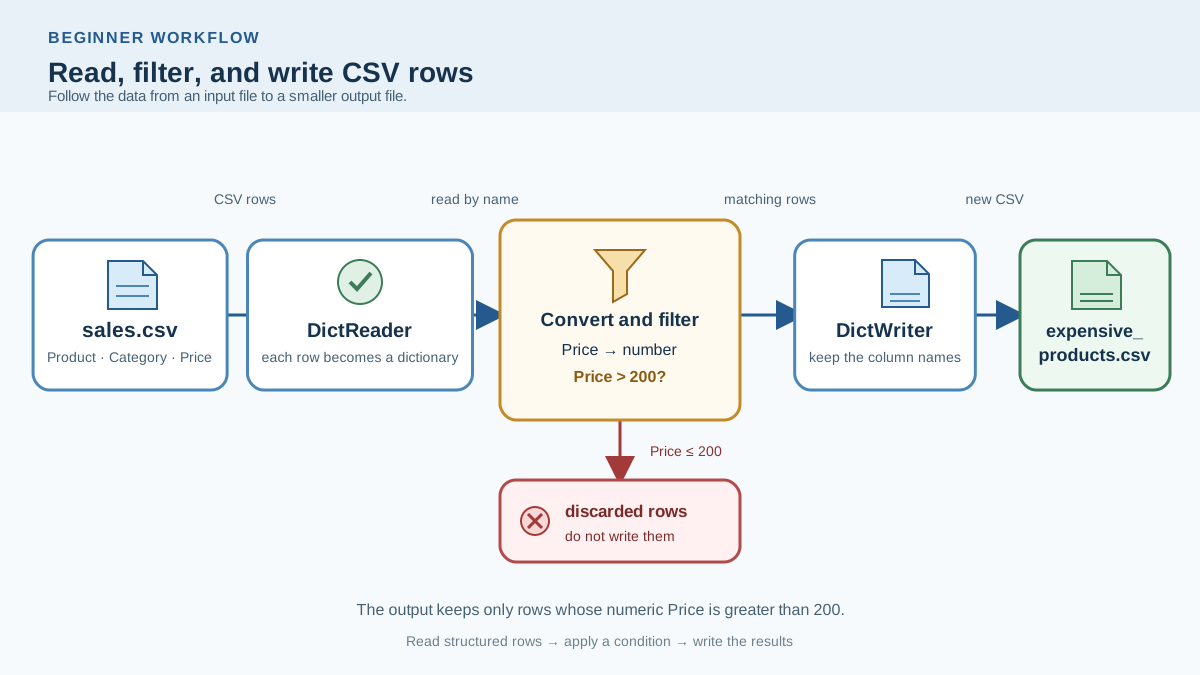
Here's a small drill to tie everything together. Create a file called sales.csv with this data:
Product,Category,Price
Laptop,Electronics,1200
Desk Chair,Furniture,250
Coffee Maker,Appliances,80
Monitor,Electronics,300
Bookshelf,Furniture,150
Your task: read this file, keep only the rows where the price is greater than 200, and write the result to a new file called expensive_products.csv.
Before you look at the solution, try writing the filter condition yourself. Which products should appear in the final file? Write down your prediction, then check it against the output.
A good starter approach uses DictReader and DictWriter so the column names stay intact:
import csv

with open("sales.csv", newline="", encoding="utf-8") as infile:
    reader = csv.DictReader(infile)
    rows = [row for row in reader if int(row["Price"]) > 200]

with open("expensive_products.csv", "w", newline="", encoding="utf-8") as outfile:
    fieldnames = ["Product", "Category", "Price"]
    writer = csv.DictWriter(outfile, fieldnames=fieldnames)
    writer.writeheader()
    writer.writerows(rows)
When you're done, open expensive_products.csv and check that it contains only Laptop, Desk Chair, and Monitor. If it does, you've just completed the full workflow: read, filter, write.
What's next
You now know how to move data between CSV files and Python. The natural next step is to combine this skill with lists, dictionaries, and file handling in a small real project. That's exactly what you'll do in a simple data project, where reading and writing CSV files become part of a complete data workflow.
One decision rule to carry forward: use reader and writer for simple row-by-row work, and reach for DictReader and DictWriter whenever column names matter. That single choice will keep your code readable and your data intact.
Knowledge check
Final check
Finish the article by checking the ideas you just learned.
References
Want a more structured Python path?
Use the Python Starter Pack to turn scattered tutorials into a focused practice path.
Python for Artificial Intelligence Starter Pack
Build a Python foundation you can actually use. The Python for AI Starter Pack brings together a guided path through setup, core programming concepts, data structures, files, JSON, APIs, debugging, and practical projects—so you can move quickly from running your first program to understanding and building useful software.
- 264-page illustrated PDF
- 12 guided Python chapters
- Visual concept diagrams
- Self-assessment quizzes
- Bonus deep-dive sections
- Files, JSON, APIs, debugging & projects
- Foundation for data, automation & AI
Coming soon


