Practice Exercises: Files and Data
Reading about file handling is easy. Writing code that actually reads a file, transforms its data, and writes something new back to disk is where the skill…

Reading about file handling is easy. Writing code that actually reads a file, transforms its data, and writes something new back to disk is where the skill sticks. These four exercises are designed to give you that repetition — and each one builds on the last in a specific way.
If you have worked through the tutorials on CSV files and JSON data, you already have the concepts. What you need now is deliberate practice: small problems, real code, and the habit of running your script to see what actually happens.
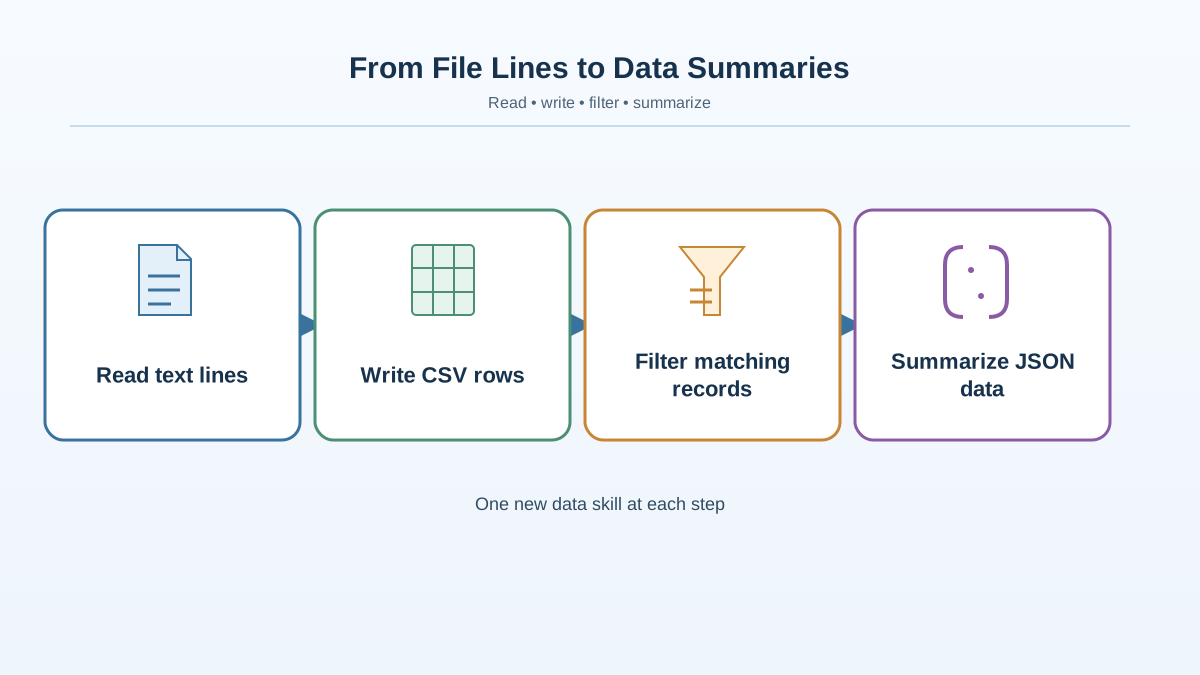
Here is the ladder you are climbing: text lines become rows, rows become labeled records, records get filtered, and structured objects get summarized. Each exercise moves you one rung up.
How to Use These Exercises
Each exercise follows the same format:
- Goal — what you are building and why it matters
- Starter code — a small foundation you can build on
- Hint — a nudge in the right direction if you get stuck
- Solution — one working way to solve it, with a short explanation
- Extension — an optional twist that pushes the exercise further
Before you peek at any solution, run your code. Look at the output. Break something on purpose and see what the error tells you. That loop — write, run, inspect, fix — is the actual skill you are training.
Tip: Keep a folder just for these exercises. Put each script and its data file in the same folder, and run your script from that folder. When you write
open("notes.txt", "r"), Python looks fornotes.txtin the folder where the script is running.
Exercise 1: Read a Text File and Count Lines
Goal: Open a plain text file, read it line by line, and print how many lines it contains.
First, create a text file called notes.txt in the same folder as your Python script. Copy these exact lines into it:
Buy groceries
Call the dentist
Finish the report
Water the plants
Starter code:
with open("notes.txt", "r") as file:
    # Your code here
    pass
Hint: You can loop over a file object directly with a for loop. Each iteration gives you one line.
Try this first: Write your own solution before scrolling to the next block. The goal is a single printed line that says how many lines the file contains.
Solution:
with open("notes.txt", "r") as file:
    line_count = 0
    for line in file:
        line_count += 1

print(f"Total lines: {line_count}")
Expected output:
Total lines: 4
The with statement handles closing the file automatically when the block ends. That is not a minor convenience — it prevents a whole class of bugs where files stay open longer than they should.
Extension: Count the total number of words in the file instead. You will need to split each line into words using .split().
Knowledge check
Check your understanding
Answer this question before you continue.
Exercise 2: Write a List to a CSV File
Goal: Take a list of rows and write it to a CSV file with a header row.
Now you move from plain text lines to tabular data — think spreadsheet rows. Here is a small contact list to work with:
Starter code:
import csv

contacts = [
    ["Name", "Email", "City"],
    ["Ana", "[email protected]", "Lisbon"],
    ["Ben", "[email protected]", "Austin"],
    ["Chen", "[email protected]", "Singapore"],
]

# Your code here
Hint: Use csv.writer and its writerow() method. Open the file in write mode with "w".
Try this first: Write the loop that sends each row to the file. Then run your script and open contacts.csv to check the result.
Solution:
import csv

contacts = [
    ["Name", "Email", "City"],
    ["Ana", "[email protected]", "Lisbon"],
    ["Ben", "[email protected]", "Austin"],
    ["Chen", "[email protected]", "Singapore"],
]

with open("contacts.csv", "w", newline="") as file:
    writer = csv.writer(file)
    for row in contacts:
        writer.writerow(row)
The newline="" argument matters here. Without it, Python can add extra blank lines between rows on some systems. The header row — the first list — is what gives your data meaningful column names when someone opens the file in a spreadsheet program.
Extension: Read contacts.csv back and print each row to confirm the round trip worked.
Knowledge check
Check your understanding
Answer this question before you continue.
Exercise 3: Read a CSV File and Filter Rows
Goal: Read a CSV file of records and print only the rows that match a condition.
Your data now has labels — column names — and that changes how you work with it. Create a file called sales.csv with these contents:
product,units
notebook,12
pen,45
marker,8
eraser,30
Starter code:
import csv

with open("sales.csv", "r") as file:
    # Your code here
    pass
Hint: Use csv.DictReader so each row becomes a dictionary with column names as keys. That makes the filter logic much easier to read. Remember that values from a CSV file are strings, so you will need int() to compare numbers.
Try this first: Print every row before you filter anything. Once you can see the data flowing through your loop, add the condition.
Solution:
import csv

with open("sales.csv", "r") as file:
    reader = csv.DictReader(file)
    for row in reader:
        if int(row["units"]) >= 20:
            print(f"{row['product']}: {row['units']} units")
Expected output:
pen: 45 units
eraser: 30 units
The filter condition — int(row["units"]) >= 20 — is the core of the exercise. It converts the string value from the file into a number, then compares it against your threshold. This pattern shows up constantly in real data cleanup work.
Extension: Write the filtered rows to a new CSV file instead of printing them.
Knowledge check
Check your understanding
Answer this question before you continue.
Exercise 4: Load JSON and Summarize the Data
Goal: Load a JSON file and print a simple summary of its contents.
JSON is the format you will meet constantly when working with web data. Unlike CSV rows, JSON objects carry their labels with every record — each dictionary is self-describing. Create a file called students.json:
[
    {"name": "Ana", "score": 85},
    {"name": "Ben", "score": 92},
    {"name": "Chen", "score": 78},
    {"name": "Dina", "score": 88}
]
Starter code:
import json

with open("students.json", "r") as file:
    # Your code here
    pass
Hint: json.load() reads the file and converts the JSON text into Python data structures. Since the file contains a list of objects, you will get a list of dictionaries.
Try this first: Load the file and print the result. Look at what Python gives you — a list of dictionaries — before you write the summary logic.
Solution:
import json

with open("students.json", "r") as file:
    students = json.load(file)

total = len(students)
average_score = sum(student["score"] for student in students) / total

print(f"Total students: {total}")
print(f"Average score: {average_score:.1f}")
Expected output:
Total students: 4
Average score: 85.8
The key insight is that json.load() does the heavy lifting. Once the data is in Python, you work with it using the same list and dictionary skills you already have. The JSON structure maps directly onto Python structures.
Extension: Save the summary back to a new JSON file using json.dump().
Knowledge check
Check your understanding
Answer this question before you continue.
Common Mistakes to Watch For
These are the errors I see beginners hit most often with file and data work:
Forgetting to close files. If you use open() without a with block, you must call file.close() yourself. The with statement handles this automatically — use it.
Opening in the wrong mode. Reading a file with "w" mode will erase its contents. Writing with "r" mode raises an error. Check your mode string before you run.
Reading a file that does not exist. Python raises a FileNotFoundError. For now, the fix is simple: make sure the file is in the same folder as your script and the filename is spelled exactly right.
Confusing csv.reader and csv.DictReader. csv.reader gives you each row as a list. csv.DictReader gives you each row as a dictionary with column names as keys. Pick the one that matches how you want to access the data.
Mixing up json.load() and json.loads(). json.load() reads from a file object. json.loads() parses a JSON string. The extra s means "string."
What to Practice Next
Here is what you just drilled: reading text files, writing CSV data, filtering CSV rows, and summarizing JSON data. Each exercise moved you from plain lines to structured records you can filter and summarize.
Now combine them. Write one script that reads sales.csv, keeps only the rows where units are 20 or more, and writes the result to high_sales.csv. That single script pulls together three of the four skills from this session.
When you are ready to see these skills working together in a real build, combine them in a simple data project. That is where file handling stops being individual exercises and becomes a working tool. Run the code, break it, fix it, and keep going — that repetition is what makes the skill stick.
Knowledge check
Final check
Finish the article by checking the ideas you just learned.
References
Want a more structured Python path?
Use the Python Starter Pack to turn scattered tutorials into a focused practice path.
Python for Artificial Intelligence Starter Pack
Build a Python foundation you can actually use. The Python for AI Starter Pack brings together a guided path through setup, core programming concepts, data structures, files, JSON, APIs, debugging, and practical projects—so you can move quickly from running your first program to understanding and building useful software.
- 264-page illustrated PDF
- 12 guided Python chapters
- Visual concept diagrams
- Self-assessment quizzes
- Bonus deep-dive sections
- Files, JSON, APIs, debugging & projects
- Foundation for data, automation & AI
Coming soon


