
Python Logging: Add Levels and Useful Messages to Small Applications
Your script works. That is the problem. Somewhere between the first print("here") and the fifth print("still here"), your console turned into a wall of…

Key topics
Your script works. That is the problem. Somewhere between the first print("here") and the fifth print("still here"), your console turned into a wall of text where a routine progress note and a broken assumption look exactly the same. You cannot filter it. You cannot turn it off without deleting lines you will want back tomorrow.
Python's logging module fixes that with one idea: a log message is a print statement that carries a severity and an off switch. You decide what to see without editing the code that produces it. This tutorial gets you from scattered prints to leveled log messages in a small script, using only the standard library and one configuration call.
Why Print Statements Stop Scaling
Print is not a bad tool. For a five-line script you will delete in an hour, print() is faster, and there is no shame in it. Logging starts paying off when the script grows past a few functions, or when it runs unattended and you are not there to watch it.
Three limits show up first:
- Print has no severity. A progress note and a broken assumption render identically. Your eyes have to do the sorting.
- Print has no off switch. Silencing debug output means editing or commenting out code, then remembering to put it back.
- Print output is not labeled. When a helper function and your main loop both print, you cannot tell which part of the script spoke.
The decision rule is simple: keep print for throwaway inspection, and move to logging when you need to filter, label, or keep the output. If you have already read our debugging guide, this is the natural next step — same instinct of watching values, now with structure attached.
Your First Log Message in Four Lines
Create a file called app.py:
import logging

logging.warning("Disk space is getting low")
logging.info("Processed 12 files")
Run it:
python app.py
Expected output:
WARNING:root:Disk space is getting low
Notice what happened. The warning appeared. The info call printed nothing at all — no error, no traceback, just silence.
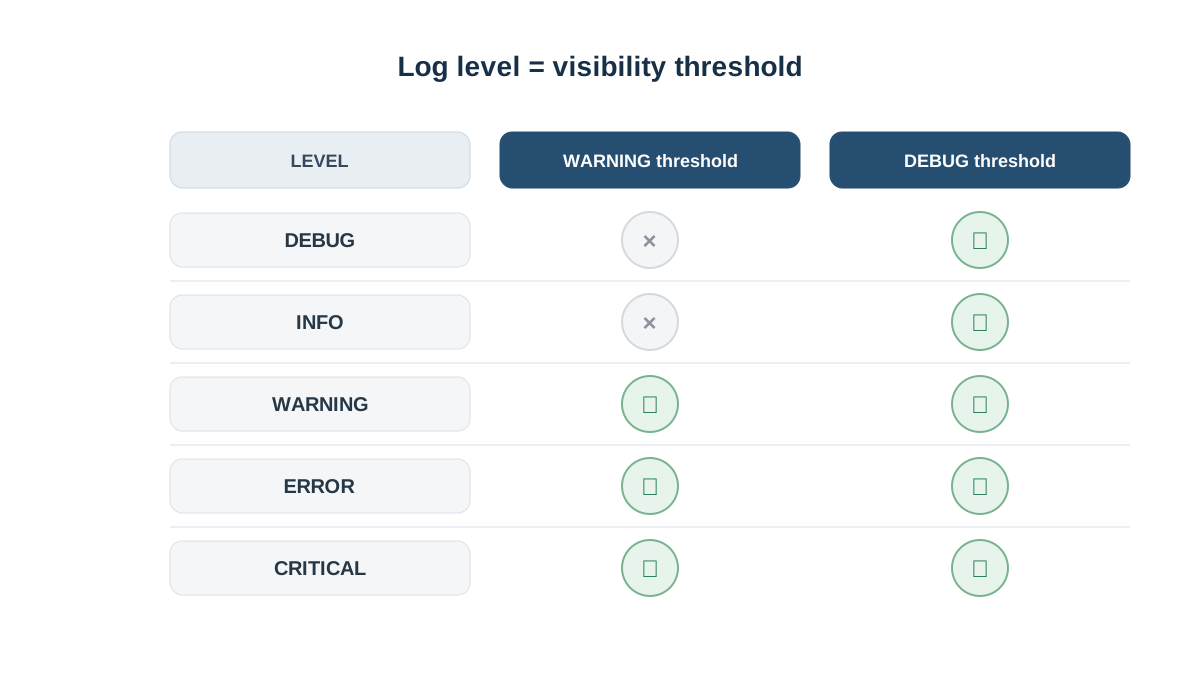
That is not a bug. The default threshold is WARNING, so anything below it is dropped before it reaches the console. This is the first real mental model: a log call is a request, and the logger decides whether to honor it.
Knowledge check
Check your understanding
Answer this question before you continue.
The Five Levels and What Each One Is For
Python ships with five standard levels, in increasing severity. Each has a matching method on the logger.
| Level | Use it when | What it means in a normal run |
|---|---|---|
DEBUG | You are chasing a bug and want variable values | Should be invisible; if you see it, someone turned verbosity up |
INFO | Something expected happened: "started processing 12 files" | Normal operation, worth recording |
WARNING | Something unexpected but survivable: "config key missing, using default" | The script continued, but you should look |
ERROR | A real failure: "could not write report" | Something did not work |
CRITICAL | The program cannot continue at all | Stop and fix before running again |
Internally each level is just a number — DEBUG is 10, INFO is 20, and so on up to CRITICAL at 50. You do not need to memorize the numbers. They exist so the logger can compare "how severe is this message" against "how severe am I willing to show" with a simple greater-than check.
The level should describe the event, not your mood about it. A routine run summary belongs at INFO because you would want it in a normal report. A variable dump you only need while chasing a bug belongs at DEBUG because it should stay invisible until you ask for it. When you are genuinely torn between two levels, ask which one you would want to see on a normal day: if the answer is "yes, always," it is probably INFO; if the answer is "only when something looks wrong," it is probably DEBUG.
That rule keeps you consistent with the later warning about noisy logs. Downgrading everything to DEBUG to be safe does not protect information — it just hides the routine events you actually wanted to see.
Knowledge check
Check your understanding
Answer this question before you continue.
Setting the Level with basicConfig
One call changes everything. Update app.py:
import logging

logging.basicConfig(level=logging.DEBUG)

logging.debug("Loaded 3 config keys")
logging.info("Processed 12 files")
logging.warning("Disk space is getting low")
logging.error("Could not write report")
logging.critical("Shutting down")
Run it again:
python app.py
Expected output:
DEBUG:root:Loaded 3 config keys
INFO:root:Processed 12 files
WARNING:root:Disk space is getting low
ERROR:root:Could not write report
CRITICAL:root:Shutting down
All five messages now appear. The threshold moved from WARNING down to DEBUG, so nothing gets dropped.
The output is still a bit bare, though. You get the level name and the message, but no timestamp. Add a format argument:
import logging

logging.basicConfig(
    level=logging.INFO,
    format="%(asctime)s %(levelname)s %(message)s",
)

logging.info("Processed 12 files")
logging.warning("Disk space is getting low")
Expected output:
2024-06-14 09:12:03,441 INFO Processed 12 files
2024-06-14 09:12:03,441 WARNING Disk space is getting low
The %(asctime)s placeholder inserts a timestamp, %(levelname)s inserts the severity, and %(message)s inserts your text. That timestamp is the one addition worth making early — it answers "when did this happen" without you having to guess from context.
Note: Call
basicConfig()once, near the top of your script, before any log calls. If you call it after logging has already been used, or call it twice, the second call is silently ignored and you will wonder why nothing changed.
Knowledge check
Check your understanding
Answer this question before you continue.
Logging a Variable Without Breaking Your Message
The most common beginner mistake when moving from print to logging is reaching for an f-string:
logging.debug(f"processed {done} of {total}")
This works, but it builds the string every single time — even when DEBUG is turned off and the message will be thrown away. In a tight loop, that is wasted work.
The idiomatic style passes the values as arguments:
import logging

logging.basicConfig(level=logging.DEBUG, format="%(levelname)s %(message)s")

done = 7
total = 12

logging.debug("processed %s of %s", done, total)
logging.info("processed %s of %s", done, total)
Expected output:
DEBUG processed 7 of 12
INFO processed 7 of 12
The %s placeholders are filled in only if the message passes the level check. When DEBUG is off, the formatting never happens. Same output, less work.
This is the same "watch the value change" habit from debugging — you are still inspecting done and total — but now the observation carries a label and a severity, so future-you knows whether it was routine or suspicious.
Knowledge check
Check your understanding
Answer this question before you continue.
Common Mistakes That Make Logs Useless
A few failure modes turn a good idea into the same wall of text you were trying to escape.
Logging everything at INFO. If every step is INFO, INFO becomes noise. Reserve it for events you would want in a summary of the run.
Calling basicConfig() too late or twice. It only takes effect the first time, before any log calls. Put it at the top.
Logging inside a tight loop. Ten thousand near-identical lines hide the one that matters. Log the start, the end, and any anomaly — not every iteration.
Using logging.error() for non-errors. If everything is an error, the error level stops meaning anything. You will train yourself to ignore it.
Logging sensitive values. Passwords, tokens, and personal data in logs are hard to remove later, because logs get copied, archived, and shipped to other systems. Log the fact that a token was used, not the token.
When Logging Is the Wrong Tool
Logging is one instrument among several. Reaching for it everywhere is as much a mistake as never reaching for it.
- A five-line script you will delete in an hour:
printis faster. Use it. - Stepping through control flow line by line: a debugger is the right tool. Logging tells you what happened; a debugger tells you where you are standing.
- Checking that a function returns the right value: a test is the right tool. A log line is not a pass or fail.
- User-facing output:
printor a proper interface is correct. Logs are for the person maintaining the script, not the person running it.
The one-line rule: logging is for events you want to review later, at a severity you chose in advance.
Practice: Add Logging to a Script You Already Wrote
Pick one script you have already written — a file cleanup, a report generator, anything with a few print calls in it.
- Replace three
printstatements with log calls at three different levels. A progress note becomesINFO, a missing-config fallback becomesWARNING, a failed write becomesERROR. - Add
logging.basicConfig(level=logging.INFO, format="%(asctime)s %(levelname)s %(message)s")at the top. - Run the script twice: once with
level=logging.INFOand once withlevel=logging.DEBUG. Note which lines appear and disappear. - Success condition: you can change verbosity by editing one line, not by deleting code.
Optional extension: add %(asctime)s to the format if you have not already, and confirm the timestamp appears in the output.
Where to Go Next
A log message is a print statement with a severity and an off switch. That is the whole upgrade — and it is enough to make your next failure cheaper to isolate.
The natural next step is to write a small test for the same function you just added logging to. Logging tells you what happened during a run; a test tells you whether the function is correct before the run even starts. Together they turn debugging from archaeology into a quick check.
Knowledge check
Final check
Finish the article by checking the ideas you just learned.
References
Want a more structured Python path?
Use the Python Starter Pack to turn scattered tutorials into a focused practice path.
Python for Artificial Intelligence Starter Pack
Build a Python foundation you can actually use. The Python for AI Starter Pack brings together a guided path through setup, core programming concepts, data structures, files, JSON, APIs, debugging, and practical projects—so you can move quickly from running your first program to understanding and building useful software.
- 264-page illustrated PDF
- 12 guided Python chapters
- Visual concept diagrams
- Self-assessment quizzes
- Bonus deep-dive sections
- Files, JSON, APIs, debugging & projects
- Foundation for data, automation & AI
Coming soon


