
How to Fix FileNotFoundError in Python
You can see the file right there in your folder. You double-check the name. It's spelled correctly. And yet Python raises FileNotFoundError and refuses to…

You can see the file right there in your folder. You double-check the name. It's spelled correctly. And yet Python raises FileNotFoundError and refuses to open it.
This is one of the most common frustrations for new Python developers. The fix starts with a simple shift in how you think about file paths: Python does not search your whole computer. It searches from one specific folder called the current working directory—and that folder is often not where you think it is.
Let's look at what the error is telling you, why it happens, and how to fix it for good.
What the Error Is Telling You
Here's a minimal example that triggers the error:
with open("report.txt", "r") as file:
    print(file.read())
If report.txt doesn't exist in the location Python is checking, you'll see something like this:
Traceback (most recent call last):
  File "script.py", line 1, in <module>
    with open("report.txt", "r") as file:
FileNotFoundError: [Errno 2] No such file or directory: 'report.txt'
Read the last line carefully. The filename in quotes—'report.txt'—is the exact path Python tried to open. That's the most useful piece of information in the whole traceback.
Two things worth noting:
- This is a runtime error, not a syntax error. Your code is valid Python. The problem is that the file isn't where Python looked for it.
FileNotFoundErrormeans the file or directory did not exist at the location Python searched. It doesn't mean the file is hidden, locked, or corrupted. It means "not found at this exact path."
Knowledge check
Check your understanding
Answer this question before you continue.
Why Python Cannot Find a File That Is Right There
Here's the mental model that fixes most FileNotFoundError confusion:
When you pass a relative path like "report.txt" to open(), Python resolves it against the current working directory—the folder Python treats as home base for that script run. It does not resolve it against the folder where your script lives.
Those two folders are often different. That gap is where the frustration comes from.
You can see exactly where Python is looking by printing the working directory:
import os

print(os.getcwd())

with open("report.txt", "r") as file:
    print(file.read())
The output will show you the folder Python is actually searching:
C:\Users\you\projects
If report.txt lives in C:\Users\you\documents, Python won't find it—even though the file is "right there" on your computer.
There are two kinds of paths to understand:
- Relative path: resolved from the current working directory. Examples:
"report.txt","data/input.csv". - Absolute path: the full location from the drive root. Examples:
"C:\Users\you\documents\report.txt"or"/home/you/documents/report.txt".
A relative path is shorter and more portable. But it only works when the working directory matches your expectation. An absolute path always points to the same place, but it's tied to one specific machine.
Knowledge check
Check your understanding
Answer this question before you continue.
Your Troubleshooting Workflow
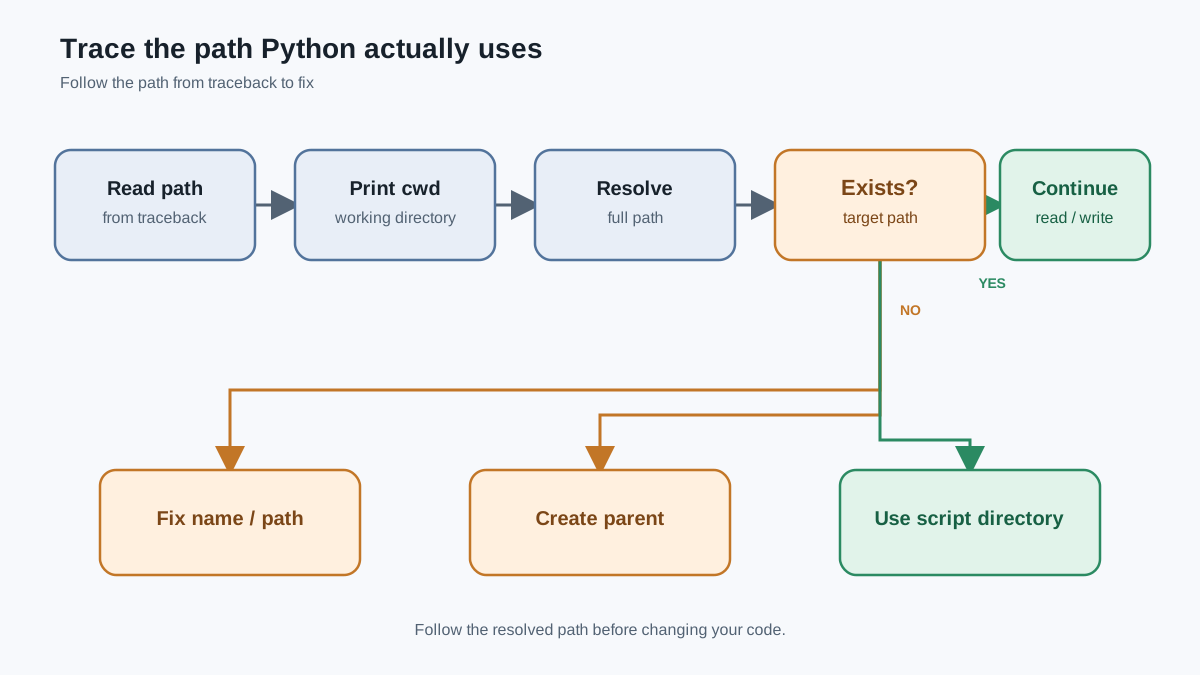
When you hit FileNotFoundError, work through this checklist in order:
- Read the final path in the traceback. That quoted path is the exact location Python searched.
- Print your working directory with
os.getcwd(). - Resolve your path with
Path.resolve()to see the full path Python will try. - Verify the file or parent folder exists at that resolved location.
Steps 2 and 3 are the ones beginners skip. Let's see why they matter.
Cause 1: The file genuinely doesn't exist at the path
A typo in the filename, an extra space, or the file being in a different folder than you think.
# Broken: filename is misspelled
with open("reprot.txt", "r") as file:
    print(file.read())
FileNotFoundError: [Errno 2] No such file or directory: 'reprot.txt'
# Fixed
with open("report.txt", "r") as file:
    print(file.read())
Quarterly sales report
Cause 2: The path is wrong because the working directory differs
Python is looking in a different folder than you expected.
# Broken: Python looks in the current working directory
with open("data/report.txt", "r") as file:
    print(file.read())
If the data folder isn't inside the current working directory:
FileNotFoundError: [Errno 2] No such file or directory: 'data/report.txt'
Cause 3: The parent folder itself is missing
Even a correctly spelled filename fails if a folder in the path doesn't exist. This one is common when writing files, not just reading them.
# Broken: the "reports" folder doesn't exist yet
with open("reports/summary.txt", "w") as file:
    file.write("done")
FileNotFoundError: [Errno 2] No such file or directory: 'reports/summary.txt'
Python won't create missing folders for you. You need to create them first:
from pathlib import Path

file_path = Path("reports/summary.txt")
file_path.parent.mkdir(parents=True, exist_ok=True)

with open(file_path, "w") as file:
    file.write("done")
Now the script runs without error, and reports/summary.txt exists with done inside it.
Knowledge check
Check your understanding
Answer this question before you continue.
How to Fix It: Three Reliable Approaches
You have three solid options. Which one you pick depends on where the file comes from.
Approach 1: Move the file or fix the path
The quickest fix: make sure the file is in the current working directory, or fix the filename typo. If you're running a script from a terminal, you can also cd into the folder that contains the file before running the script.
This works, but it's fragile. The fix depends on where you happen to run the script from.
Approach 2: Print the working directory and the full path
When the mismatch isn't obvious, make it visible:
import os
from pathlib import Path

file_path = Path("report.txt")
print("Working directory:", os.getcwd())
print("Trying to open:", file_path.resolve())

with open(file_path, "r") as file:
    print(file.read())
Working directory: C:\Users\you\projects
Trying to open: C:\Users\you\projects\report.txt
Now you can see exactly where Python is looking. If the resolved path doesn't match where the file actually lives, you've found the problem.
Approach 3: Build the path relative to the script location
If the file is bundled with your script—a config file, a data file, or a template your script ships with—anchor the path to the script's own folder using pathlib:
from pathlib import Path

script_dir = Path(__file__).parent
file_path = script_dir / "report.txt"

with open(file_path, "r") as file:
    print(file.read())
__file__ is the path to your script. .parent gives you the folder containing it. Now the script finds report.txt no matter which folder you run it from.
Here's the decision rule that keeps these approaches straight:
| Situation | Best approach |
|---|---|
| File is in the folder you launch the script from | Simple relative path like "report.txt" |
| File is bundled beside your script | Path(__file__).parent / "report.txt" |
| File is user data or comes from another process | Accept an explicit path as input, or check the working directory first |
The __file__ approach is powerful, but it's not universal. If your script processes a file the user selects from anywhere on their machine, you don't want to force that file to live beside your script. Use the approach that matches where the file actually belongs.
Knowledge check
Check your understanding
Answer this question before you continue.
Prevent It Next Time: Check Before You Open
A missing file doesn't have to crash your program. You can catch it before the failure—or handle it gracefully when it happens.
Check first with Path.exists()
from pathlib import Path

file_path = Path("report.txt")

if file_path.exists():
    with open(file_path, "r") as file:
        print(file.read())
else:
    print(f"File not found: {file_path}")
File not found: report.txt
Handle it with try/except
try:
    with open("report.txt", "r") as file:
        print(file.read())
except FileNotFoundError:
    print("The file 'report.txt' does not exist.")
The file 'report.txt' does not exist.
The program doesn't crash. It tells the user what went wrong and keeps running.
One note: PermissionError is a different error. If the file exists but you don't have permission to read it, you'll get PermissionError, not FileNotFoundError. Don't confuse the two.
A Common Beginner Mistake to Avoid
The most frequent misstep is assuming the script's folder is the same as the working directory.
Here's the scenario. You have this script:
with open("data.txt", "r") as file:
    print(file.read())
You run it from your project folder, and it works:
cd C:\Users\you\project
python script.py
Hello from data.txt
Then you move to a different folder and run the same script:
cd C:\Users\you
python project\script.py
FileNotFoundError: [Errno 2] No such file or directory: 'data.txt'
The script didn't change. The file didn't move. The working directory changed—and that changed where Python looked for data.txt.
This can also happen when you run scripts from an IDE, a terminal, or by double-clicking. Each of those can start the script from a different working directory.
A good habit: when a file that used to open suddenly can't be found, print os.getcwd() early in your script. The working directory is usually the culprit.
And don't feel bad when this happens. Every Python developer hits this at some point. It's not a sign of weak coding—it's a sign that you're learning how Python actually resolves paths.
Your Next Step
The best way to lock this in is to reproduce the error deliberately.
Create this folder structure:
project/
├── script.py
└── data.txt
Put Hello from data.txt inside data.txt. Then write this script:
from pathlib import Path

script_dir = Path(__file__).parent
file_path = script_dir / "data.txt"

with open(file_path, "r") as file:
    print(file.read())
Now run it from two different locations:
cd C:\Users\you\project
python script.py
Hello from data.txt
cd C:\Users\you
python project\script.py
Hello from data.txt
Same script, same file, two different launch folders—and both work because the path is anchored to the script's location.
Once you're comfortable catching missing files, the natural next step is learning to write your first Python tests. Tests catch these kinds of failures before your code ever reaches a user—and they'll save you hours of manual checking down the road.
Knowledge check
Final check
Finish the article by checking the ideas you just learned.
References
Want a more structured Python path?
Use the Python Starter Pack to turn scattered tutorials into a focused practice path.
Python for Artificial Intelligence Starter Pack
Build a Python foundation you can actually use. The Python for AI Starter Pack brings together a guided path through setup, core programming concepts, data structures, files, JSON, APIs, debugging, and practical projects—so you can move quickly from running your first program to understanding and building useful software.
- 264-page illustrated PDF
- 12 guided Python chapters
- Visual concept diagrams
- Self-assessment quizzes
- Bonus deep-dive sections
- Files, JSON, APIs, debugging & projects
- Foundation for data, automation & AI
Coming soon


