Debugging Python Code for Beginners
Every beginner hits this moment. The program doesn't crash — it just quietly does the wrong thing. You stare at the screen, re-read the code, and feel like…

Key topics
Your code runs. No error message appears. And yet the answer is wrong.
Every beginner hits this moment. The program doesn't crash — it just quietly does the wrong thing. You stare at the screen, re-read the code, and feel like you're missing something obvious. You are. The question is how to find it.
Debugging is not a punishment for being a bad programmer. It's the skill of treating wrong output as evidence — a clue pointing to where your program's behavior and your expectations split apart. In this tutorial, you'll learn a repeatable workflow to debug Python code: read the error, trace the state, fix the assumption.
What Debugging Actually Means
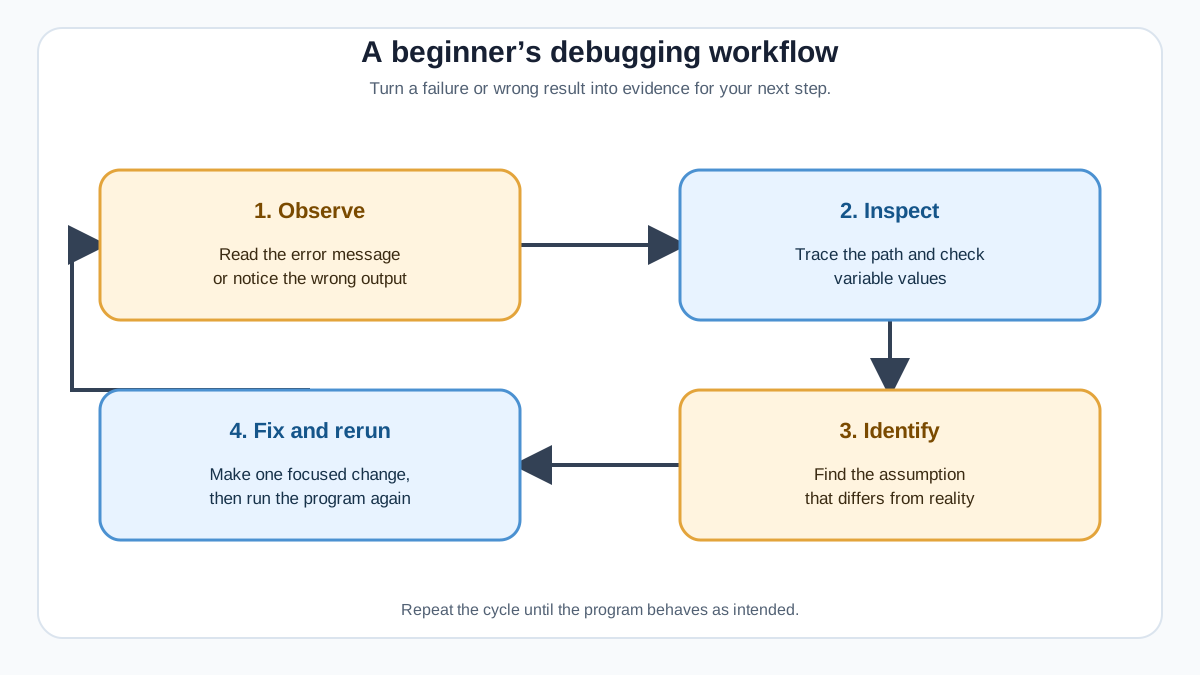
Debugging is the process of identifying, analyzing, and resolving why code doesn't behave as expected. That sounds formal, but here's the practical version: something went wrong, and you need to find where.
Most beginner bugs aren't syntax errors. A syntax error stops the program immediately — Python tells you it can't understand your code. The trickier bugs are logic errors. The code runs fine, but the result is wrong. No error message appears because Python doesn't know your answer is incorrect. It just follows your instructions.
Think of it this way: a failure is evidence. It tells you where to look, not that you're failing. When a program returns the wrong value, somewhere between your intention and the output, an assumption broke down. Your job is to find that broken assumption.
Before we go further, a quick note: if you haven't yet learned how to read common Python errors like TypeError or NameError, that's a prerequisite worth reviewing. This tutorial builds on that foundation — turning an error message into a fix.
Here's the workflow we'll use throughout:
- Read the error. If there's a traceback, treat it as a map.
- Trace the state. Inspect what your variables actually contain at key points.
- Fix the assumption. Find where your mental model of the code diverged from reality.
Let's see it in action.
Knowledge check
Check your understanding
Answer this question before you continue.
Start With a Tiny Buggy Example
Here's a short function that calculates the average of three test scores. It runs without errors. It just returns the wrong answer.
def calculate_average(scores):
    total = 0
    for score in scores:
        total += score
    average = total / len(scores) - 1
    return average

scores = [85, 90, 78]
result = calculate_average(scores)
print(f"The average score is: {result}")
Save this as average.py and run it:
python average.py
The average score is: 83.33333333333333
Before reading further, predict what you expect the output to be. If you add 85, 90, and 78, you get 253. Divide by 3, and you get 84.33. The program printed 83.33 instead. No error. No warning. Just a wrong number.
That gap between your prediction and the actual output is where the bug lives. Making a prediction matters — it forces you to notice when reality doesn't match your mental model.
Knowledge check
Check your understanding
Answer this question before you continue.
Use print() to See What Your Code Is Doing
When no error message appears, you need to inspect values. The simplest tool for this is print().
A print() call is a window into your program's state. It shows you what a variable actually contains at the moment the line runs — not what you assume it contains.
Let's add some print statements to our buggy function:
def calculate_average(scores):
    total = 0
    for score in scores:
        total += score
        print(f"After adding {score}, total is: {total}")

    average = total / len(scores) - 1
    print(f"Total: {total}, Count: {len(scores)}")
    print(f"Calculated average: {average}")
    return average

scores = [85, 90, 78]
result = calculate_average(scores)
print(f"The average score is: {result}")
After adding 85, total is: 85
After adding 90, total is: 175
After adding 78, total is: 253
Total: 253, Count: 3
Calculated average: 83.33333333333333
The average score is: 83.33333333333333
Now the bug is visible. The total is 253 and the count is 3. If you divide 253 by 3, you get 84.33. But the function subtracted 1 from the division. The - 1 on the average line is the broken assumption.
Here's the decision rule I use when debugging Python code: print the inputs, print the intermediate results, print the output. One of them will betray the wrong assumption.
In this case, printing the total and count made the problem obvious. The fix is simple:
def calculate_average(scores):
    total = 0
    for score in scores:
        total += score

    average = total / len(scores)
    return average
One warning before we move on: remove your debug prints before you call the code finished. They clutter the output and can make a real program harder to read. Comment them out or delete them once the bug is fixed.
Knowledge check
Check your understanding
Answer this question before you continue.
Read the Error Message Like a Map
Print statements handle the silent bugs. But what about the crashes — the moments when Python throws a traceback at you?
A traceback looks like a wall of text, but it's really a map. It shows the path your code took before it failed.
Traceback (most recent call last):
  File "scores.py", line 8, in <module>
    result = calculate_average(scores)
  File "scores.py", line 4, in calculate_average
    total += score
TypeError: unsupported operand type(s) for +=: 'int' and 'str'
Here's how to read it:
- The final line names the error type and message. In this case, Python tried to add a string to an integer with
+=. - The lines above show the call path — the sequence of function calls that led to the failure. The first frame listed is where the error happened. The frames after it show how execution reached that point.
My rule for beginners: read the final line first to learn what failed. Then scan upward to find the first line that belongs to code you wrote. That's where you start investigating.
In this example, the error happened inside calculate_average on line 4. But the fix isn't necessarily on that line. The traceback points to where Python noticed the problem. Your job is to trace backward to where the wrong value entered the program.
Knowledge check
Check your understanding
Answer this question before you continue.
A Common Beginner Mistake: Debugging the Wrong Line
Here's the trap I see beginners fall into most often: the traceback points to a line, so they assume the mistake is on that line.
Often, it isn't.
The traceback points to where Python noticed the problem. The actual mistake might be several lines earlier — or in a completely different function.
Consider this example:
def get_scores():
    return ["85", "90", "78"]

def calculate_average(scores):
    total = 0
    for score in scores:
        total += score
    return total / len(scores)

scores = get_scores()
result = calculate_average(scores)
print(result)
Traceback (most recent call last):
  File "scores.py", line 12, in <module>
    result = calculate_average(scores)
  File "scores.py", line 7, in calculate_average
    total += score
TypeError: unsupported operand type(s) for +=: 'int' and 'str'
The error appears on line 7, inside calculate_average. But the real problem is on line 2: get_scores() returns strings, not integers. The function calculate_average is doing exactly what it was told. The wrong data entered the program earlier.
The fix is to trace backward. Ask: where did this value come from? What was it before it reached this line?
This backward tracing is a skill, and it takes practice. When you catch yourself staring at the failing line, stop. Look up the call path. Find where the value first went wrong. That's where the fix lives.
Try IDE Debugger Tools: Breakpoints
Print statements work, but they have a cost. You add code, run the program, read the output, then remove the code. For a small script, that's fine. For a bigger program, it gets tedious.
That's where breakpoints come in.
A breakpoint is a pause button. You tell your editor to stop the program at a specific line. When execution reaches that line, the program freezes, and you can inspect the current values of your variables — without adding a single print() call.
Let's walk through one concrete session using VS Code, a free editor that works well for Python. If you use a different editor like PyCharm, the same ideas apply — the buttons just live in different places.
Start with our buggy average script:
def calculate_average(scores):
    total = 0
    for score in scores:
        total += score
    average = total / len(scores) - 1
    return average

scores = [85, 90, 78]
result = calculate_average(scores)
print(f"The average score is: {result}")
Here's your first debugger session:
- Click in the gutter — the narrow area just left of the line numbers — next to the line
average = total / len(scores) - 1. A red dot appears. That's your breakpoint. - Open the Run and Debug panel in the sidebar, then click Run and Debug. Choose Python File if prompted.
- The program starts and stops at your breakpoint. The line turns yellow, meaning it hasn't executed yet.
- Look at the Variables panel on the left. You'll see
totalis253andscoresis[85, 90, 78]. Those values are correct. - Click Step Over once. The yellow highlight moves to the
return averageline, and the Variables panel now showsaverageis83.33333333333333.
There's your bug, caught in the act. The inputs were right, but the calculation produced the wrong result. You can now see exactly which line created the bad value — without adding a single print statement.
The contrast with print() is worth noting:
| Approach | What it does | Best for |
|---|---|---|
print() | Shows values at specific points | Quick checks in small scripts |
| Breakpoints | Pauses execution so you can inspect anything | Larger programs where you don't want to edit code repeatedly |
If you don't have an IDE handy, Python ships with a built-in debugger called pdb. You can insert a breakpoint directly into your code:
def calculate_average(scores):
    total = 0
    for score in scores:
        total += score

    import pdb
    pdb.set_trace()

    average = total / len(scores)
    return average
When the program reaches pdb.set_trace(), it stops and gives you an interactive prompt where you can inspect variables and step through the code.
For this tutorial, the goal is a first successful action, not mastery. Set one breakpoint. Inspect one variable. Step over one line. Once you've done that, you know enough to explore further on your own — the skill transfers across tools.
Practice: Debug a Broken Script
Time to apply the workflow yourself. Here's a script with a logic bug. It's supposed to count how many even numbers are in a list.
numbers = [2, 7, 10, 15, 22, 31, 40]
even_count = 0

for number in numbers:
    if number % 2 == 1:
        even_count += 1

print(f"Number of even values: {even_count}")
The expected output is 4 — the even numbers are 2, 10, 22, and 40. Run the script and see what you actually get.
Here's the workflow to follow:
- Run it. Observe the actual output.
- Predict. Before you change anything, write down what you expect each variable to contain.
- Trace. Add
print()statements to inspectnumberandeven_countinside the loop. - Find the wrong assumption. Look at the condition. What does
number % 2 == 1actually check? - Fix it. Make the smallest change that produces the correct result.
There's no single right fix. Any correct, readable solution counts. The point is to practice the loop: read the error, trace the state, fix the assumption.
Your Next Step
You now have a repeatable workflow for debugging Python code. When a script misbehaves, don't stare at it. Run it. Read the error. Print the values. Find the broken assumption.
Then try this workflow on your own scripts. The more you practice, the faster the pattern becomes — and the less intimidating bugs feel.
The natural next skill is catching errors before they surprise you. That means writing simple tests: small checks that confirm your functions return the right answers. When you're ready, that's where to go next.
Knowledge check
Final check
Finish the article by checking the ideas you just learned.
References
Want a more structured Python path?
Use the Python Starter Pack to turn scattered tutorials into a focused practice path.
Python for Artificial Intelligence Starter Pack
Build a Python foundation you can actually use. The Python for AI Starter Pack brings together a guided path through setup, core programming concepts, data structures, files, JSON, APIs, debugging, and practical projects—so you can move quickly from running your first program to understanding and building useful software.
- 264-page illustrated PDF
- 12 guided Python chapters
- Visual concept diagrams
- Self-assessment quizzes
- Bonus deep-dive sections
- Files, JSON, APIs, debugging & projects
- Foundation for data, automation & AI
Coming soon


