
How to Use SQLite with Python
Your script runs. It prints the right rows. Then you close the terminal, run it again, and everything is gone.

Key topics
Your script runs. It prints the right rows. Then you close the terminal, run it again, and everything is gone.
That is not a bug in your code. It is a bug in your mental model. A list or a dictionary lives in memory, and memory dies with the process. A text file survives, but it has no structure, no types, and no way to answer a question like "give me every record where the year is 2024." You have been storing data in a place that forgets.
A database fixes that. And the smallest real database you can get in Python is one import line away.
Why Your Data Keeps Disappearing
When you write records = [], you are asking the operating system for a patch of memory. That patch belongs to your process. When the process ends, the patch is reclaimed. Your data was never anywhere else.
A file fixes persistence but not structure. You can write lines to a .txt file, but the file does not know that the third field is a year. It does not know that two records should never share an ID. It cannot filter, sort, or join without you writing all of that logic by hand.
A database adds three things on top of a file:
- A schema — a declared shape for your data. Columns have names and types.
- A query language — SQL, which lets you ask for exactly the rows you want.
- Transactions — a rule that says changes are provisional until you confirm them.
SQLite gives you all three in a single file on disk. No server to install, no background process to start, no connection string pointing at a remote host. The database is the file.
And sqlite3 ships with Python. You do not install it. You import it.
Note: SQLite is a C library that provides a lightweight, disk-based database without a separate server process. Python's
sqlite3module wraps it and follows the DB-API 2.0 specification, which means the patterns you learn here transfer to other Python database libraries.
Your First Database in Six Lines
Before any theory, let's make a file appear. Create a new file called first_db.py:
import sqlite3

connection = sqlite3.connect("school.db")
cursor = connection.cursor()
cursor.execute("CREATE TABLE students (id INTEGER PRIMARY KEY, name TEXT, grade INTEGER)")
connection.commit()
connection.close()
Run it:
python first_db.py
You will see no output. That is expected — the script created a file and said nothing about it. Check that the file exists:
ls school.db
school.db
Here is what each line did:
sqlite3.connect("school.db")opened a connection to that file. If the file did not exist, SQLite created it.connection.cursor()created a cursor — the object that carries SQL statements to the database.cursor.execute(...)sent aCREATE TABLEstatement.connection.commit()made the change permanent.connection.close()released the file handle.
If you run the script a second time, you will get an error: sqlite3.OperationalError: table students already exists. That is correct behavior. The table is already there. We will fix that in a moment.
Connection, Cursor, and What Each One Does
Beginners mix these two up constantly, so let's separate them cleanly.
The connection is the open channel to the database file. It manages the transaction, holds the file handle, and knows which database you are talking to.
The cursor is the object that executes statements and holds results. When you run a SELECT, the cursor is what you call .fetchone() or .fetchall() on.
You can call connection.execute(...) directly — Python will create a temporary cursor for you. That is fine for one-off statements. But once you need to fetch rows, having an explicit cursor is clearer:
cursor = connection.cursor()
cursor.execute("SELECT name FROM students")
rows = cursor.fetchall()
A good beginner instinct: use a cursor whenever you plan to read results back. Use connection.execute() only for fire-and-forget writes.
You should also close the connection when you are done. Leaving it open is a resource leak, not a crash — but leaks accumulate. The cleanest way is a context manager:
import sqlite3

with sqlite3.connect("school.db") as connection:
    cursor = connection.cursor()
    cursor.execute("SELECT name FROM students")
    print(cursor.fetchall())
The with block commits on success and rolls back on an exception. One caveat worth knowing early: the connection context manager does not close the connection. It only handles the transaction. If you want both, close it explicitly after the block, or use contextlib.closing().
Knowledge check
Check your understanding
Answer this question before you continue.
Creating a Table and Choosing Column Types
A table is a named set of columns. Each column has a name and a type. A row is one record. That is the whole model.
SQLite has five storage classes, and they map cleanly onto Python types you already know:
| SQLite type | Python type | Use it for |
|---|---|---|
INTEGER | int | IDs, counts, years, whole numbers |
TEXT | str | Names, emails, descriptions |
REAL | float | Prices, measurements, decimals |
BLOB | bytes | Raw binary data (images, files) |
NULL | None | Missing values |
Here is a table for a small expense tracker:
cursor.execute("""
    CREATE TABLE IF NOT EXISTS expenses (
        id INTEGER PRIMARY KEY,
        description TEXT NOT NULL,
        amount REAL NOT NULL,
        category TEXT
    )
""")
Two things to notice.
INTEGER PRIMARY KEY tells SQLite to auto-assign a unique number to each row. You do not provide it. Every row gets one.
CREATE TABLE IF NOT EXISTS makes the script safe to run repeatedly. If the table already exists, SQLite skips the statement instead of raising an error. This is the fix for the error you saw earlier.
Common mistake: Storing everything as
TEXTto avoid thinking about types. It works until you try to sort by amount and get"9"before"10". Pick the type that matches the data. Your future queries will thank you.
Knowledge check
Check your understanding
Answer this question before you continue.
Inserting Records Without Breaking Your Database
Here is the version most beginners write first:
description = "Coffee"
amount = 4.50
cursor.execute(f"INSERT INTO expenses (description, amount) VALUES ('{description}', {amount})")
This works — until it doesn't. If description contains an apostrophe, like "Bob's lunch", the SQL string breaks. And if that value comes from user input, a crafted string can do far worse than break. This is called SQL injection, and it is not a theoretical concern.
The fix is parameterized statements. You write placeholders in the SQL, and pass the values separately:
cursor.execute(
    "INSERT INTO expenses (description, amount, category) VALUES (?, ?, ?)",
    ("Coffee", 4.50, "food"),
)
The ? marks are placeholders. The tuple holds the values. SQLite handles the escaping and type conversion for you. The value never gets interpreted as SQL.
You can also use named placeholders with a dictionary, which is easier to read when there are many columns:
cursor.execute(
    "INSERT INTO expenses (description, amount, category) VALUES (:description, :amount, :category)",
    {"description": "Coffee", "amount": 4.50, "category": "food"},
)
Both versions are safe. Pick whichever reads better for the statement you are writing.
To insert many rows at once, use executemany():
rows = [
    ("Bus ticket", 2.75, "transport"),
    ("Notebook", 6.00, "supplies"),
    ("Lunch", 12.50, "food"),
]
cursor.executemany(
    "INSERT INTO expenses (description, amount, category) VALUES (?, ?, ?)",
    rows,
)
One call, three rows. This is faster than looping and calling execute() three times.
Warning: Never build SQL with f-strings or string concatenation when the values come from outside your code. Use placeholders. Always.
Knowledge check
Check your understanding
Answer this question before you continue.
Commit: Why Your Rows Vanish
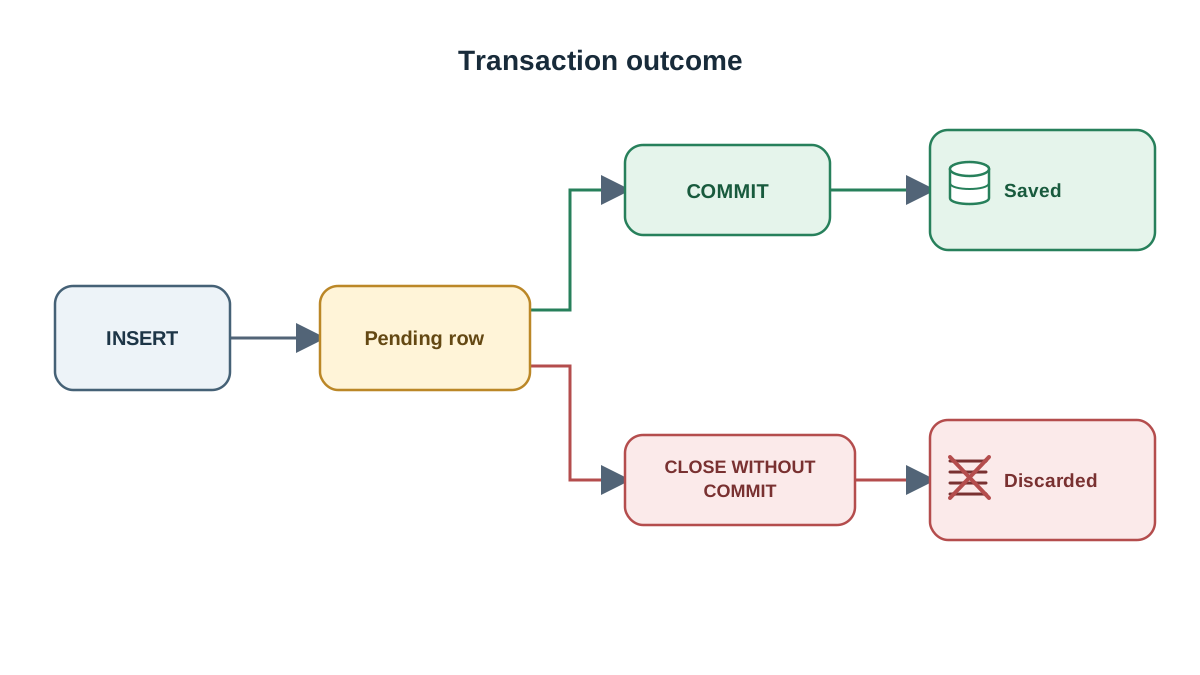
This is the single most common beginner confusion with SQLite. You insert a row. You query it back in the same script. It is there. You close the script, run it again, and the row is gone.
The row was never saved. It was sitting in an open transaction.
A transaction is a group of changes that are provisional until you confirm them. connection.commit() confirms them. connection.rollback() throws them away. If you close the connection without committing, SQLite discards the pending changes.
Here is the failure in miniature:
import sqlite3

connection = sqlite3.connect("test.db")
cursor = connection.cursor()
cursor.execute("CREATE TABLE IF NOT EXISTS notes (body TEXT)")
cursor.execute("INSERT INTO notes (body) VALUES (?)", ("remember this",))
connection.close()  # no commit — the insert is lost
Run it, then run this in a separate script:
import sqlite3

connection = sqlite3.connect("test.db")
cursor = connection.cursor()
cursor.execute("SELECT body FROM notes")
print(cursor.fetchall())
connection.close()
[]
The table exists. The row does not. The insert was rolled back when the connection closed.
The fix is one line:
connection.commit()
The with block handles this for you automatically — it commits on success and rolls back on an exception. That is why it is the recommended pattern for anything beyond a quick experiment.
Decision rule: commit once per logical unit of work, not after every single statement. If you are inserting ten related rows, insert all ten, then commit. If one fails, you can roll back the whole group and start over.
Knowledge check
Check your understanding
Answer this question before you continue.
Reading Data Back Out
Retrieval is where the work pays off. The statement is SELECT, and the shape is the same as insert: SQL with placeholders, values passed separately.
cursor.execute(
    "SELECT description, amount FROM expenses WHERE category = ? ORDER BY amount DESC",
    ("food",),
)
for row in cursor:
    print(row)
('Lunch', 12.5)
('Coffee', 4.5)
Notice the trailing comma in ("food",). That is what makes it a one-element tuple. Without the comma, Python treats ("food") as a plain string, and SQLite will iterate over its characters. This is a classic beginner bug.
You have three ways to read results:
fetchone()returns the next row as a tuple, orNoneif there are no more.fetchall()returns a list of all remaining rows.- Iterating the cursor directly —
for row in cursor:— is the most memory-friendly for large result sets.
Rows come back as tuples by default. You can unpack them:
for description, amount in cursor:
    print(f"{description}: ${amount:.2f}")
Lunch: $12.50
Coffee: $4.50
Two clauses you will use constantly: ORDER BY sorts the results, and LIMIT caps how many come back. ORDER BY amount DESC LIMIT 5 gives you the five largest expenses. That is the whole pattern.
Common Mistakes and How to Read the Errors
SQLite error messages are usually accurate. The trick is knowing which object they are talking about.
| Error | What it usually means | Fix |
|---|---|---|
no such table: X | You are connected to a different file than you think | Print the absolute path of the database file |
| Data missing after restart | You forgot to commit | Call connection.commit() or use a with block |
Incorrect number of bindings | Placeholder count does not match value count | Count the ? marks and the tuple items |
ProgrammingError: Cannot operate on a closed database | You reused a cursor after closing the connection | Reopen the connection |
sqlite3.OperationalError: near "..." | A syntax error in your SQL, often from a missing comma or quote | Print the SQL string and read it carefully |
The no such table error deserves special attention. It almost always means your script is running from a different working directory than you expect, so "school.db" points somewhere else. Print os.path.abspath("school.db") and see where it actually lives.
Treat every error as evidence about which object or file is actually in play. That habit will save you more time than memorizing any API.
When SQLite Is the Right Tool
SQLite is the right choice when the data lives on one machine, one process writes at a time, and the whole database fits comfortably in a single file. Local scripts, prototypes, personal tools, small desktop apps, and anything you want to hand someone as one portable file — all good fits.
It is the wrong choice when many processes need to write concurrently, when the database is accessed over a network by multiple users, or when the dataset grows into the hundreds of gigabytes. Those cases want a server database like PostgreSQL or MySQL.
Here is the part that matters for your learning: the SQL you write here transfers. SELECT, INSERT, WHERE, ORDER BY, JOIN — these are the same across SQLite, PostgreSQL, and MySQL. The Python patterns are nearly identical too, because they all follow the same DB-API. Learning SQLite is not a detour. It is the on-ramp.
Practice: Build a Small Records Tool
Write a script called records.py that stores a small list of records in a .db file. Pick one: books, expenses, or contacts.
Your script should:
- Create the table with
CREATE TABLE IF NOT EXISTSso it is safe to run repeatedly. - Insert at least five records using parameterized statements.
- Commit the changes.
- Query the records back, sorted by one of the columns, and print them.
A starter skeleton:
import sqlite3

with sqlite3.connect("records.db") as connection:
    cursor = connection.cursor()
    cursor.execute("""
        CREATE TABLE IF NOT EXISTS books (
            id INTEGER PRIMARY KEY,
            title TEXT NOT NULL,
            author TEXT NOT NULL,
            year INTEGER
        )
    """)
    books = [
        ("The Pragmatic Programmer", "Hunt & Thomas", 1999),
        ("Code Complete", "Steve McConnell", 2004),
        ("The Mythical Man-Month", "Fred Brooks", 1975),
    ]
    cursor.executemany(
        "INSERT INTO books (title, author, year) VALUES (?, ?, ?)",
        books,
    )
    cursor.execute("SELECT title, year FROM books ORDER BY year")
    for title, year in cursor:
        print(f"{year}: {title}")
1975: The Mythical Man-Month
1999: The Pragmatic Programmer
2004: Code Complete
The check that matters: run the script twice. The second run should see the first run's data. If it does, you have a working database. If it does not, check your commit and your file path.
Once that works, extend it. Add a DELETE statement that removes a record by ID. Or ask the user for a year and filter the query with a WHERE clause. Both exercises will force you to think about parameterized statements in a new context.
The line between a script and a tool is whether the data outlives the run. Once your data has a schema, a parameterized write, and a commit, you have crossed it. From here, the natural next step is reading an existing .db file that someone else created, or moving data between CSV and SQLite — both of which build directly on what you just did.
Knowledge check
Final check
Finish the article by checking the ideas you just learned.
References
Want a more structured Python path?
Use the Python Starter Pack to turn scattered tutorials into a focused practice path.
Python for Artificial Intelligence Starter Pack
Build a Python foundation you can actually use. The Python for AI Starter Pack brings together a guided path through setup, core programming concepts, data structures, files, JSON, APIs, debugging, and practical projects—so you can move quickly from running your first program to understanding and building useful software.
- 264-page illustrated PDF
- 12 guided Python chapters
- Visual concept diagrams
- Self-assessment quizzes
- Bonus deep-dive sections
- Files, JSON, APIs, debugging & projects
- Foundation for data, automation & AI
Coming soon


