
String Formatting in Python: f-Strings and More
You already know how to print a value. The harder part is making that output read like a sentence instead of a pile of labels. Python string formatting is…

You already know how to print a value. The harder part is making that output read like a sentence instead of a pile of labels. Python string formatting is the tool that turns scattered variables into clean, readable text—and once you see the pattern, you'll reach for it constantly.
In this tutorial, you'll learn what string formatting is, why it beats plain print() concatenation, and how to use the two methods you'll actually need: f-strings (the modern default) and the format() method (still useful for reusable templates). Every example is runnable, so you can type it, run it, and watch the output change.
What Is String Formatting?
String formatting is the process of building a string that contains values from your variables or expressions. Think of it as a fill-in-the-blank template: you write the sentence once, mark the blanks with {}, and let Python drop the values in.
Without formatting, you'd have to stitch text together by hand. With it, you write one template and reuse it with different values—which is exactly what you want when your output depends on data that changes.
Why Plain print() Falls Short
Let's start with the approach most beginners reach for first: passing everything to print() as separate arguments.
name = "Alex"
age = 25
print("Name:", name, "Age:", age)
That works, but it has real limits:
- You can't control spacing precisely—
print()inserts its own single spaces. - Combining many variables and labels gets hard to read fast.
- You have no clean way to round numbers, pad text, or align columns.
String formatting fixes all three. It puts the template in one place and the values in another, so the output looks exactly the way you design it.
Using f-Strings for Easy Formatting
f-strings are the recommended way to format strings in modern Python (version 3.6 and above). They're short, readable, and direct.
How to create an f-string
An f-string is a normal string with the letter f (or F) right before the opening quote. Inside the string, you put curly braces {} wherever you want a value to appear:
name = "Alex"
age = 25
print(f"Name: {name}, Age: {age}")
When you run this, Python replaces {name} with the value of name and {age} with the value of age:
Name: Alex, Age: 25
The braces aren't just for variables. You can put any expression inside them, and Python evaluates it before inserting the result:
age = 25
print(f"Next year you'll be {age + 1}.")
Next year you'll be 26.
Knowledge check
Check your understanding
Answer this question before you continue.
Why f-strings are great
- Readable: You see exactly where each value lands, right in the text.
- Flexible: Any expression works inside the braces, not just variable names.
- Direct: The template and the values live on the same line, so the code reads top to bottom.
Tip: If you're on Python 3.6 or newer, make f-strings your default. They're the clearest way to format output, and they're what most modern Python code uses.
Formatting with the format() Method
Before f-strings existed, the standard way to format strings was the format() method. It's still worth knowing because you'll meet it in older code, and it has one genuine advantage: you can define a template once and fill it in later.
How to use format()
You write a string with {} placeholders, then call .format() and pass the values in order:
name = "Alex"
age = 25
print("Name: {}, Age: {}".format(name, age))
The placeholders are replaced in order, so the output matches the f-string version:
Name: Alex, Age: 25
The real reason format() still exists
The key difference is not that f-strings can't handle changing data. An f-string is evaluated at the moment that line of code runs, so it always reflects the current values. The format() method earns its keep when you want to store a plain template string and fill it with different values at different times—without rewriting the template each time.
Here's that reusable-template idea in action. The template is a normal string, stored once, then filled twice:
greeting = "Hello, {}! You have {} new messages."

print(greeting.format("Alex", 3))
print(greeting.format("Sam", 0))
Hello, Alex! You have 3 new messages.
Hello, Sam! You have 0 new messages.
The same template produced two different sentences. That is the real reason format() still exists: when the shape of your output is fixed but the data changes, you write the template once and reuse it.
Note: You can also number placeholders—
"{1}, {0}".format(name, age)—to control the order of replacement. It's a handy secondary feature, but the reusable template above is the main reason beginners learnformat().
Knowledge check
Check your understanding
Answer this question before you continue.
When to use format() vs. f-strings
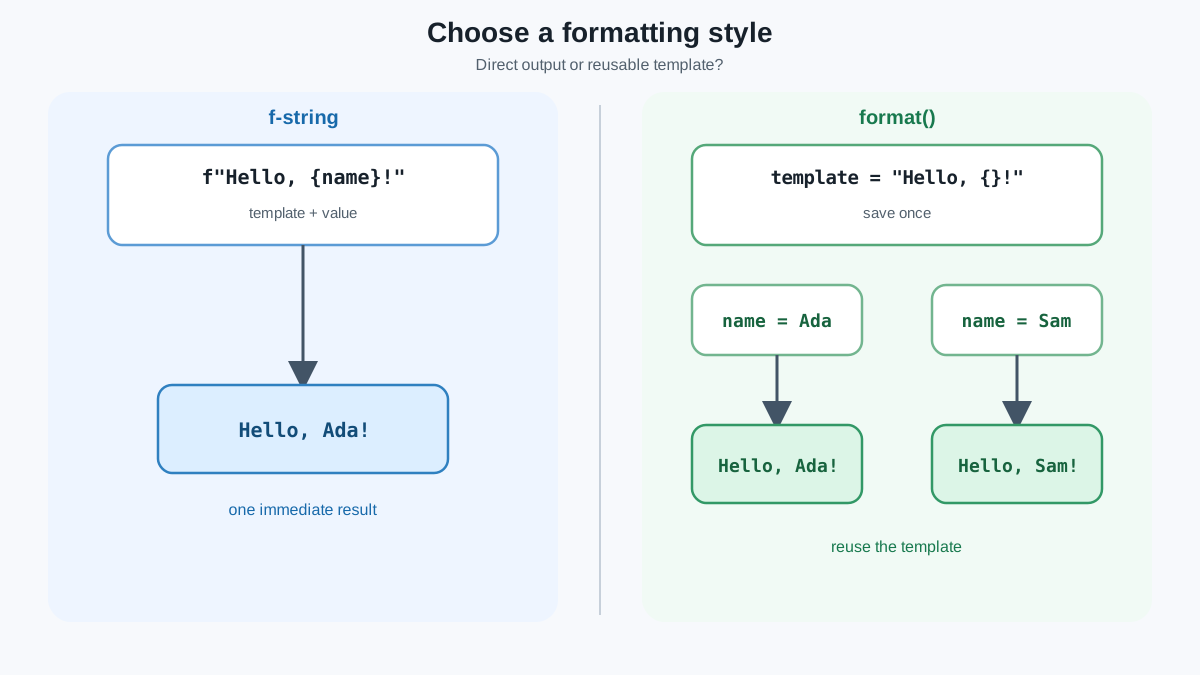
| Approach | Use this when | Avoid when |
|---|---|---|
| f-strings | The template and its values are together at the formatting line, and you want the most readable, direct code | You need a plain template stored in one place and filled in later |
format() | You want to store a reusable template and fill it with different values, or you're maintaining older code | You're writing new code on modern Python where f-strings work fine |
The decision is about code shape and timing, not speed. Reach for an f-string when the values are right there. Reach for format() when the template should outlive the line that fills it.
The Shared Format Specifier
Before we shape numbers and text, notice the one pattern both methods share. A replacement field is built from three parts: the expression, a colon, and a format specifier.
value = 3.14159
print(f"{value:.2f}")
print("{:.2f}".format(value))
Both lines ask for the same thing: take value and show it as a floating-point number with two digits after the decimal point.
3.14
3.14
The colon splits the field in two. Everything before it is the value or expression; everything after it is the instruction for how to display that value. Learn that one structure and it works in f-strings and format() alike.
Formatting Numbers and Text
Let's put that shared structure to work on one small report. We'll start with raw values, then shape them into tidy output.
Rounding numbers
To show a price with two decimal places, add a format specifier after the colon:
item = "Apple"
price = 3.14159
print(f"Item: {item}, Price: ${price:.2f}")
The :.2f means "format this as a floating-point number with 2 digits after the decimal point":
Item: Apple, Price: $3.14
The same specifier works with format():
item = "Apple"
price = 3.14159
print("Item: {}, Price: ${:.2f}".format(item, price))
Item: Apple, Price: $3.14
Knowledge check
Check your understanding
Answer this question before you continue.
Aligning text into columns
You can pad and align text inside a fixed-width field using <, >, and ^. Here's the same report with a second item, aligned into columns:
print(f"|{'Item':<10}|{'Price':>8}|")
print(f"|{'Apple':<10}|{1.50:>8.2f}|")
print(f"|{'Banana':<10}|{0.75:>8.2f}|")
Notice how each field keeps the same structure you already learned: the expression comes first, then the colon, then the display instruction.
{'Item':<10}left-aligns the label in a field 10 characters wide.{1.50:>8.2f}right-aligns the price in 8 characters, with 2 decimal places.
|Item      |   Price|
|Apple     |    1.50|
|Banana    |    0.75|
This is how you build tidy columns in reports and tables without any extra libraries. And because the specifier language is shared, you can build the same table with a stored format() template—which is exactly the reusable-output pattern from earlier:
row = "|{:<10}|{:>8.2f}|"

print(row.format("Item", 0))
print(row.format("Apple", 1.50))
print(row.format("Banana", 0.75))
|Item      |    0.00|
|Apple     |    1.50|
|Banana    |    0.75|
One template string, three rows. When your report grows to dozens of lines, that single row template is the difference between writing the layout once and copying it everywhere.
Common Mistakes and How to Fix Them
These are the three mistakes I see beginners hit most often. Each one has a clear symptom, so you can diagnose it fast.
Forgetting the f
name = "Alex"
print("Hello, {name}!")  # Missing the 'f'
Without the f, Python treats the braces as ordinary characters and prints them literally:
Hello, {name}!
Fix: Add the f before the opening quote: print(f"Hello, {name}!").
Knowledge check
Check your understanding
Answer this question before you continue.
Mismatched placeholders and values
print("Name: {}, Age: {}".format("Alex"))
There are two placeholders but only one value, so Python raises an error.
Fix: Make sure the number of placeholders matches the number of values you pass.
Mixing strings and numbers with +
age = 25
print("Age: " + age)  # TypeError!
Python won't add a string and an integer. The error message—TypeError: can only concatenate str (not "int") to str—is Python telling you exactly what went wrong.
Fix: Use string formatting instead of +:
age = 25
print(f"Age: {age}")
Common mistake: When you see
TypeError: can only concatenate str (not "int") to str, don't reach forstr(age)as a habit. The cleaner fix is usually an f-string, which handles the conversion for you.
Practice: Build a Small Receipt
Write a program that prints a two-line receipt. Start with a name and a price, then format the price to two decimal places and right-align it in a 10-character field.
item = "Coffee"
price = 4.5

print(f"Item: {item}")
print(f"Price: ${price:.2f}")
print(f"|{item:<10}|{price:>10.2f}|")
Item: Coffee
Price: $4.50
|Coffee    |      4.50|
Now change one thing at a time and watch what moves. Swap Coffee for a longer name and see the column shift. Change :.2f to :.3f and count the decimals. Change <10 to ^10 and watch the label center. The fastest way to make this stick is to run it, change one value, and observe the consequence.
To make the payoff real, replace the fixed literals with variables that change at runtime. If you already have a program that reads user input, feed that input into this receipt and watch the same template produce different output for every run. That is where formatting stops being a syntax trick and becomes the reusable-output habit you'll use in real programs.
Summary
String formatting is the difference between output that looks like a debugging dump and output that reads like a finished sentence. You've now got the two tools that cover almost every beginner case: f-strings for clean, direct formatting in modern Python, and the format() method for reusable templates and older code. You've also seen the shared {value:format_spec} structure, how to round numbers and align text, and how to fix the three most common mistakes.
Next, put it to work: take a program you've already written—maybe one that reads user input—and rewrite its output using f-strings. Add a price with two decimal places and a right-aligned column. Formatting is a small skill, but it's the one that makes every program you write look intentional.
Knowledge check
Final check
Finish the article by checking the ideas you just learned.
References
Want a more structured Python path?
Use the Python Starter Pack to turn scattered tutorials into a focused practice path.
Python for Artificial Intelligence Starter Pack
Build a Python foundation you can actually use. The Python for AI Starter Pack brings together a guided path through setup, core programming concepts, data structures, files, JSON, APIs, debugging, and practical projects—so you can move quickly from running your first program to understanding and building useful software.
- 264-page illustrated PDF
- 12 guided Python chapters
- Visual concept diagrams
- Self-assessment quizzes
- Bonus deep-dive sections
- Files, JSON, APIs, debugging & projects
- Foundation for data, automation & AI
Coming soon


