
Python Dictionary Methods Reference with Examples
You know the feeling. You write user["email"], run your script, and Python stops everything with a KeyError because that key doesn't exist. The data came…

You know the feeling. You write user["email"], run your script, and Python stops everything with a KeyError because that key doesn't exist. The data came from a file, a form, or an API response, and somewhere along the way, a field was missing.
Here's the thing: Python dictionaries come with built-in methods that handle these situations gracefully. A handful of them will cover most of what you do every day. The rest are worth knowing about, but you can look them up when you need them.
This guide is your practical reference for the most useful Python dictionary methods, grouped by the job they do. Each example shows the code and the expected output, so you can see exactly what happens.
The Dictionary Methods You'll Actually Use
If you already know the dictionary basics, you know that a dictionary stores key-value pairs and that you create one with curly braces.
user = {"name": "Maya", "age": 29, "city": "Austin"}
Before we go further, let's clear up one distinction that trips up beginners. A method is a built-in tool that comes attached to the dictionary. You call it with a dot, like user.get("name"). But not every operation on a dictionary is a method. Direct assignment—user["city"] = "Austin"—is plain syntax, not a method call. Both are essential, but they work differently.
Most dictionary work comes down to four tasks:
- Read a value from a key
- Read safely when a key might be missing
- Add or update entries
- Loop through the contents
My rule for beginners: memorize .get(), .items(), and direct assignment first. Those three will carry you through most real code. Treat .update(), .setdefault(), and the removal methods as lookup material until you actually need them.
Here's a tiny example so you can see a method in action before we dig deeper:
user = {"name": "Maya", "age": 29}
print(user.get("name"))
print(user.get("email", "no email on file"))
Maya
no email on file
The first call finds the key and returns its value. The second call can't find "email", so it returns the default you provided instead of crashing.
Reading Values: get() vs. Square Brackets
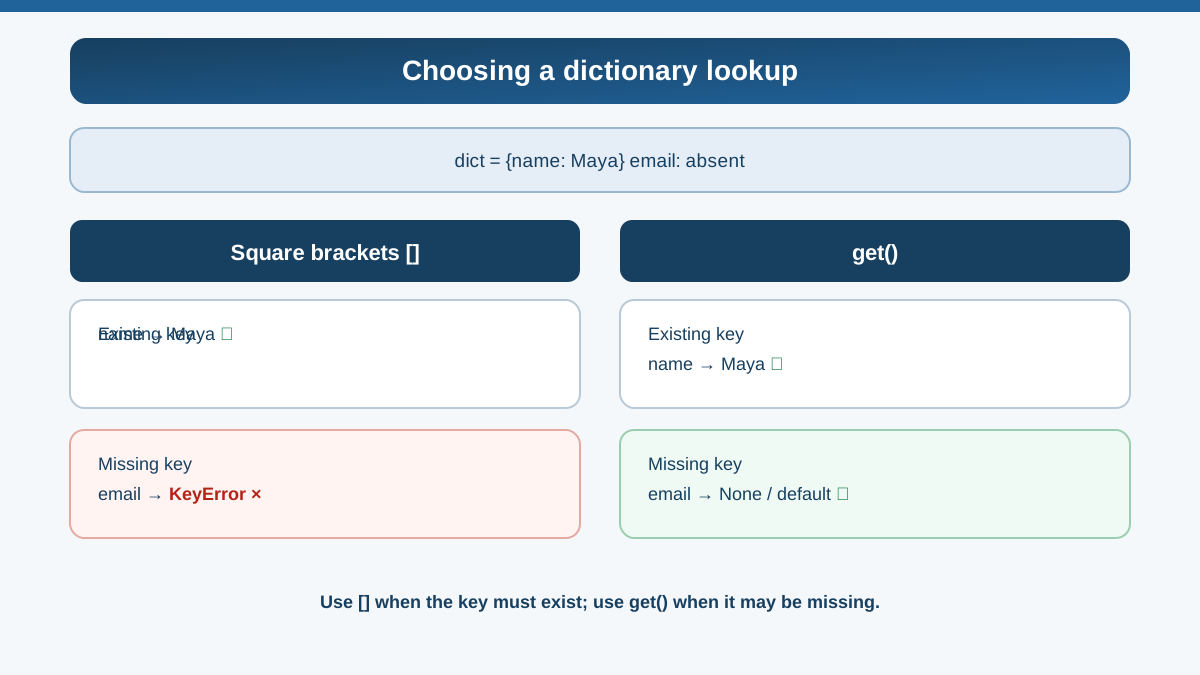
The most basic way to read a value is square brackets:
user = {"name": "Maya", "age": 29}
print(user["name"])
Maya
That works fine when the key exists. The problem appears when it doesn't:
user = {"name": "Maya", "age": 29}
print(user["email"])
KeyError: 'email'
That KeyError stops your whole program. In real code, you'll often work with data that's incomplete—a missing field in a file, an optional answer in a form, a response from an API that didn't include everything. Your program needs to handle that gracefully, not crash.
The .get() method solves this. It returns the value if the key exists, and returns None (or a default you choose) if it doesn't:
user = {"name": "Maya", "age": 29}
print(user.get("name"))
print(user.get("email"))
print(user.get("email", "not provided"))
Maya
None
not provided
The second argument to .get() is the default value. If you don't provide one, it returns None.
When to use which:
- Use square brackets when you're certain the key exists and a crash would actually help you catch a bug.
- Use
.get()when the key might be missing and you want the program to keep running.
In practice, you'll reach for .get() far more often once you start handling real-world data. It's the single dictionary method I'd want a beginner to internalize first.
Knowledge check
Check your understanding
Answer this question before you continue.
Adding and Updating: Direct Assignment and update()
Adding a new entry and updating an existing one use the same syntax. Direct assignment creates the key if it doesn't exist, or overwrites the value if it does:
user = {"name": "Maya", "age": 29}
user["city"] = "Austin"
user["age"] = 30
print(user)
{'name': 'Maya', 'age': 30, 'city': 'Austin'}
The key "city" was new, so Python added it. The key "age" already existed, so Python replaced the value.
When you need to add or update several entries at once, use .update(). It takes another dictionary and merges it into the existing one:
user = {"name": "Maya", "age": 29}
updates = {"age": 30, "city": "Austin", "job": "developer"}
user.update(updates)
print(user)
{'name': 'Maya', 'age': 30, 'city': 'Austin', 'job': 'developer'}
Notice what happened: "age" was overwritten from 29 to 30, "city" was added, and "job" was added. That's the key behavior to remember—.update() overwrites existing keys and adds new ones.
This is handy when you're merging settings, updating a user profile from a form, or combining configuration data from two sources.
My rule: use direct assignment for one key, .update() when you're merging a group of changes at once.
Knowledge check
Check your understanding
Answer this question before you continue.
Looping Through a Dictionary: keys(), values(), and items()
When you loop through a dictionary, you can choose what you want to see. The .keys() method gives you just the keys, and .values() gives you just the values:
scores = {"Alice": 95, "Bob": 87, "Carol": 92}
print(list(scores.keys()))
print(list(scores.values()))
['Alice', 'Bob', 'Carol']
[95, 87, 92]
The list() wrapper is there so you can see the contents clearly. On their own, .keys() and .values() return view objects, which work perfectly in a loop but don't print as neatly.
Most of the time, though, you'll want both the key and the value together. That's what .items() gives you:
scores = {"Alice": 95, "Bob": 87, "Carol": 92}
for name, score in scores.items():
    print(f"{name}: {score}")
Alice: 95
Bob: 87
Carol: 92
This is the workhorse pattern. If you've covered for loops in Python already, this should feel familiar—you're just unpacking each key-value pair into two variables as you go.
Use .keys() when you only need the names, .values() when you only need the numbers (like calculating a total), and .items() when you need both sides of the pair.
Knowledge check
Check your understanding
Answer this question before you continue.
Safe Defaults: setdefault() for Missing Keys
Sometimes you don't just want to read a value safely—you want to make sure a key exists with a starting value before you work with it. That's what .setdefault() does.
If the key exists, .setdefault() returns its value. If it doesn't exist, it inserts the key with your default value and returns that default:
visits = {}
count = visits.setdefault("home", 0)
print(count)
visits["home"] = visits["home"] + 1
print(visits)
0
{'home': 1}
The first call found no "home" key, so it inserted "home": 0 and returned 0. Then the code incremented it to 1.
This pattern shines when you're building counters or grouping data. Here's a realistic example that groups items by category:
inventory = [
    ("apple", "fruit"),
    ("carrot", "vegetable"),
    ("banana", "fruit"),
]

grouped = {}
for item, category in inventory:
    grouped.setdefault(category, []).append(item)

print(grouped)
{'fruit': ['apple', 'banana'], 'vegetable': ['carrot']}
Without .setdefault(), you'd need an if check for every item to see whether the category already existed. The method handles that logic for you.
How is this different from .get()? .get() reads a value and returns a default if the key is missing, but it doesn't change the dictionary. .setdefault() actually inserts the default into the dictionary when the key is absent. Use .get() when you just need to read. Use .setdefault() when you're about to build or modify something and need the key to exist.
Knowledge check
Check your understanding
Answer this question before you continue.
Removing Entries: pop(), popitem(), and clear()
Removal methods come up less often in beginner code, but they're worth knowing so you can recognize them.
The .pop() method removes a key and returns its value:
user = {"name": "Maya", "age": 29, "city": "Austin"}
removed = user.pop("city")
print(removed)
print(user)
Austin
{'name': 'Maya', 'age': 29}
Like .get(), .pop() accepts a default for missing keys, so it won't crash if the key isn't there:
user = {"name": "Maya"}
result = user.pop("email", "not found")
print(result)
not found
The .popitem() method removes and returns the last inserted key-value pair. You'll rarely need this as a beginner, but it exists:
user = {"name": "Maya", "age": 29}
pair = user.popitem()
print(pair)
print(user)
('age', 29)
{'name': 'Maya'}
The .clear() method empties the entire dictionary but keeps the variable as an empty dictionary:
user = {"name": "Maya", "age": 29}
user.clear()
print(user)
{}
Decision rule:
- Use
.pop()when you need the removed value for something. - Use
del user["key"]when you just want the entry gone and don't need the value. - Use
.clear()when you want to reset the whole dictionary.
Common Beginner Mistakes
These are the mistakes I see beginners make most often with dictionary methods.
Mistake 1: Square-bracket access on a missing key.
user = {"name": "Maya"}
# This crashes:
# print(user["email"])
# This is safe:
print(user.get("email", "unknown"))
unknown
Mistake 2: Forgetting that .update() overwrites.
If you merge a dictionary that contains an existing key, the old value is gone. That's usually what you want, but it can surprise you when you're combining data from different sources.
Mistake 3: Confusing .keys(), .values(), and .items().
If you loop with .keys() but try to unpack two variables, you'll get an error. Match the method to what you need: keys only, values only, or both.
Mistake 4: Assuming dictionary order is guaranteed everywhere.
Since Python 3.7, dictionaries preserve insertion order as part of the language specification. If you're on an older version, order isn't guaranteed. For any modern Python installation, you can rely on entries staying in the order you added them.
What to Memorize Now vs. Look Up Later
You don't need to memorize every dictionary method to write good Python. Here's my priority split:
Memorize now:
.get()— safe lookups.items()— looping through key-value pairs- Direct assignment (
dict[key] = value) — adding and updating .update()— merging groups of changes
Look up later:
.setdefault()— useful for counters and grouping.pop()— removing and retrieving a value.popitem()— removing the last entry.clear()— emptying a dictionary.fromkeys()— creating a dictionary from a list of keys
Your Practice Task
Here's your practice task. Build a small dictionary, then work through these steps:
# 1. Create a dictionary
user = {"name": "Maya", "age": 29}

# 2. Read a value safely
print(user.get("name"))
print(user.get("email", "not provided"))

# 3. Add entries with assignment and update()
user["city"] = "Austin"
user.update({"job": "developer", "age": 30})

# 4. See the full state after changes
print(user)

# 5. Loop through with items()
for key, value in user.items():
    print(f"{key}: {value}")
Maya
not provided
{'name': 'Maya', 'age': 30, 'city': 'Austin', 'job': 'developer'}
name: Maya
age: 30
city: Austin
job: developer
Run it. Change the keys. Remove one and run it again. The goal is to reach the point where you can predict the output before Python prints it.
This same pattern shows up constantly in real work: reading a record from a file or API, filling in missing fields with safe defaults, updating what changed, then looping through the result to build a report or check the data. Once these methods feel automatic, you've got the core toolkit for handling dictionary-shaped data anywhere it appears.
When you're ready to push further, the practice exercises for data structures will give you more repetition, and the simple data project guide will show you how these methods fit into a real program that reads, processes, and reports on data.
Knowledge check
Final check
Finish the article by checking the ideas you just learned.
References
Want a more structured Python path?
Use the Python Starter Pack to turn scattered tutorials into a focused practice path.
Python for Artificial Intelligence Starter Pack
Build a Python foundation you can actually use. The Python for AI Starter Pack brings together a guided path through setup, core programming concepts, data structures, files, JSON, APIs, debugging, and practical projects—so you can move quickly from running your first program to understanding and building useful software.
- 264-page illustrated PDF
- 12 guided Python chapters
- Visual concept diagrams
- Self-assessment quizzes
- Bonus deep-dive sections
- Files, JSON, APIs, debugging & projects
- Foundation for data, automation & AI
Coming soon


